Saving List Proposals as Favorites
You can filter contents appearing in lists when completing page details, by adding some of them as favorites.
As an example, in this topic we filter a list of templates that are suggested when creating a new customer. We add as favorites the templates that correspond to our sales office.
-
When displaying a list of proposals, click Find to display the list details.
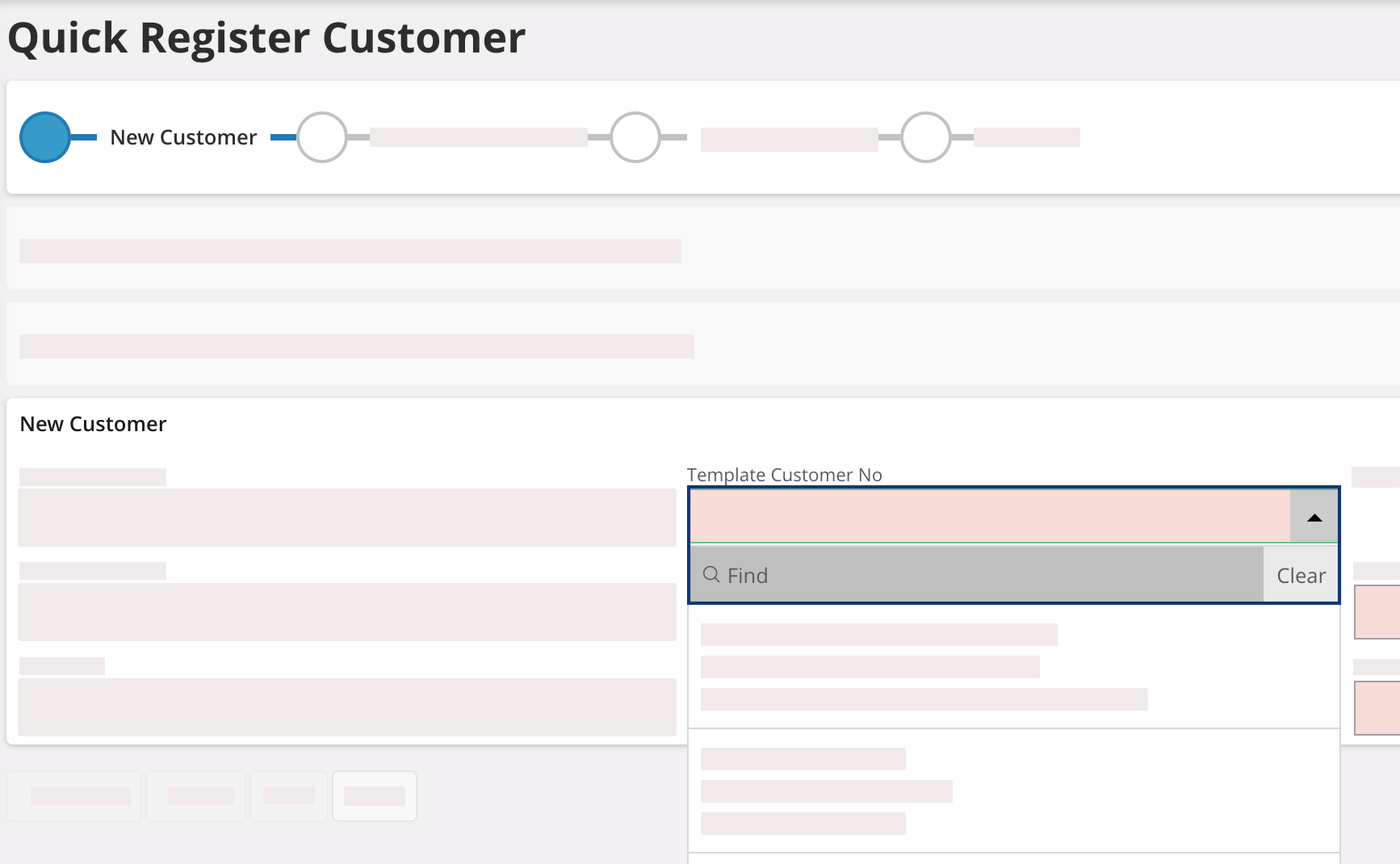
-
Click
 Add to
Favorites heart button in front of
the choices you want to keep, then click Favorites in the toolbar to save
them.
Add to
Favorites heart button in front of
the choices you want to keep, then click Favorites in the toolbar to save
them.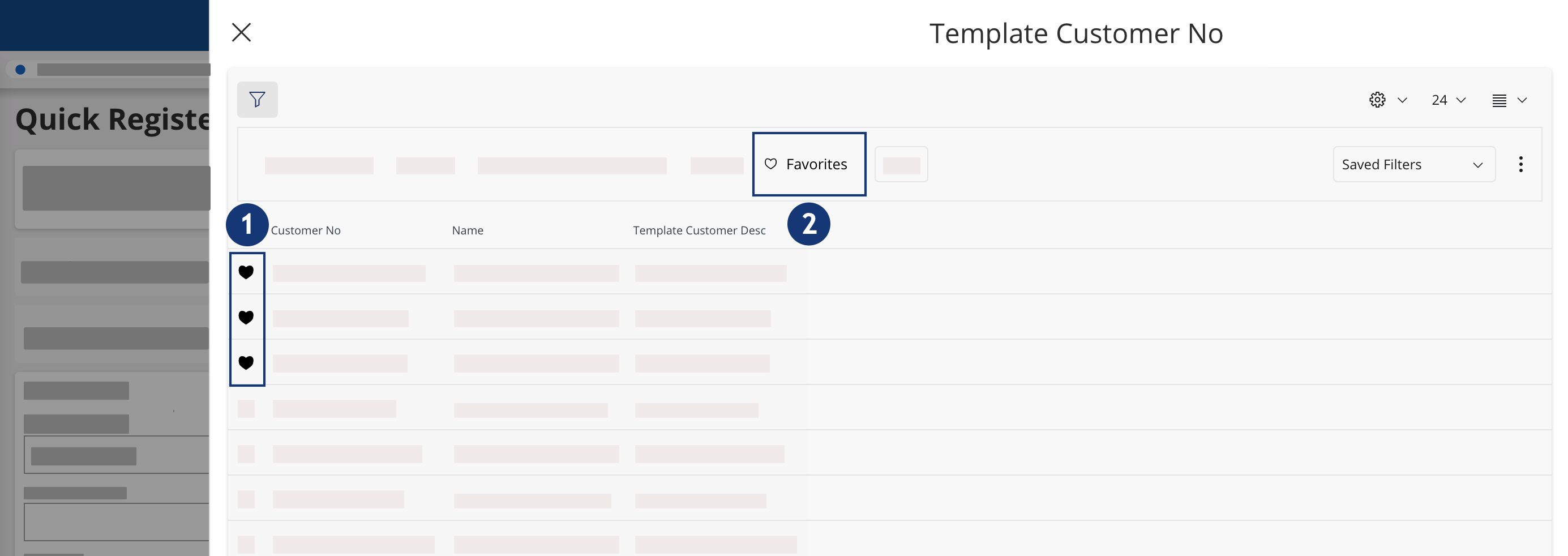
-
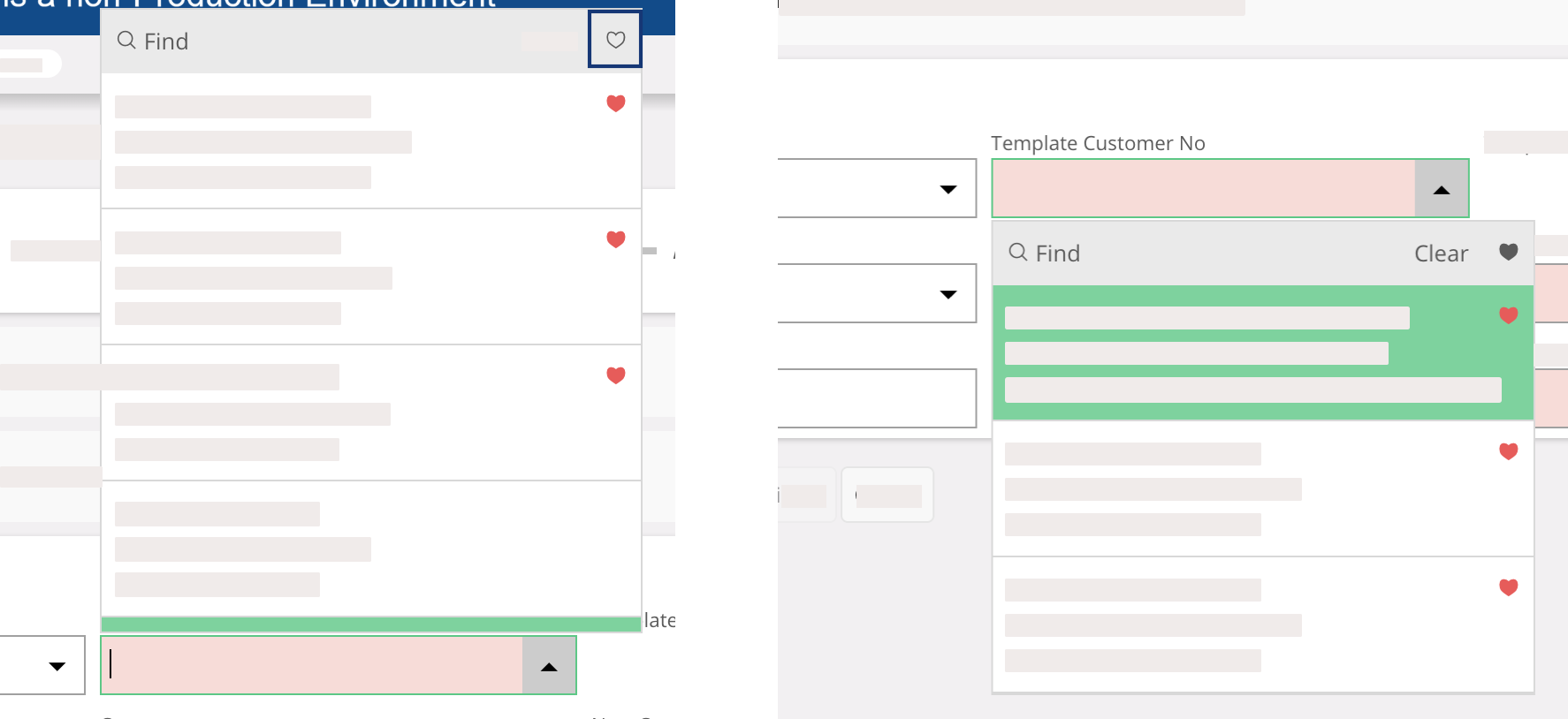
When coming back to the form field, the items saved as favorites appear first
in the list. Click the heart button at the top of the list to only show your
favorites.