
Using Filters on Customer and Supplier Lists
Learn how to apply and save filters specific to customer or supplier lists to save time when browsing the records.
Tip:
Having to browse through large amount of
records can be time-consuming. Using filters will allow you to display only the
records relevant to you, and saving the filters will prevent you from repeating
the operation. Filters can be applied to various kinds of lists.
- Go to the Customers page.
-
Open the Customer and Supplier Filters list, then copy the filter
corresponding to your company and paste it in the Customer filter above the list.
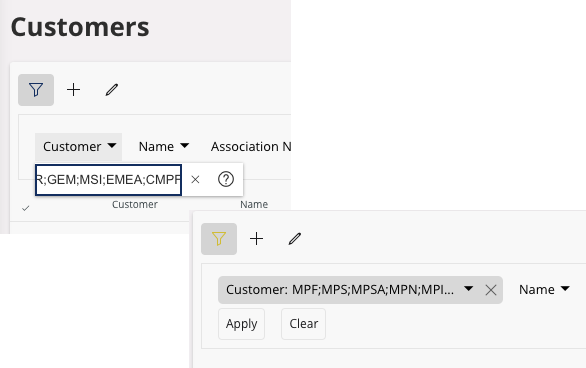
Only customers of your company and intercompany customers are now displayed. -
To save the filter:
-
Click .
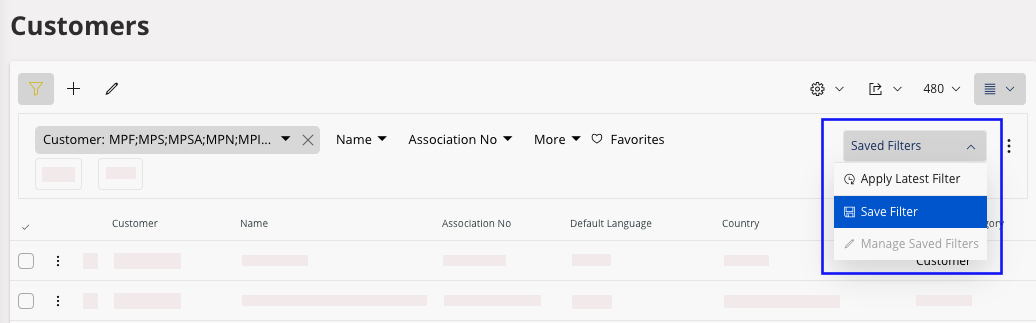
-
From the Save Filter pane, select
Save as new filter, then enter a name and add a
note.
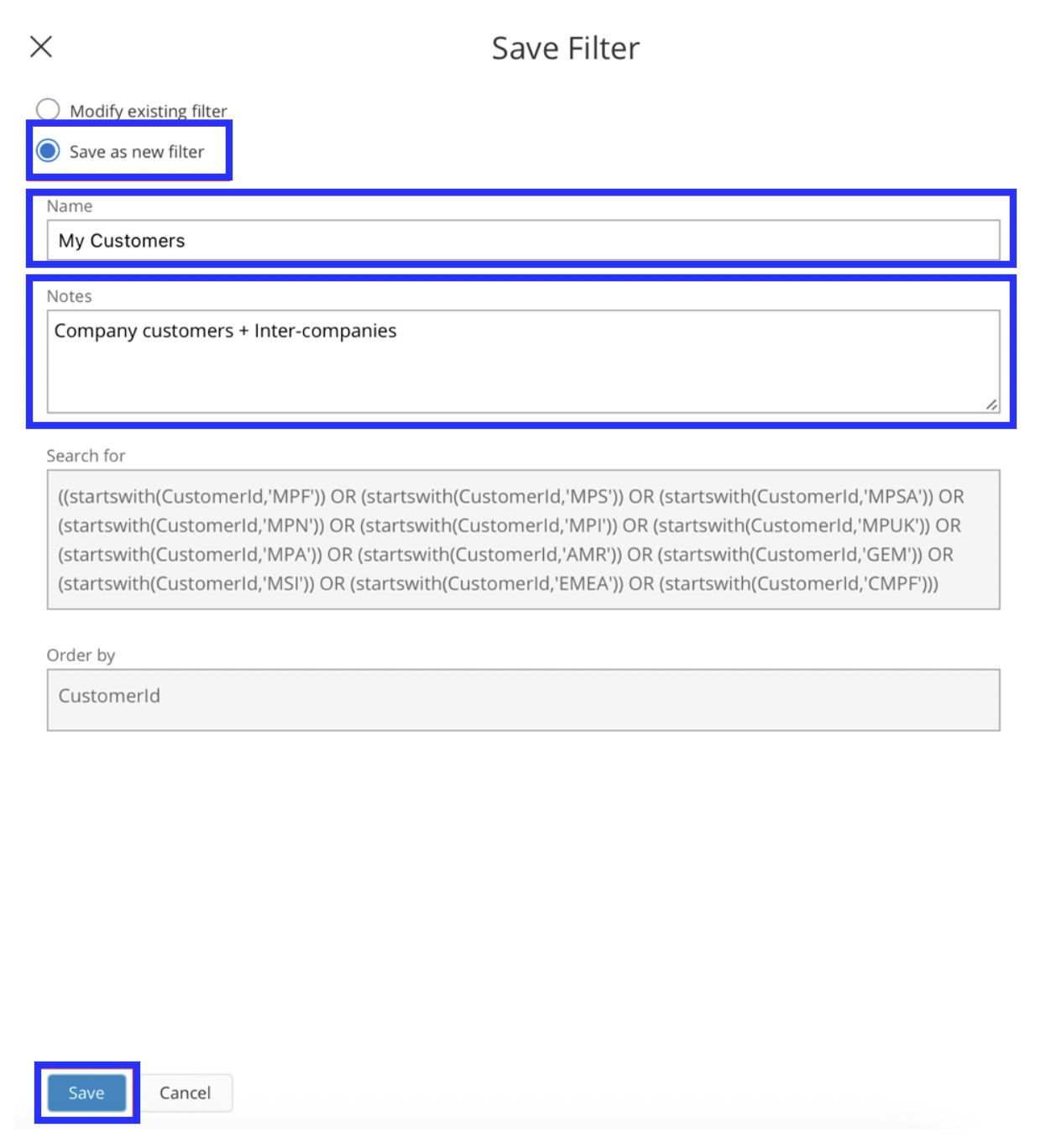
- Click Save.
-
Click .
-
If you want the records to be filtered by default when opening the page:
-
On the right side of the page, click
 > Filter
Settings.
> Filter
Settings.
-
On the Filter
Settings page, under
Startup
behavior, select
Use
filter,
and Saved
filter.
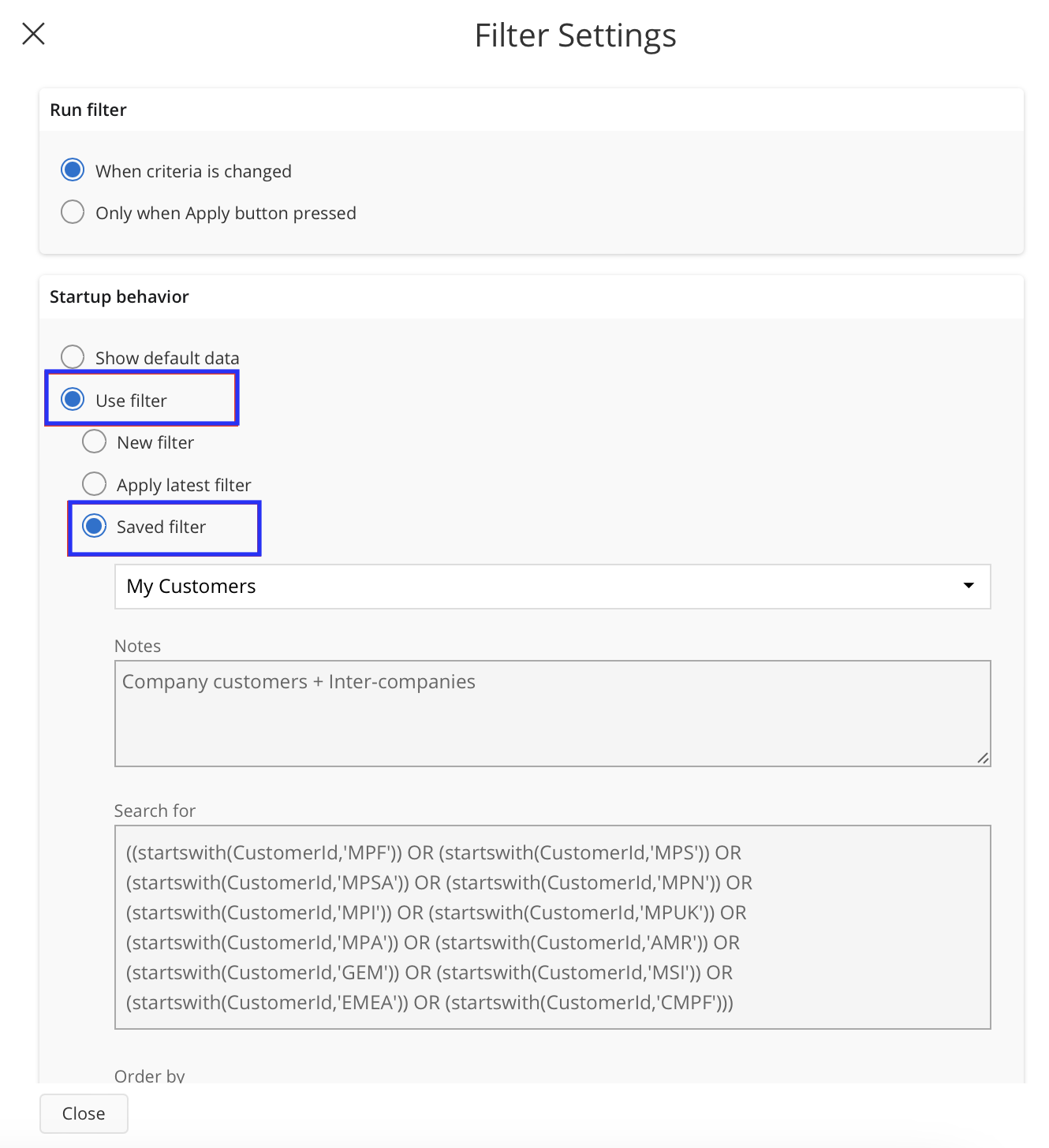
- Select the filter from the drop-down list.
- Click Close.
-
On the right side of the page, click
- Repeat the process for the Suppliers page.