Assigning a Default Cost Code String to a Supplier
Learn how to create a default cost code string for a supplier and automatically insert it in forms (for example invoices or orders) to pre-fill the information.
Tip:
Use the default cost code string to get supplier
information automatically filled in when creating documents such as an invoice or
order.
-
Go to the Suppliers page,
then click
 > Details on the line of the
supplier.
> Details on the line of the
supplier.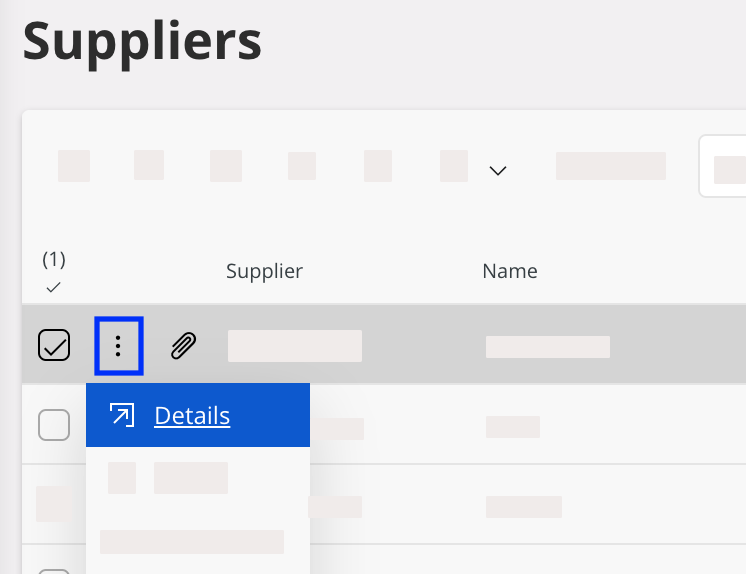
-
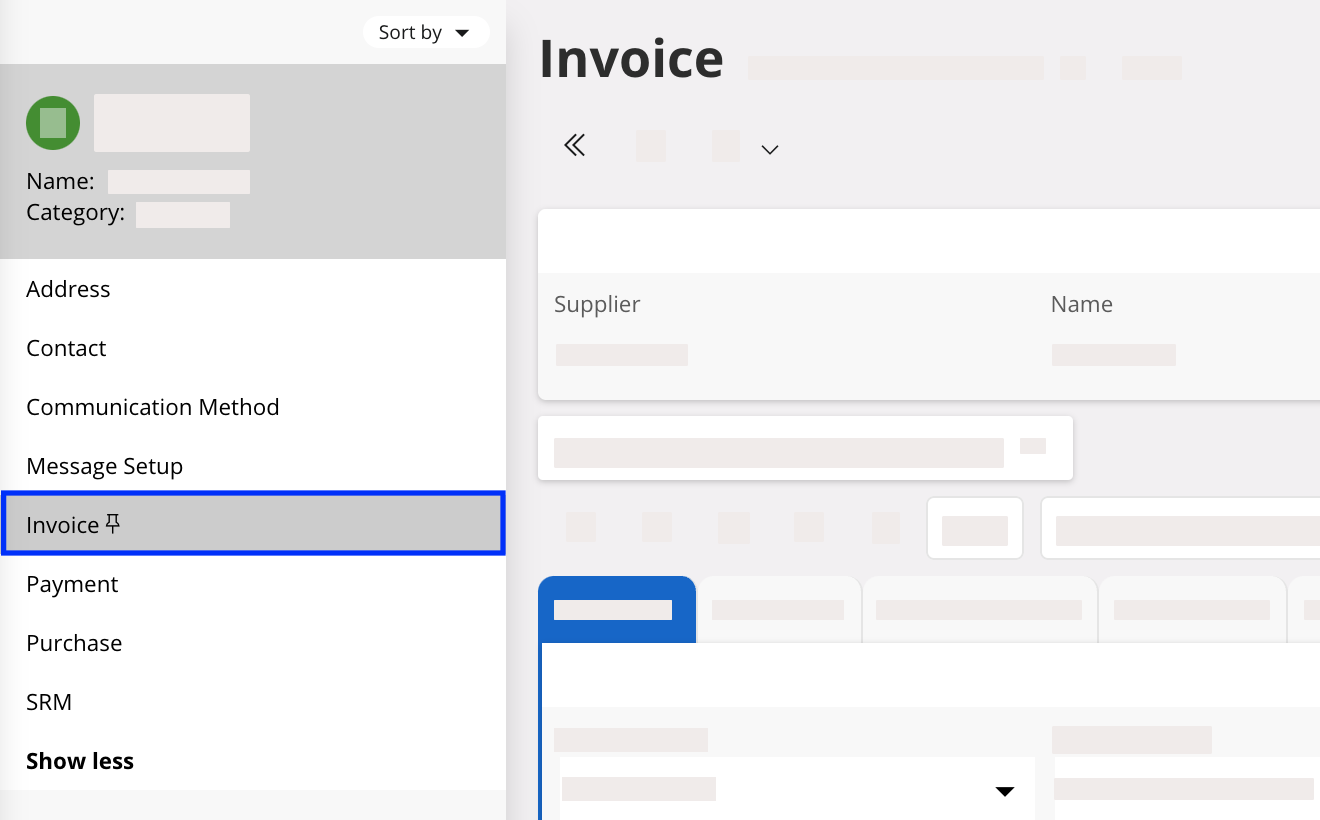
Click the Invoice tab to see
the invoice settings.
-
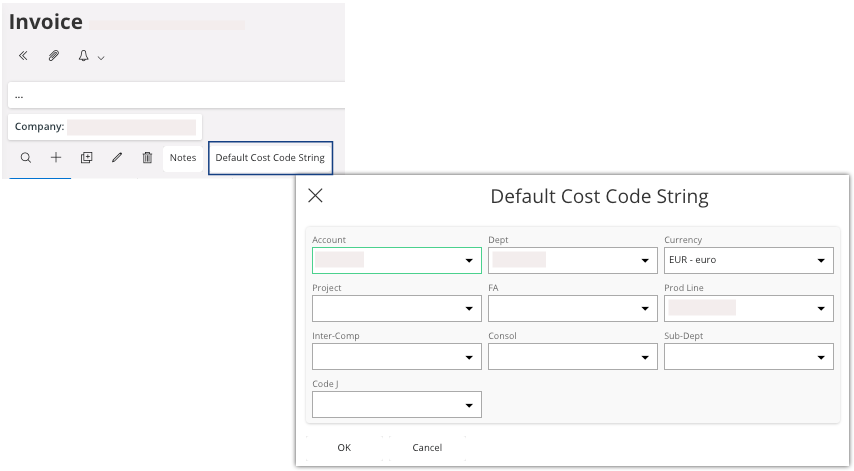
In the toolbar, click Default Cost Code
String and enter
information such as the Account,
Dept or Prod Line that are assigned to the
supplier.
-
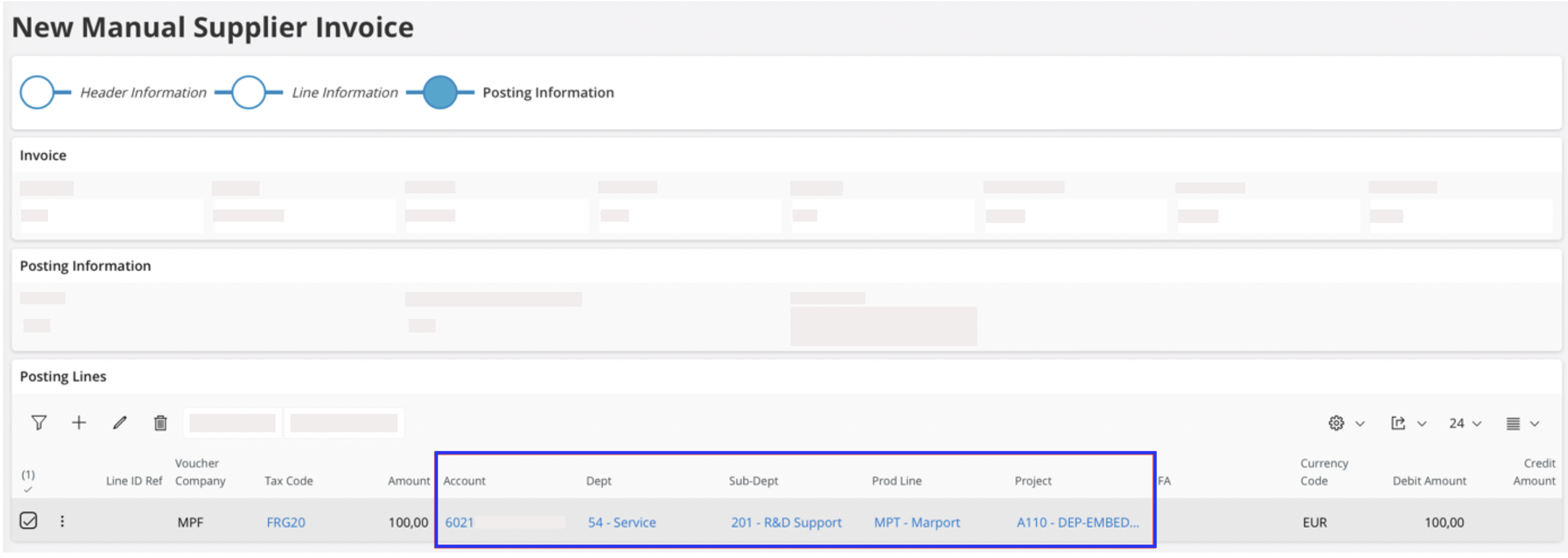
When creating a new manual supplier invoice, at the Posting
Information step:
- Create a posting line. The fields with the information related to the supplier are automatically filled in with the details from the default cost code string.
-
If necessary, you can always modify the fields.