Creating a Purchase Order Using a Purchase Group
If you are not used to accounting tasks and need to do a purchase order for an item, you need to use what is called a purchase group, that correspond to the type of item that you need to order.
- Go to .
- Click New + to create a new purchase order.
- Select a Supplier and click Save.
-
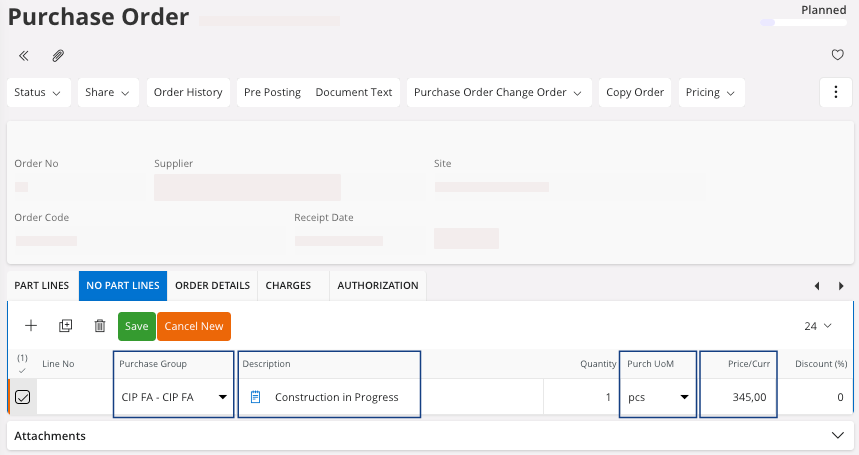
In the tab No Part Lines, fill
the fields:
- Purchase Group: select a purchase group that is marked as CIP (Construction in progress).
- Description: enter Construction in progress.
- Purch UoM.
- Price/Curr.
- Click Save.
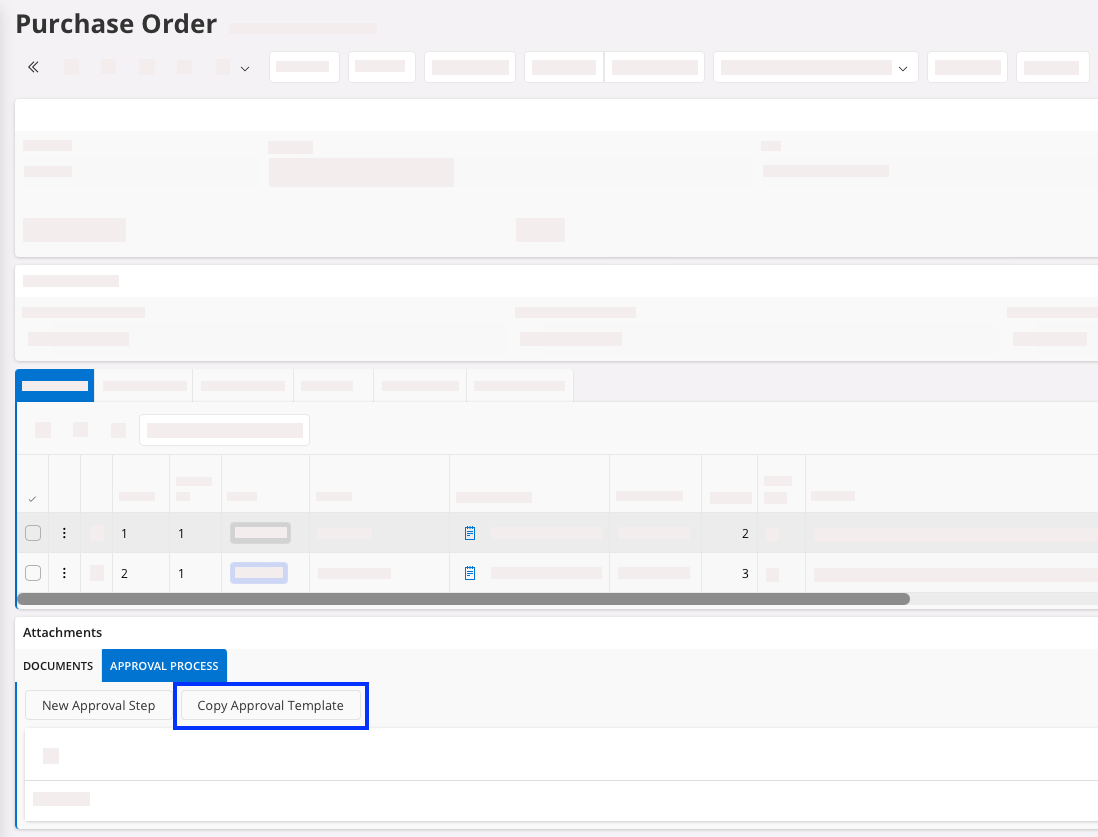
- Expand Attachments panel on the bottom of the page and go to the Approval Process tab.
-
Click Copy Approval
Template.
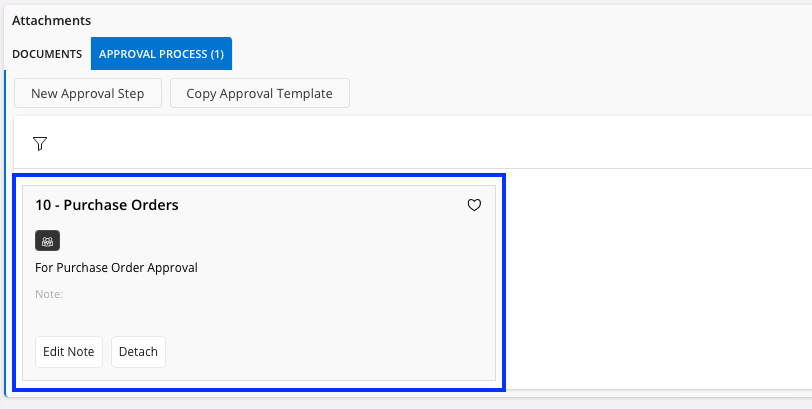
A new pane appears. -
Select the template referring to the approbation of the purchase order.

-
The approbation is now created and will be
validated by the approver.
-
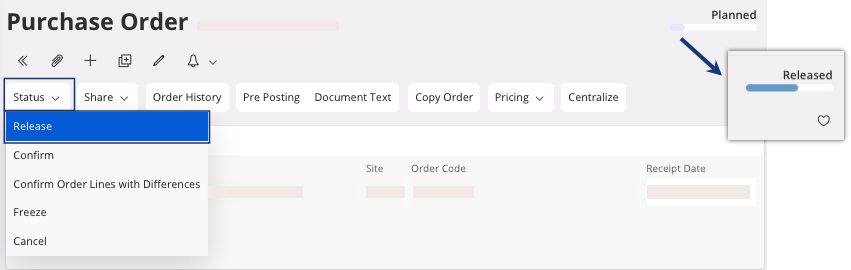
Release the purchase order, click .