
Creating an Approval Template
Identify who can approve document revisions and business objects such as Customer Order Lines or Inventory Parts.
- Go to the page Approval Template.
-
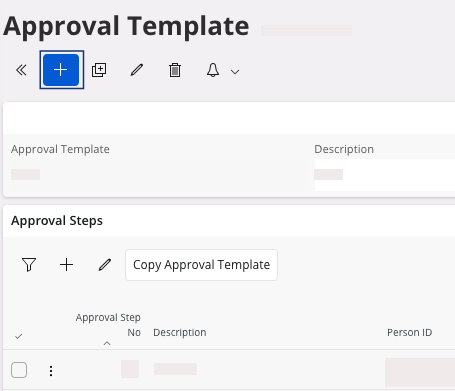
To create a new approval template, click New + at the top of the page.
-
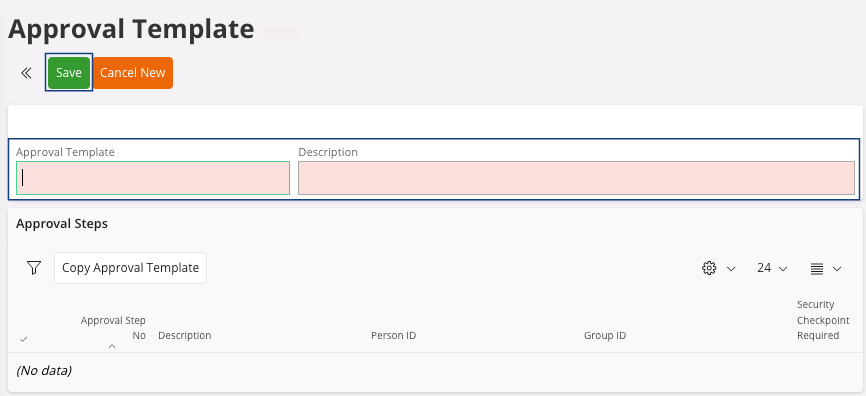
Choose a name for your template in the field Approval
Template you can add a
Description and then click
Save.
-
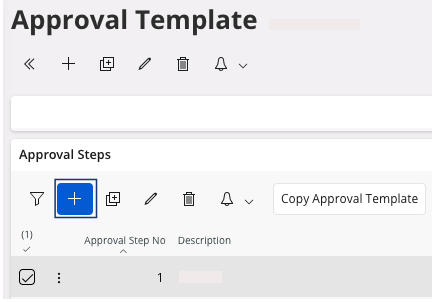
To define the order of the approval, in the Approval Steps area:
-
Click New +.
-
Click Save.
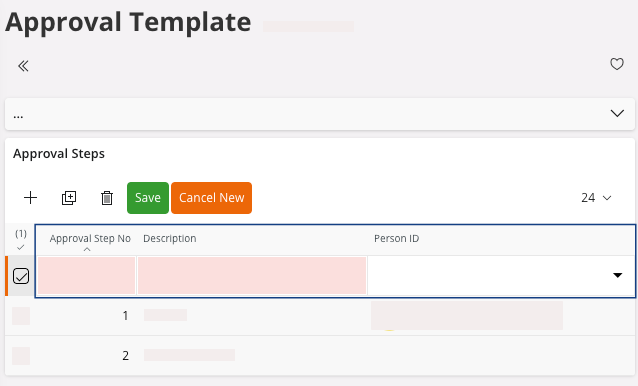
You have created your approval template. -
Click New +.
-
If the service is enabled, you can find the approval process in IFS Cloud pages, scroll
down to see the area Attachments
at the bottom of the page.
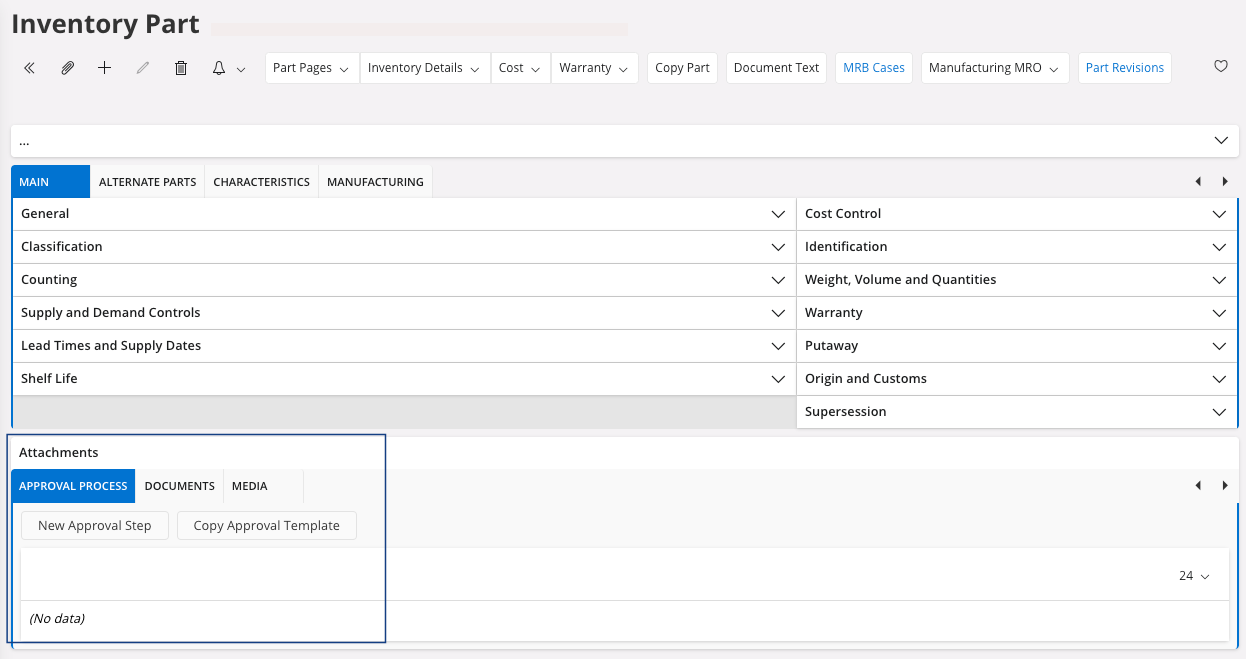
Note:If the service is not enabled and you need it for the process, contact the IT team. -
To establish an approval process on an existing business object, click
Copy Approval
Template.
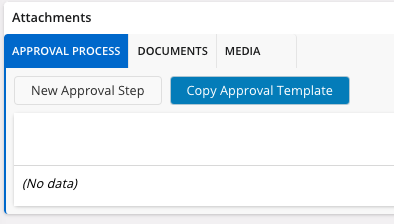
A pane appears. -
In the field Template, select
the correct approval template and click OK.
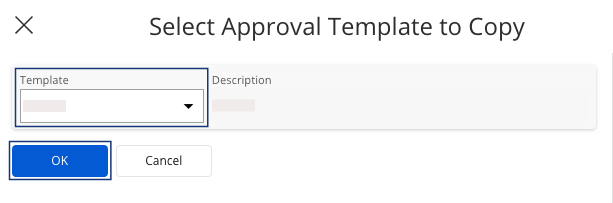
You linked an approval template to your process. -
If you need to detach approval template steps on business objects, you can do
it if the steps have not been approved or rejected:
- At the bottom of the pages concerned by this process, scroll down to the area Attachments.
- Click Detach on the step you want to detach.
- A dialog appears, click OK.
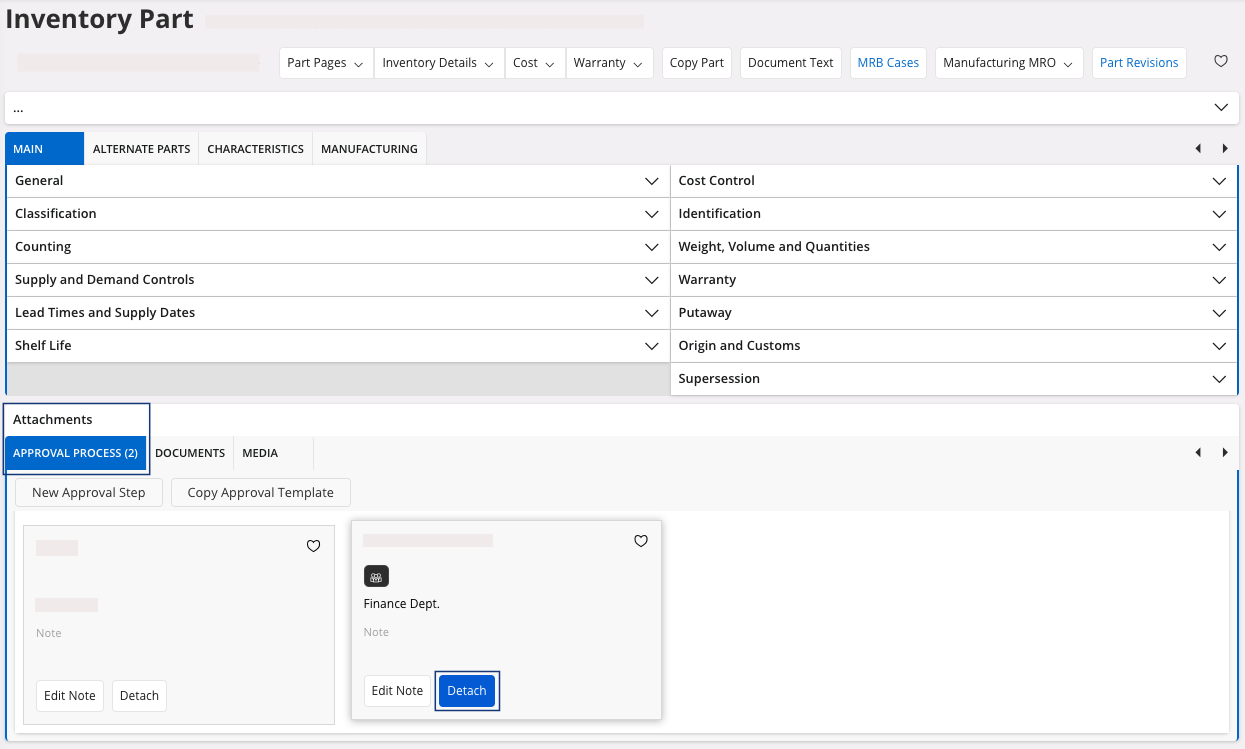
-
If you need to approve objects:
- Go to the Approvals page.
-
For each line, click the three dots
 , then click Approve Step or Reject Step.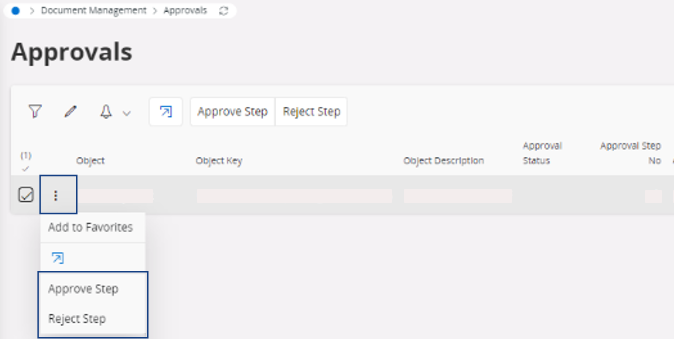
- Once you approve or reject a step, it will go to the next user or user group.