
Ordering Reports
Searching for a report.
- Go to the page Order Report.
- Filter the lines according to the Report Name, Report Type, Domain and Category.
-
To order the report, on the line that you want, click the three dots
 and click Order Report.
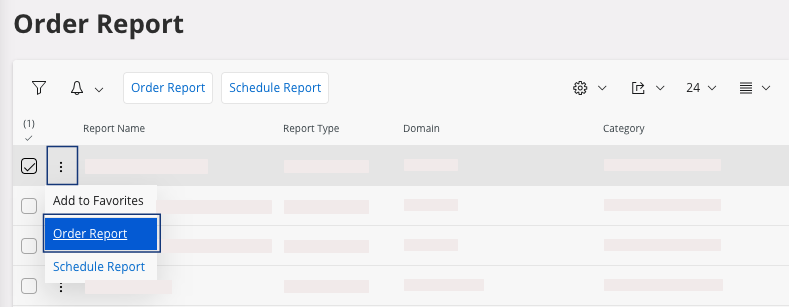
A new page appears. -
Fill in the report with the necessary parameters according to the report
chosen. For example, for an inventory transaction report, you need to fill the
Transaction Report
ID.
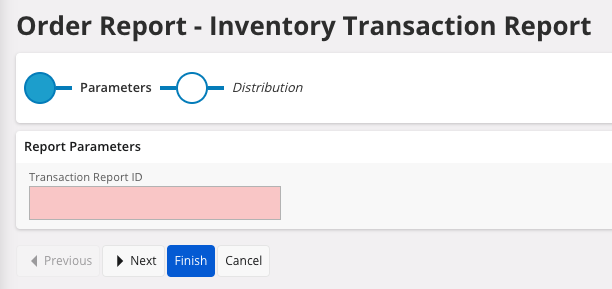
-
Click Execute or Finish according to your report.
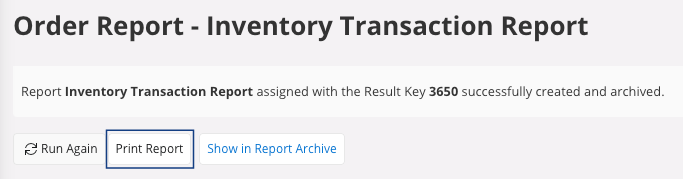
On the page, a message appears regarding your report being successfully created and archived.
-
To print and email your report, click Print Report.
The Report Format & Output pane appears. -
You have several options:
- Preview button: to do before
printing. Click Preview: the
document appears on your screen. From here, you can check your information,
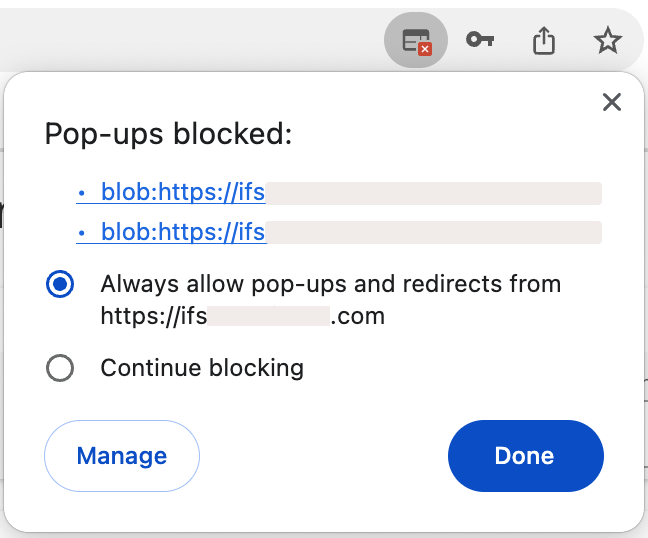
print your document or keep it on your computer in PDF.Trouble:If the preview is not displayed, your browser might block your pop-ups. Check your authorization in your browser settings.
- Print: if you want your document on paper, choose your printer, or if you want to keep it on your computer in PDF, choose IFS PDF Archiver.
- Email: fill in or check the email address and send it.
- Preview button: to do before
printing. Click Preview: the
document appears on your screen. From here, you can check your information,
print your document or keep it on your computer in PDF.