
Selling to an Intercompany Customer
Manage customer orders from an intercompany customer, from receiving the order to sending the invoice.
Notice:
When an intercompany purchaser creates a purchase order for your
company (as described in Making a Purchase from an Intercompany Seller), this automatically
creates a customer order for your company.
- To display the customer order that was automatically created by the intercompany purchaser, go to the page Incoming Customer Orders.
-
Select the line you want to display and click Details.
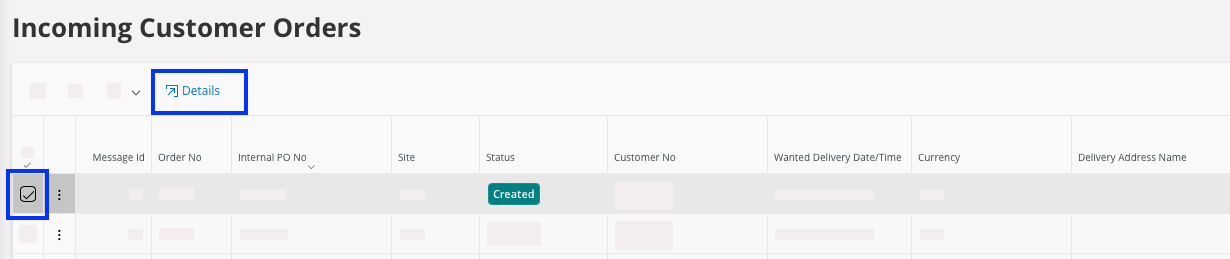
The Incoming Customer Order page appears. -
Click Customer Order to display
the customer order details.
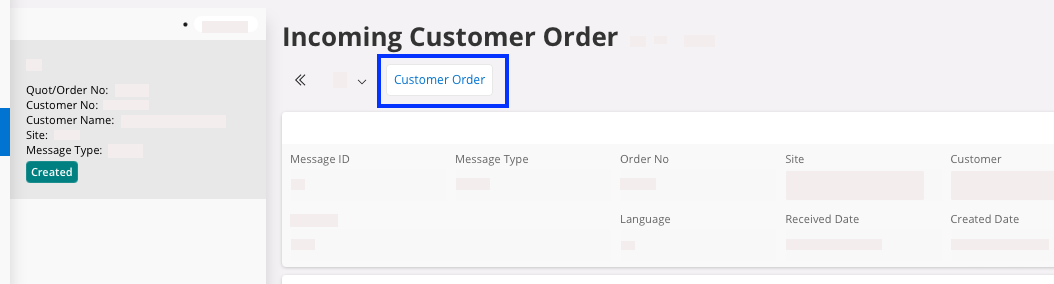
-
If needed, you can change the price, quantity and discount amount that are
shown on the Customer Order page
.
Note:Charges are not synchronized with the intercompany process. The charges must be added manually to the purchase order by the purchaser and to the customer order by the seller.Note:If your purchaser makes a change on the purchase order, you can check it on the page Incoming Change Request for Customer Order. You can also display the customer order from this page.

- Once you have validated the customer order among your team, change its status from Planned to Released status: see Changing Customer Order Status.
-
To send the order confirmation to you purchaser, click .
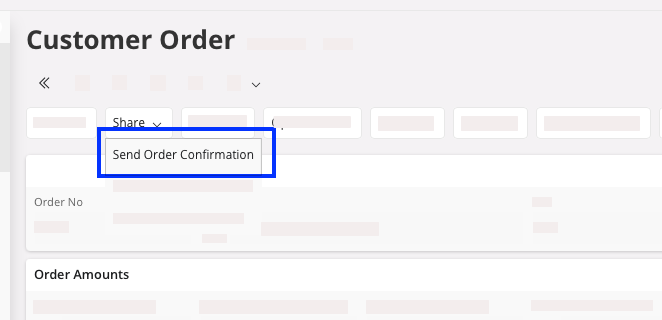
-
Do not change the Order No, Receiver, and Media Code (they should be
automatically completed) and click OK.
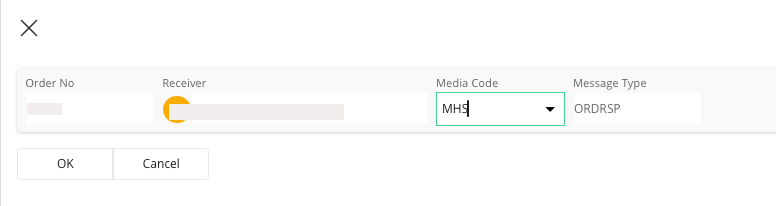
- Reserve the customer order: Reserving an Order.
- Deliver the customer order: Delivering a Customer Order.
- Create the invoice of this customer order: Creating a Full or Partial Invoice.
- Check and print the invoice: Printing an Invoice.
- Download the invoice on your computer and email it to the intercompany purchaser.