
Printing an Invoice
Once your invoice have been controlled and fit with your expectations, you can print it.
When you are sure about the final invoice, you can print it. It will generates the final invoice report that you can send to the customer.
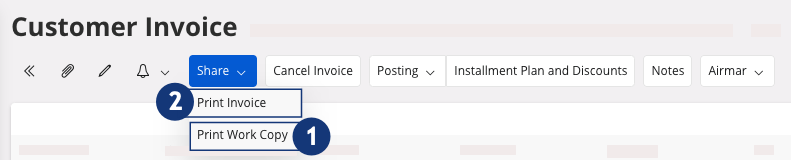
- On the page Customer Invoice, to control the result of your invoice, click .
-
You have several options:
- Preview button: to do before
printing. Click Preview: the
document appears on your screen. From here, you can check your information,
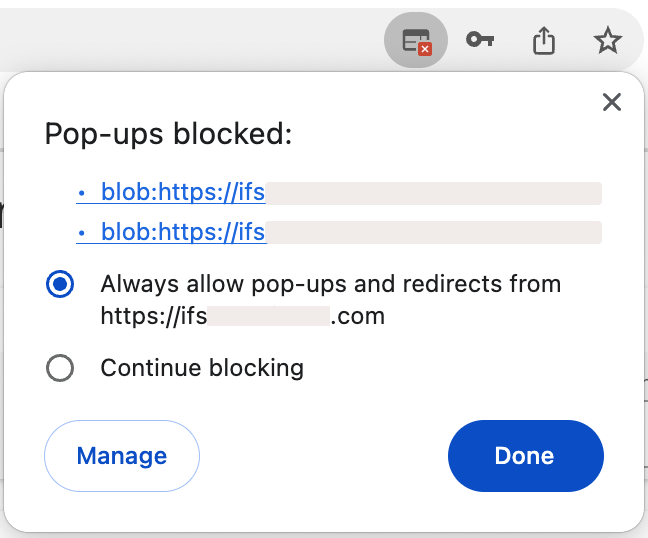
print your document or keep it on your computer in PDF.Trouble:If the preview is not displayed, your browser might block your pop-ups. Check your authorization in your browser settings.
- Print: if you want your document on paper, choose your printer, or if you want to keep it on your computer in PDF, choose IFS PDF Archiver.
- Email: fill in or check the email address and send it.
- Preview button: to do before
printing. Click Preview: the
document appears on your screen. From here, you can check your information,
print your document or keep it on your computer in PDF.
-
To print the final invoice, click .
Once printed, the status of the Invoice change to Posted Auth.Note:You can print again the invoice: .