
Making a Purchase from an Intercompany Seller
Manage purchase transactions with an intercompany seller, from making the order to receiving the invoice.
-
Create a purchase order: Creating an External Purchase Order.
Note:Charges are not synchronized with the intercompany process. The charges must be added manually to the purchase order by the purchaser and to the customer order by the seller.
- Release the purchase order: Changing the Purchase Order Status to Released.
-
Click to send directly the purchase order to your intercompany
seller.
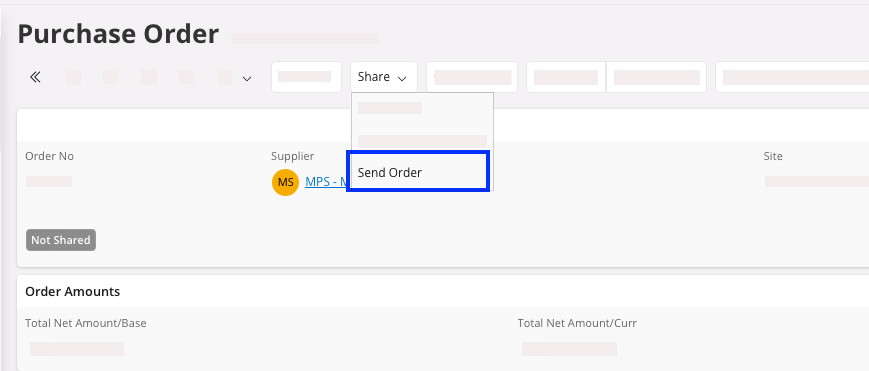
-
The Send Order pane appears.
Do not change the Order No, Receiver, and Media Code (they should be
automatically completed) and click OK.

Once the order sent, you need to wait for the seller to check and confirm the order. Once confirmed, the status of your purchase order changes to Confirmed. -
If you need to make a change to your purchase order (for example the purchase
part or quantity), change the details then click to notify the seller, who will need to confirm the changes.
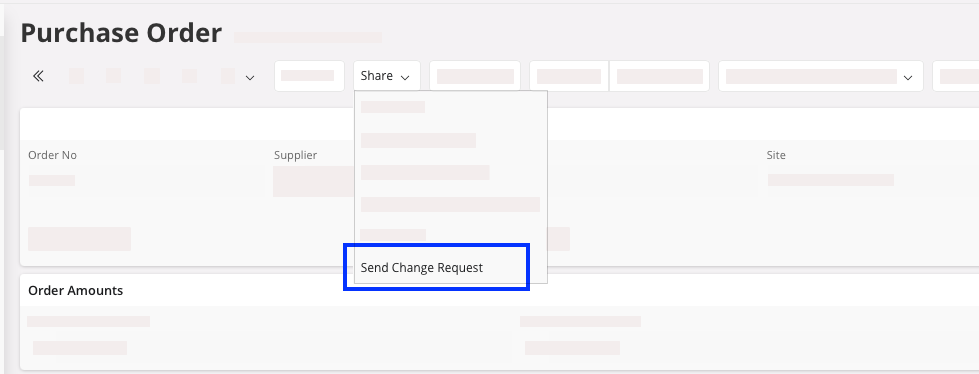
Note:The changes are applied only once the seller has accepted the change request. The seller has the final word on the order. - When you receive your order, go to the Incoming Dispatch Advice page.
-
Open the filter bar, and use the Delivery Note No filter to find the
order.
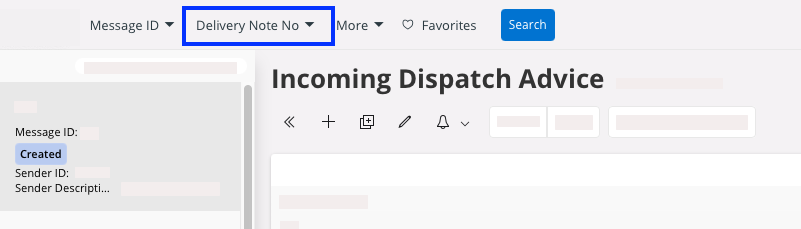
-
Select the corresponding delivery note and click Receive.
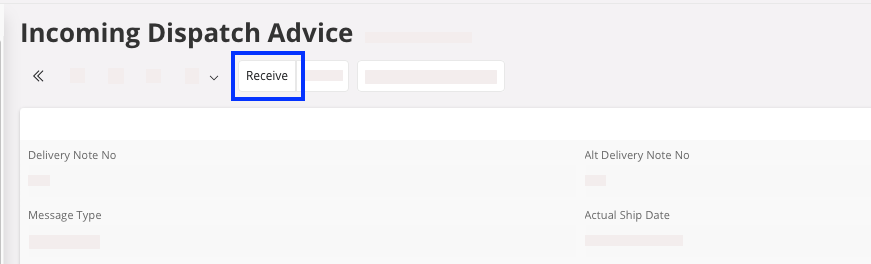
-
Choose your Site and Location No, then check that the
Receipt
Reference number is
correct.
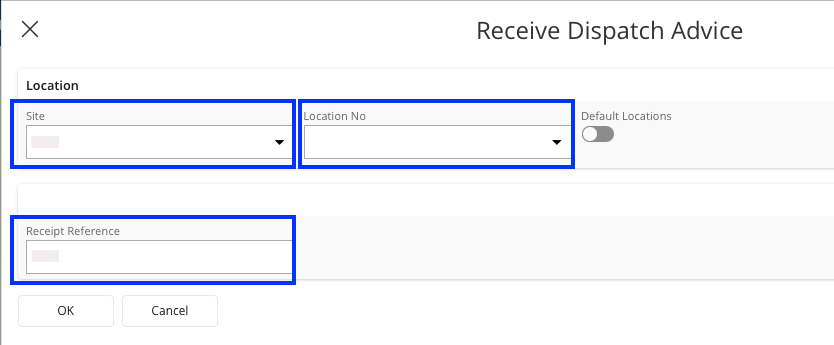
The status of the order changes from Created to Arrived. If products in your purchase order were sent separately, the status changes to Closed only once you have marked all the orders as Receive.
Note:
About the invoice: IFS does not automatically
send the invoice for this transaction. The intercompany seller must send you the
invoice by email.
- Once you have received the invoice, register it: Adding a Financial Invoice.
- Finalize the process by Approving the Invoice and Posting the Final Invoice.