
Creating a Full or Partial Invoice
You can deliver an invoice for all the lines or you can create an invoice only for some lines.
Standard Invoice
Perform this process if the customer order must be invoiced without any shipment details and if you need to invoice all the lines of the customer order.
-
Go to .
You get the list of customer orders available for invoicing.
-
On the line you want to have an invoice for, click the three dots
 and click Create Invoice.
Note:Make sure to remember the number of your Customer Invoice to make changes in your invoice or print it.
and click Create Invoice.
Note:Make sure to remember the number of your Customer Invoice to make changes in your invoice or print it.
If not, you can now print your invoice: perform Printing an Invoice.
Partial Invoice
Perform this process if you want to exclude lines from the invoice of the customer order.
To exclude lines from the invoice, they must be flagged as Invoice
Blocked:
- Go to the page Customer Order and find your line.
-
To edit the line, click Edit
 : activate the button Invoice
Blocked and click Save.
In the example below, the invoice will be created only for the third line, because the first is blocked and the other ones are not Delivered.
: activate the button Invoice
Blocked and click Save.
In the example below, the invoice will be created only for the third line, because the first is blocked and the other ones are not Delivered.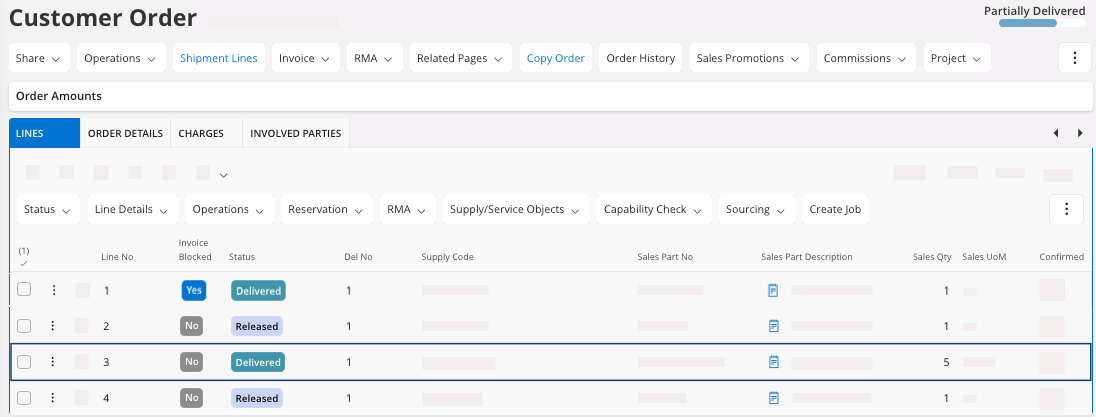
Note:
After the creation of a standard invoice, the line invoiced get the status
Invoiced/Closed in the page
Customer Order.
If not, you can now print your invoice: perform Printing an Invoice.