
Creating a Customer Settlement
If you have not matched your payment(s) with the corresponding invoice(s), through the process Settling Available Transactions in the Account, you can do a settlement.
- Go to .
-
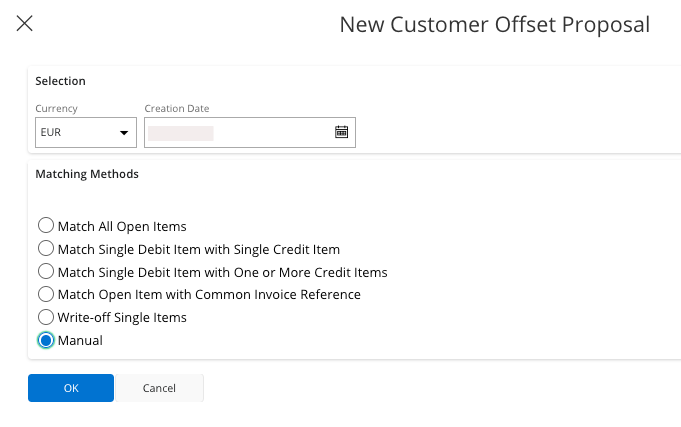
Click New Proposal.
A new pane appears.
-
In this pane, in the area Matching
Methods, select Manual and click OK.
-
Select the proposal that you just created, click the
three dots
 and click Details.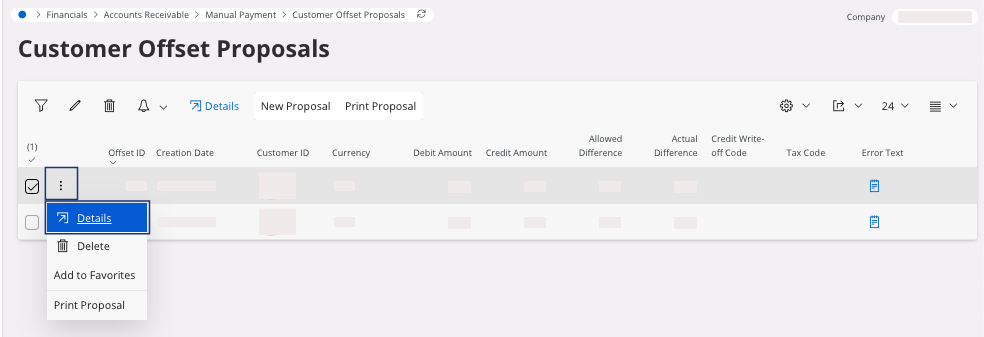
Tip:Use filters, for example the Creation Date to find your open proposals.The Customer Offset Items page appears. -
In the area Offset Items, click Select Multiple
Invoices/Prepayments.
A new pane appears.
-
Choose the invoice(s) and the payment that
match in the list and click OK.
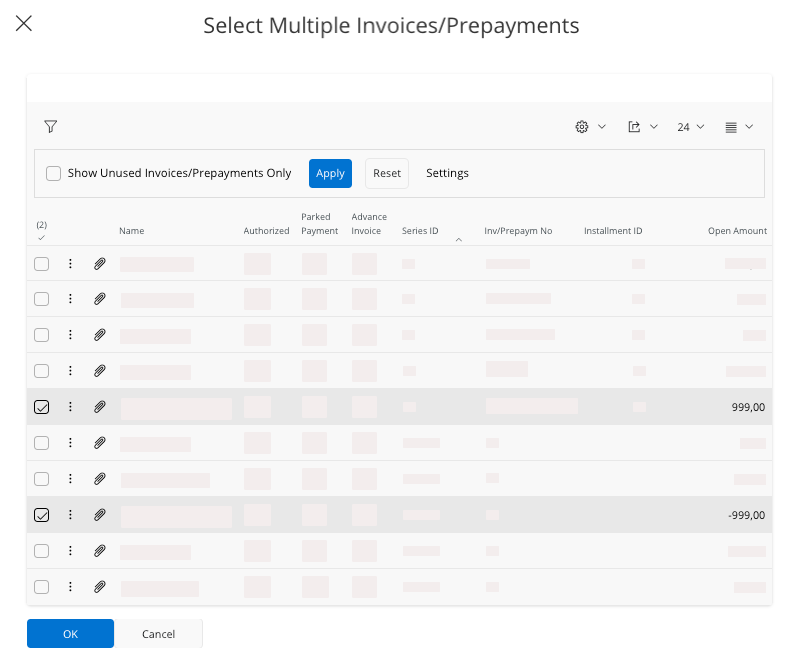
Note:Use filters, for example the filter Name to find invoices linked to your customer.The difference between the invoice and the payment should be equal to 0. -
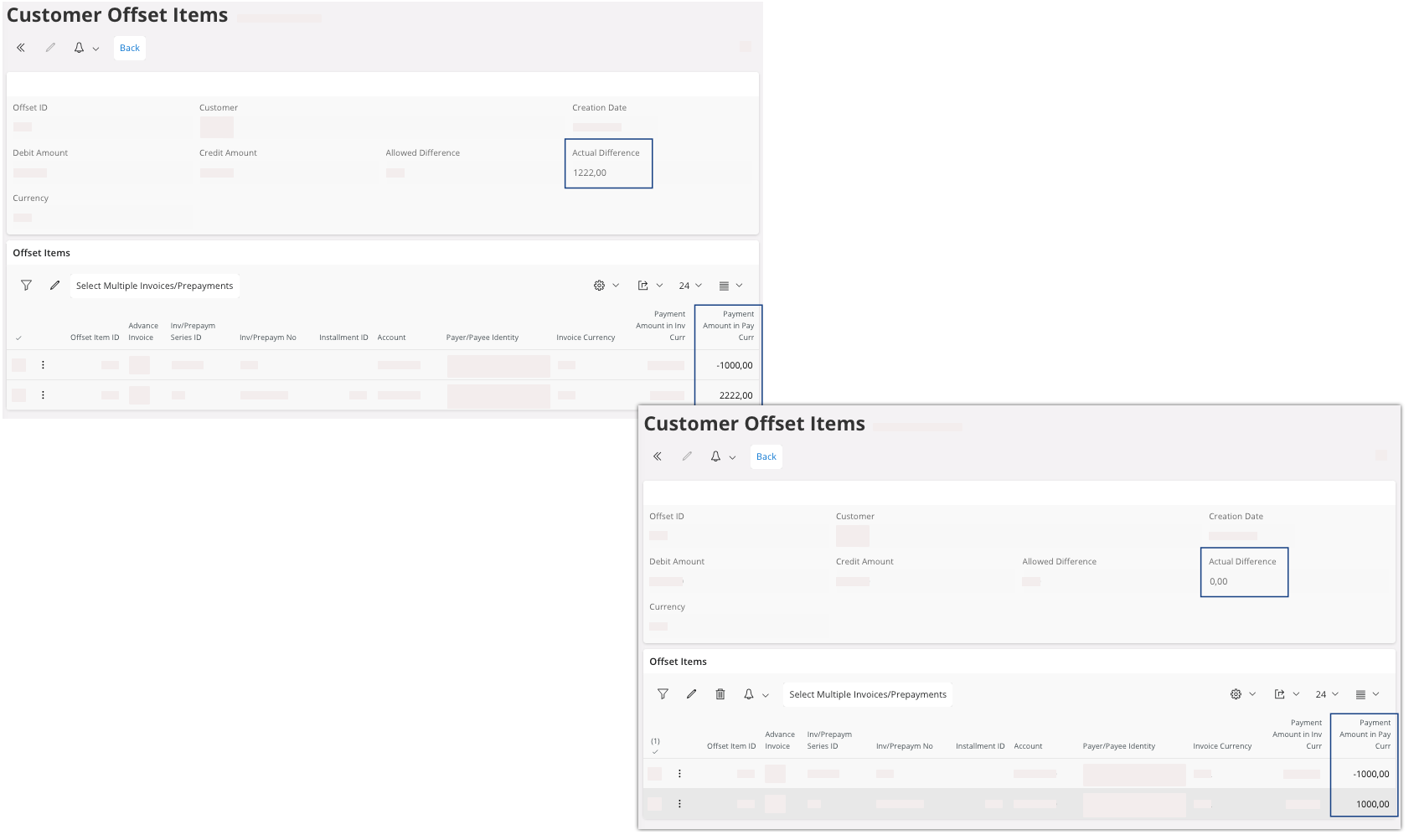
If you want to match a partial payment, for example if the payment is less than
the total amount of the invoice, you need to change a field. On the page
Customer Offset
Proposals, in
the area Offset Items:
-
Click Edit
 .
.
- In the invoice, change the field Pay Amount in Pay Curr.
-
Click Edit
- To go back to the page Customer Offset Proposals, click Back.
-
If the contents are correct, select your line and click
Approve Offset.
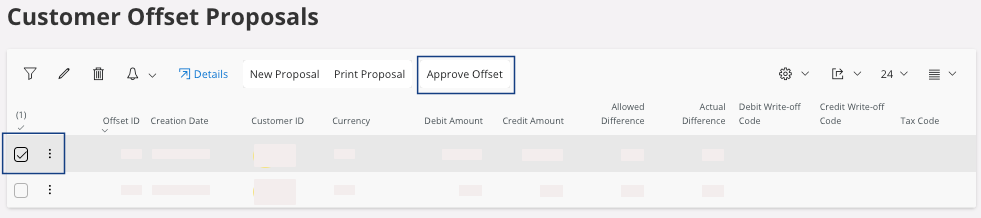
A new pane appears. -
Check the Voucher
Information and click
OK.
The offset proposal has been approved.
- You can preview the information and click OK.