
Settling Available Transactions in the Account
You can match your lines directly with the open invoice(s) for your customer. The lines must reflect what you received from your bank account.
-
On the Transactions tab, click the three
dots
 and click Edit
Transactions.
and click Edit
Transactions.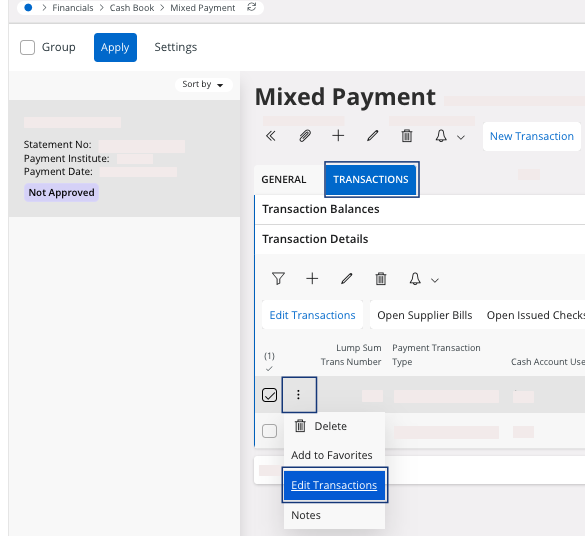
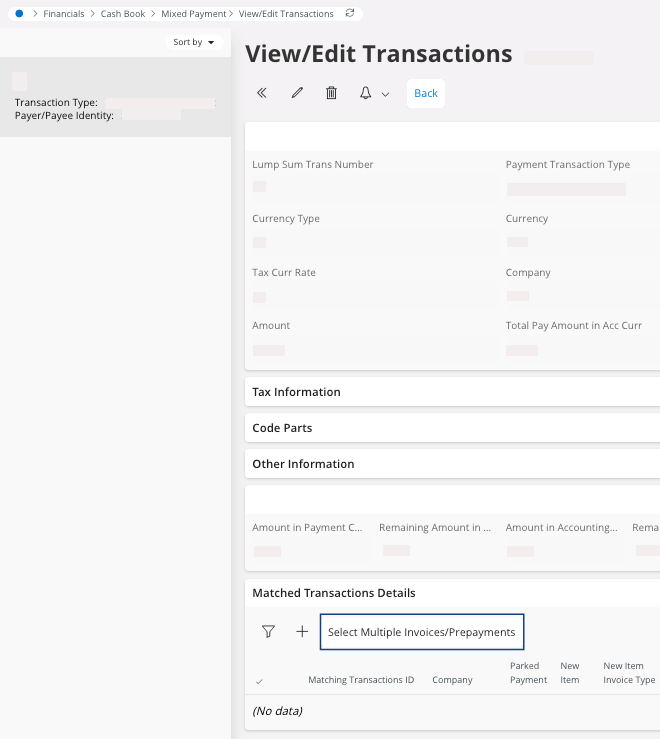
A new page appears. -
In the area Matched Transactions
Details, click
Select Multiple
Invoices/Prepayments.
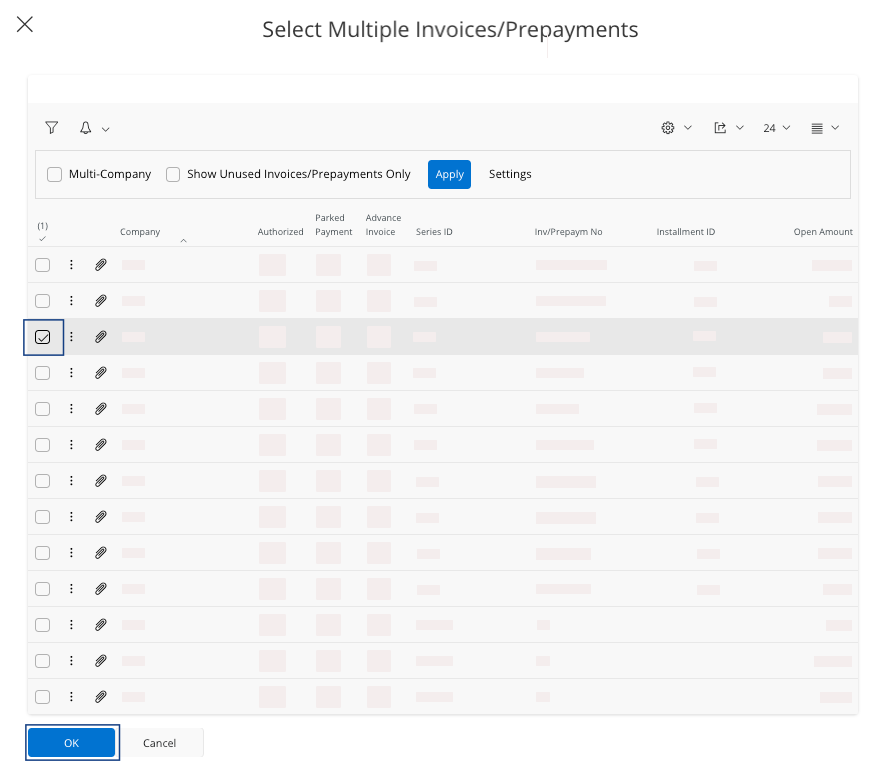
A pane appears. -
Select the line(s) that you want to link your payment
with, and click OK.
-
If your customer did a partial payment for this invoice, you need to change a
field. On the page View/Edit
Transactions, in the area
Matched Transactions
Details:
-
Click Edit
 .
.
- Change the field Pay Amount in Pay Curr with your correct payment amount.
-
Click Edit
-
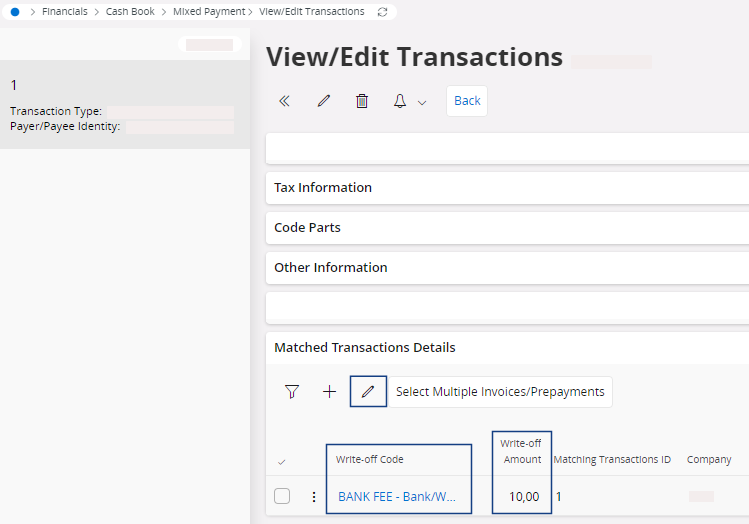
In some specific situations, you could have to write off amounts. For example,
to exclude the bank fees of the payment. On the page View/Edit
Transactions, in the area
Matched Transactions
Details,
you need to fill the fields:
- Write-off Code with the reason of the write off.
- Write-off Amount with the amount associated.
-
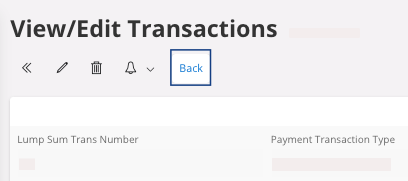
To go back to your mixed payment: click Back.
- Perform the same process for your other Transactions lines.
-
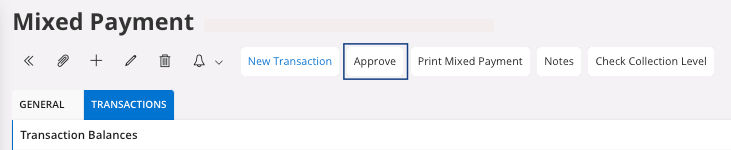
To approve your mixed payment, in the header,
click Approve.
Note:If you did not match your mixed payment with your invoice at this moment, a dialog will appear. Click OK to continue without the invoice or click Cancel to change your information.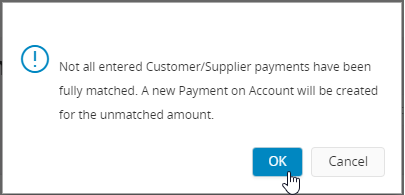 A new page appears: Voucher Information.
 - Take note of the Voucher Information, and click OK.