Creating a Settlement for an Advance Invoice
You need to settle your mixed payment with your advance invoice.
Creating a New Mixed Payment
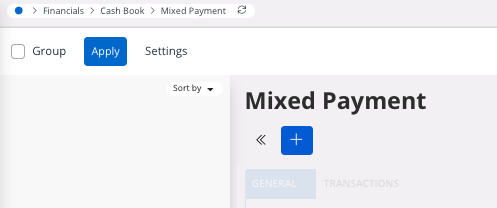
- Go to .
-
Click New +.
-
Select the Cash Account.
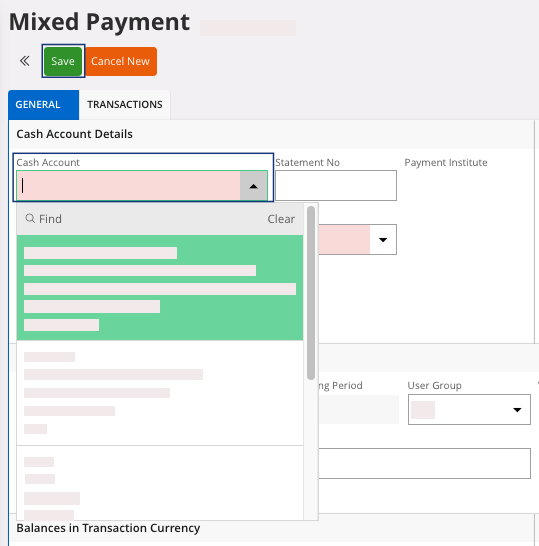
- Click Save.
Matching the Payment with the Invoice
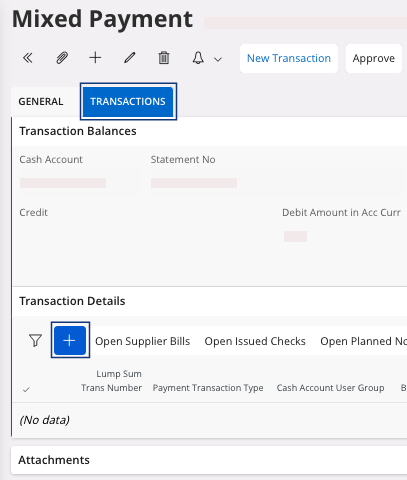
- Go to the tab Transactions.
-
Click New +.
-
Fill the following fields:
- Payment Transaction Type: for a customer payment, select Enter Customer Payment.
- Payer/Payee Identity: enter your customer.
- Amount: you need to enter 0.
Note:You need to enter a null amount to prevent a new payment to be registered, since it has already been registered before. -
Select your line, click the three dots
 and
click Edit
Transactions.
and
click Edit
Transactions.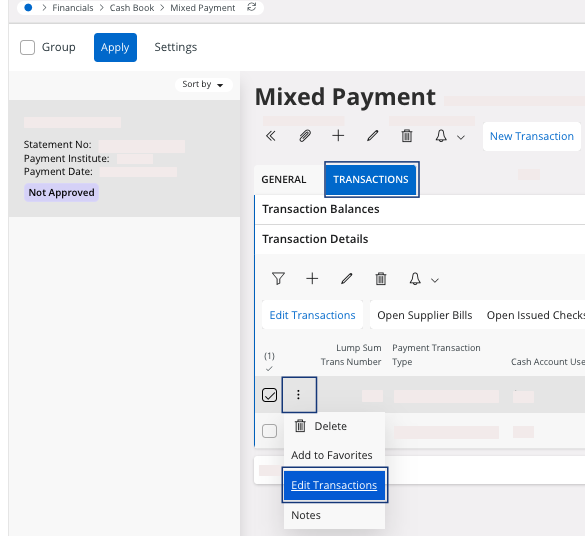
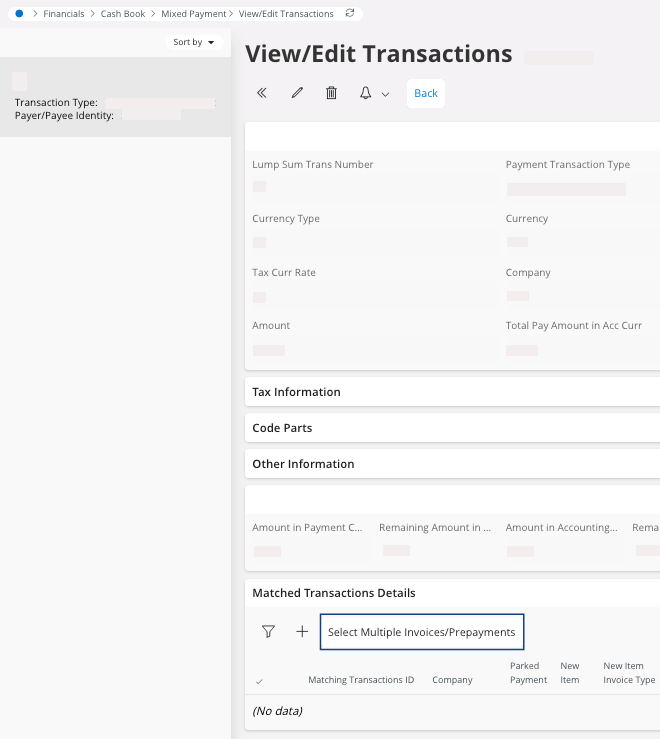
A new page appears. -
In the area Matched Transactions
Details, click
Select Multiple
Invoices/Prepayments.
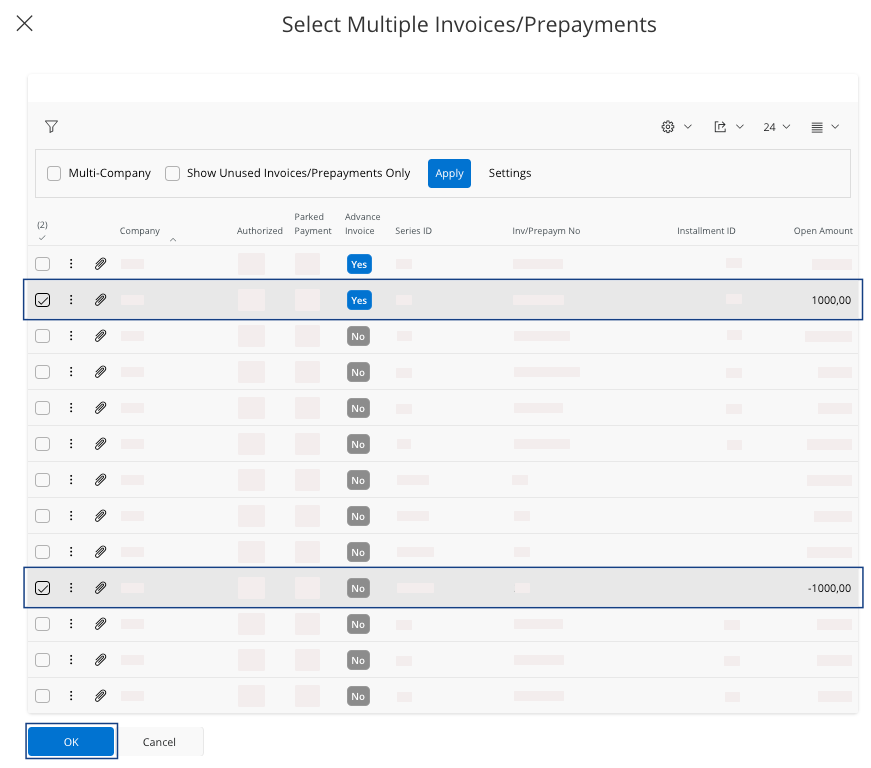
A pane appears. -
Select the advance invoice and the mixed payment already registered to
match them and click OK.
-
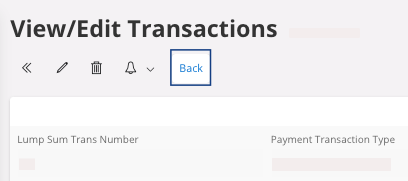
To go back to your mixed payment: click Back.
-
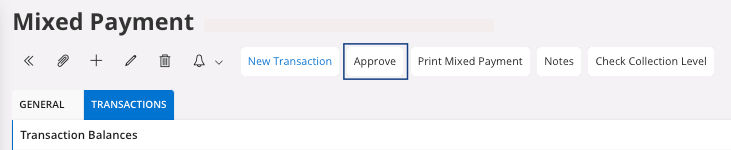
To close your mixed payment, click Approve in the header.