
Managing Product Rentals
The following processes explain how to manage short-term or long-term product rentals.
Short-Term Product Rentals
This section explains how to manage stock movements, sales quotation, customer order and invoicing for short-term product rentals.
-
Move the part that you want to rent from your stock to the Consignment stock, by following the
process described in Moving Inventory Part.

Note:Parts are not physically in the Consignment stock. The aim is to keep track of parts that are under a short-time rental process and create the right accounting movement into a stock under consignment. - Create a sales quotation for the customer to whom you are selling the product by following the process described in Creating a Sales Quotation.
-
In the sales quotation, add a new line defining the
monthly details of the rental:
- In Sales Part, select L-XX-LOAN or L-XX-RENTAL depending on the type of contract (XX referring to your country).
- In Sales Qty, enter the number of months corresponding to the rental duration.
- In Price/Curr, enter the amount due per month.
-
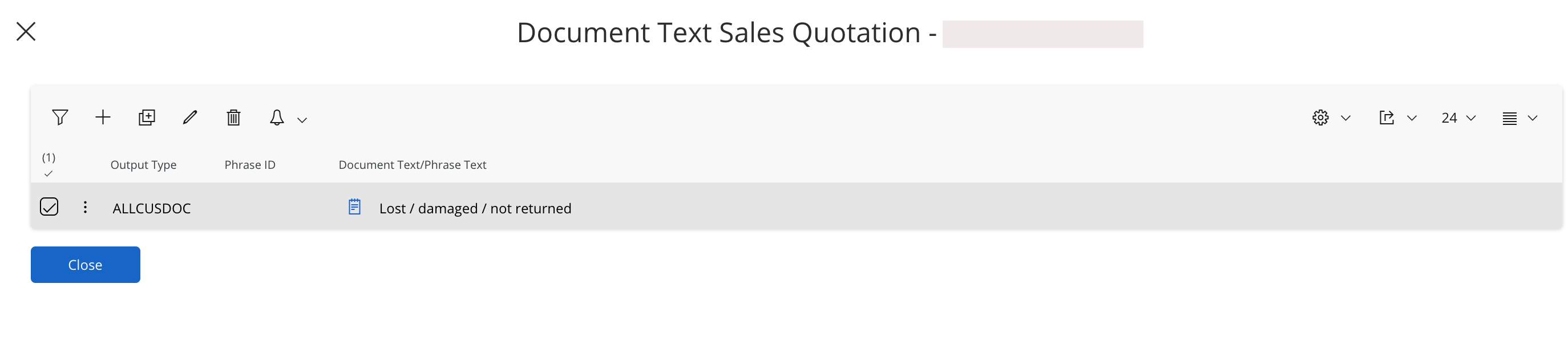
Select the line, then click Document Text in the
Lines
toolbar to add details about the sensor and guidelines in case
the sensor is reported with a lost, damaged, or not returned
status. The message will appear in the quotation
lines.
-
Add another line, then in Sales Part select OPENCO.
This will keep the customer order open until the end of the rental.

- Transform the sales quotation into a customer order by following the process described in Changing a Sales Quotation into a Customer Order.
-
On the OPENCO line, turn on the
Invoice
Blocked
toggle so that this line does not appear in the invoice.

-
Deliver the customer order line for the
L-XX-LOAN part only, by Doing a Partial Delivery. Do
not deliver the OPENCO part.
- To invoice your customer monthly for the rental, deliver 1 quantity of rental each month and invoice it.
- To invoice all the rental at the end, deliver all the rental quantity at the end of the process and invoice it.
- Create invoices link to your customer order by Creating a Full or Partial Invoice.
-
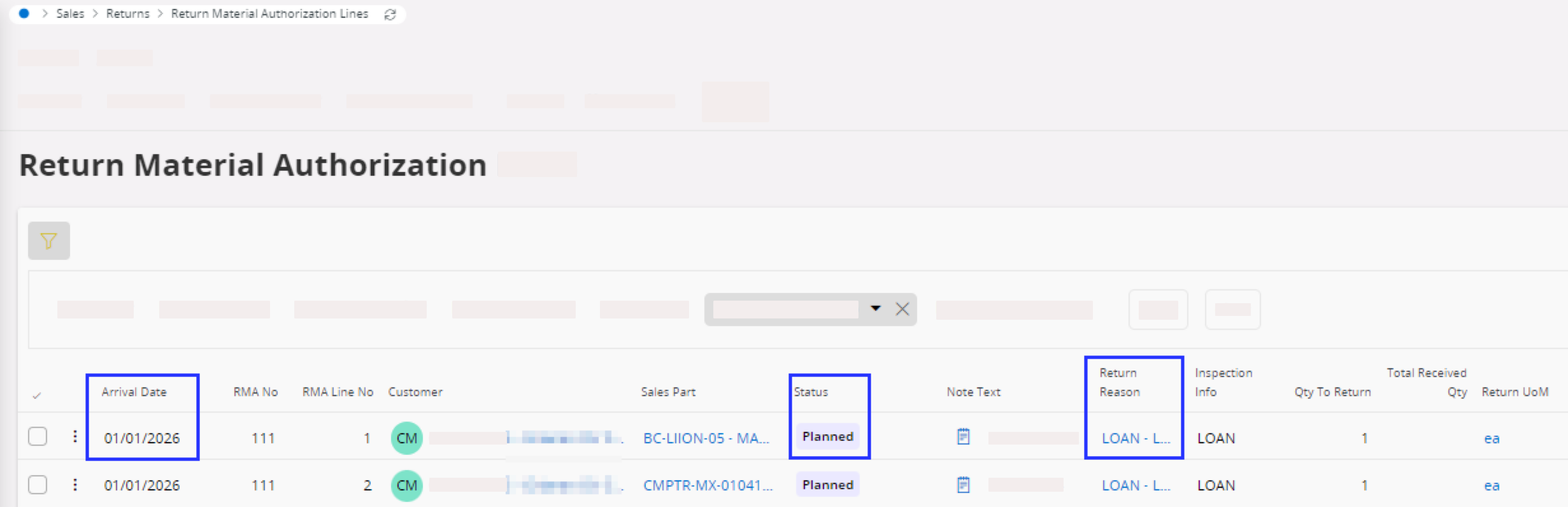
We recommend to create a Return Material Authorization for the expected
refurbished items to be returned at the end of the rental (see Creation of Return Material Authorization (RMA)). In the Return Authorization Lines:
- Set the Status to Planned.
- Set the Return Reason to LOAN.
-
Arrival Date,
enter the date specified for the end of the rental.
Then, depending on end-of-rental
scenario:
-
If the customer buys the equipment at the end of the
rental, you need to update the customer order and invoice it.
-
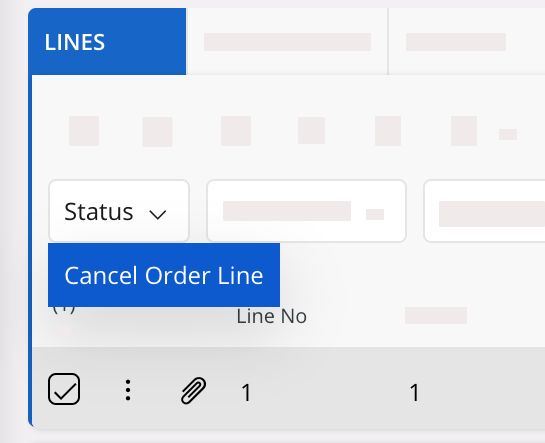
On your customer order, add a line
with the product that is sold, then select and cancel the
OPENCO line.
- Adjust the price according to the rental that was made.
- Invoice your customer order following these guidelines: Creating a Full or Partial Invoice.
-
On your customer order, add a line
with the product that is sold, then select and cancel the
OPENCO line.
-
If the customer sends back the product after the rental, you need to choose
between moving it back to your initial stock, or adding it as a refurbished
product:
-
To add the returned product as a refurbished part in your stock:
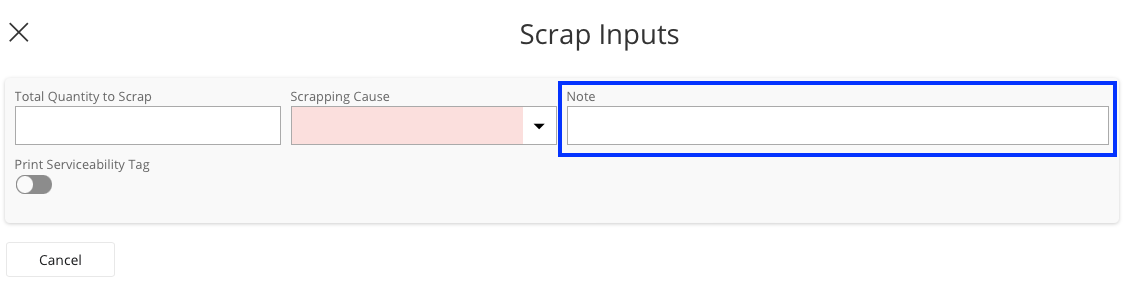
scrap the rental part (see Scrapping a Part from the Stock), then
return the refurbished product to your stock from the RMA you
created before (see Returning the Product to Stock).
Note:Make sure to add a note to explain why the product has been scrapped.
-
To add the returned product as a refurbished part in your stock:
scrap the rental part (see Scrapping a Part from the Stock), then
return the refurbished product to your stock from the RMA you
created before (see Returning the Product to Stock).
Long-Term Product Rentals
This section explains how to manage processes specific to long-term rentals, such as creating the sales quotation, Returned Material Authorization, fixed asset and its depreciation.
- Create a sales quotation for the customer to whom you are selling the product by following the process described in Creating a Sales Quotation.
Add lines to the sales quotation to define the monthly details of the
rental.
-
Create a new line:
- In Sales Part, select the product for long-term rental.
- Set the Price to 0.
-
Recommended: Select the line, then click Document Text in the
Lines
toolbar to add details about the sensor and guidelines in case
the sensor is reported with a lost, damaged, or not returned
status. The message will appear in the quotation
lines.
-
Create a second line:
- In Sales Part, select L-XX-LOAN or L-XX-RENTAL depending on the type of contract (XX referring to your country).
- In Sales Qty, enter the number of months corresponding to the rental duration.
- In Price/Curr, enter the amount due per month.
-
Optional: Select the line, then click Document Text in the
Lines
toolbar to add details about the sensor and guidelines in case
the sensor is reported with a lost, damaged, or not returned
status. The message will appear in the quotation
lines.
-
Create a third line, and in Sales Part select OPENCO. This will keep the customer
order open until the end of the rental.
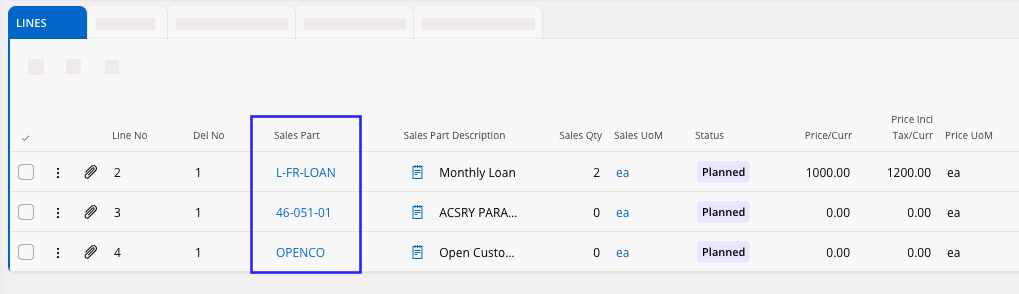
- Transform the sales quotation into a customer order by following the process described in Changing a Sales Quotation into a Customer Order.
-
On the OPENCO line, turn on the
Invoice
Blocked
toggle so that this line does not appear in the invoice.
-
Deliver the customer order line and invoice for the product that is under
rental only, by Doing a Partial Delivery. Do not deliver the
L-XX-LOAN or OPENCO parts at this stage.
- Print all documents related to the product delivery.
- You can invoice at 0, taking into account the Document Text on this line, explaining that this is a rental.
-
Deliver the customer order line for the
L-XX-LOAN part only, by Doing a Partial Delivery. Do
not deliver the OPENCO part.
- To invoice your customer monthly for the rental, deliver 1 quantity of rental each month and invoice it.
- To invoice all the rental at the end, deliver all the rental quantity at the end of the process and invoice it.
- Create invoices link to your customer order by Creating a Full or Partial Invoice.
-
We recommend to create a Return Material Authorization for the expected
refurbished items to be returned at the end of the rental. In the Return
Material Authorization Lines:
- Set the Status to Planned.
- Set the Return Reason to LOAN.
-
In Arrival Date,
enter the date specified for the end of the rental.
-
For a long-term rental, you need to create a fixed asset and apply a
monthly depreciation to it. To create the fixed asset, follow this
procedure: Creating a Fixed Asset.
-
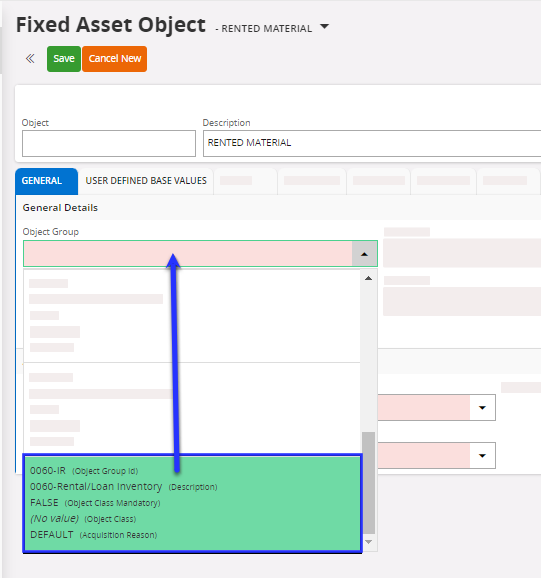
When filling the field Object Group, make sure to
use the group specific to rental material. Refer to your global controller if
you need guidance.
-
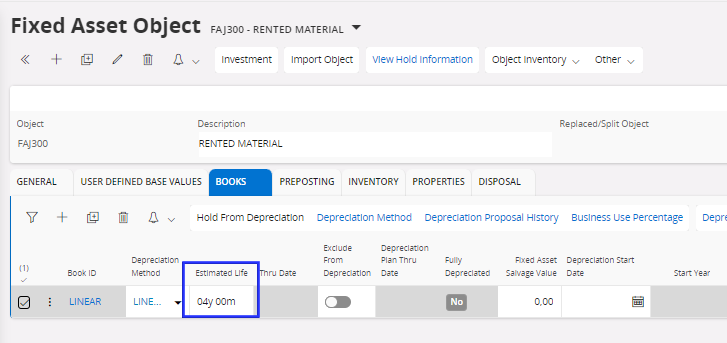
Estimated Life:
adjust it according to the accounting rules for depreciation
(duration of the service life for your rented material). Refer to your global controller if
you need guidance.
-
When filling the field Object Group, make sure to
use the group specific to rental material. Refer to your global controller if
you need guidance.
-
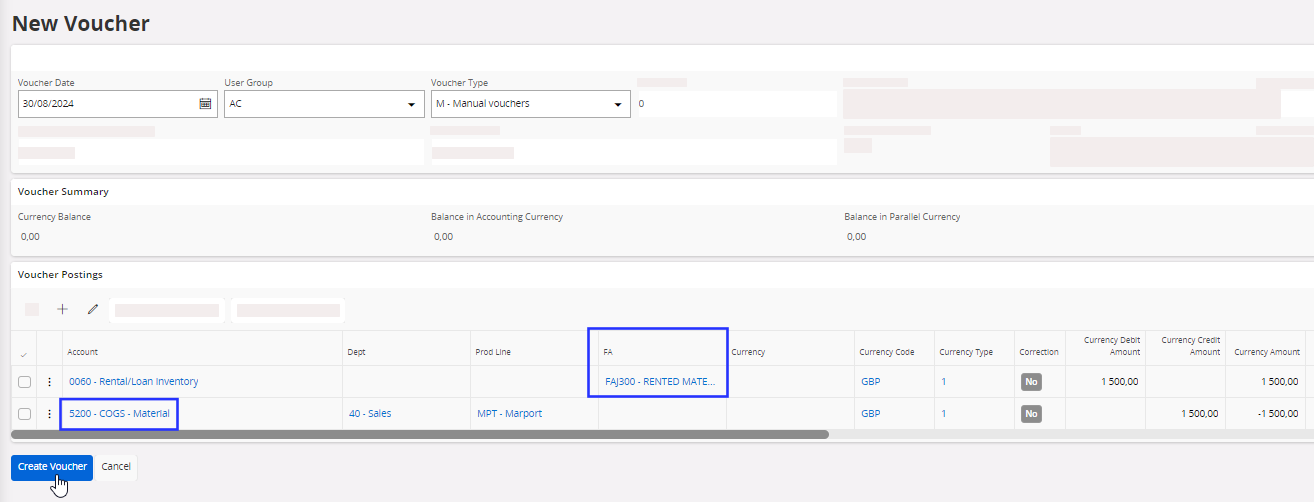
Create a manual voucher to acquire the fixed asset. For this, you need to
use the fixed asset account of the rented material, and add the
FA code part to create a link between the manual
voucher and the fixed asset. The counterpart account must be the Cost of
Goods Sold (COGS) account. Refer to your global controller if
you need guidance.
- To depreciate the value of the rented material, follow the same procedure as for other fixed asset depreciations: Managing Fixed Asset Depreciation.
Then, depending on end-of-rental
scenario:
-
If the customer buys the equipment at the end of the
rental, you need to update the customer order and invoice it.
-
On your customer order, add a line with a
L-XX-OPTIONBUY
Sales Part, then
select and cancel the OPENCO line.
- Adjust the price according to the rental that was made.
- Invoice your customer order following these guidelines: Creating a Full or Partial Invoice.
-
On your customer order, add a line with a
L-XX-OPTIONBUY
Sales Part, then
select and cancel the OPENCO line.
-
If the customer sends back the product after the rental, you need to update
the RMA that you created for the refurbished items:
- If the product is put back in your stock, follow: Returning the Product to Stock.
- Or, if scrapped, follow: Scraping the Product from the Return Material Authorization.
- Then, regardless of how the end-of-rental is concluded, you need to scrap the fixed asset: Scrapping a Fixed Asset from a Company.