
Updating the Product Structure of a Manufactured Part
You can change the product structure of a manufactured product, by adding components or removing existing components.
Note:
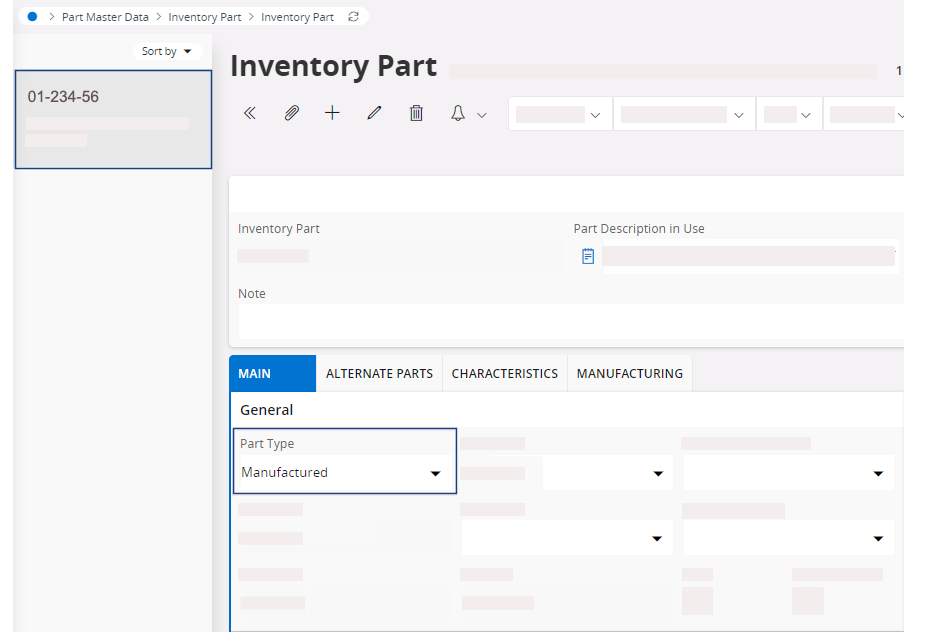
If an inventory part was defined before as a part type
other than Manufactured,
then changed to Manufactured, a product structure header is automatically created. In this case, you need
to create yourself the whole product structure.
-
Go to the page Inventory Part
and select the part from the list on the left side.
-
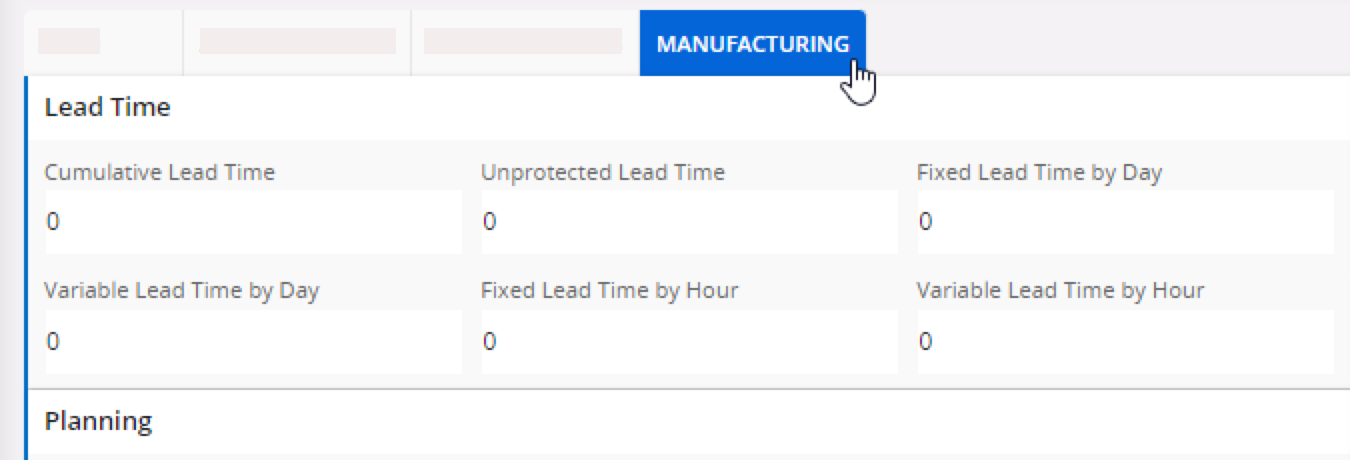
If needed, you can add information about the manufacturing settings in the
Manufacturing tab.
-
To display the product structure:
-
Click Part Revisions.

-
In the list, click the three dots
 ,
then Product Structure.
,
then Product Structure.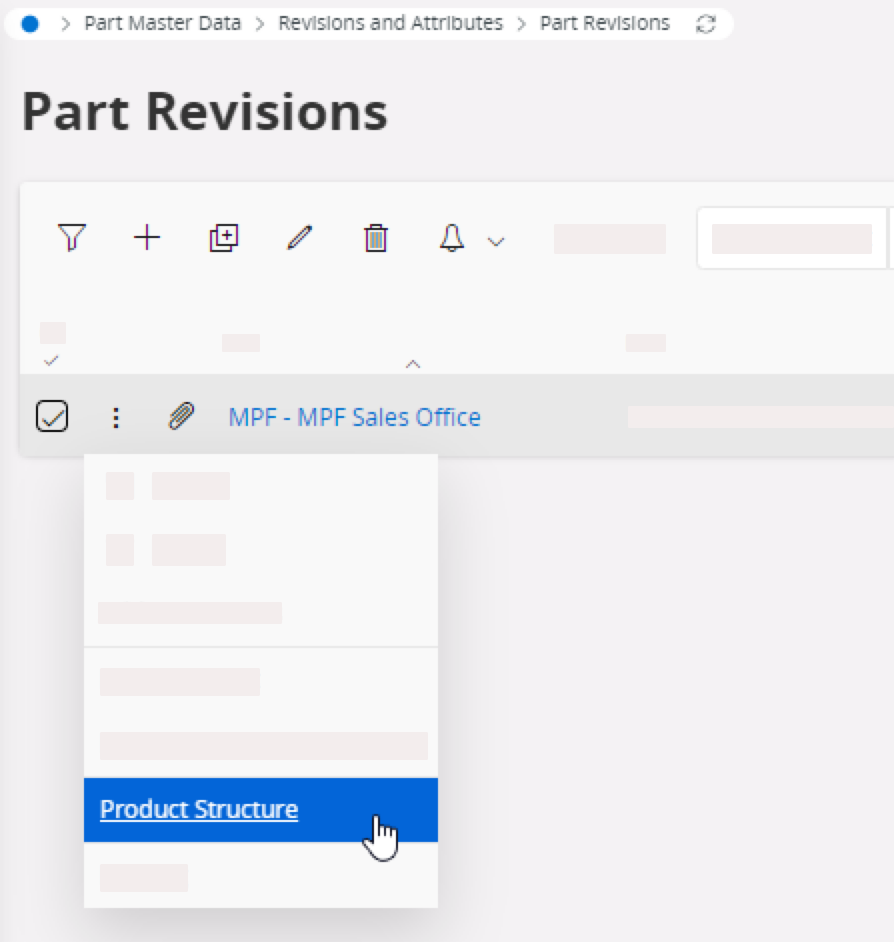
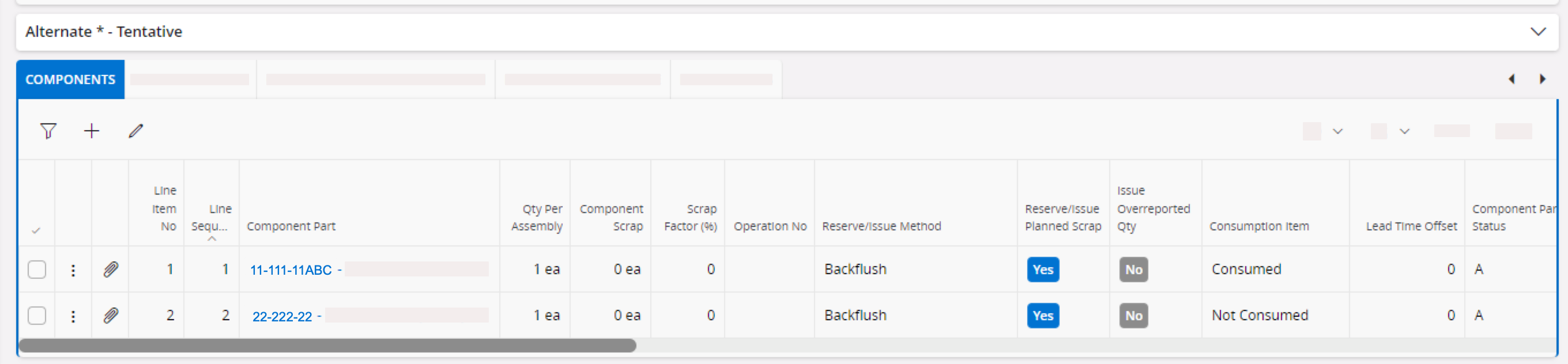
The components are listed in the Components tab.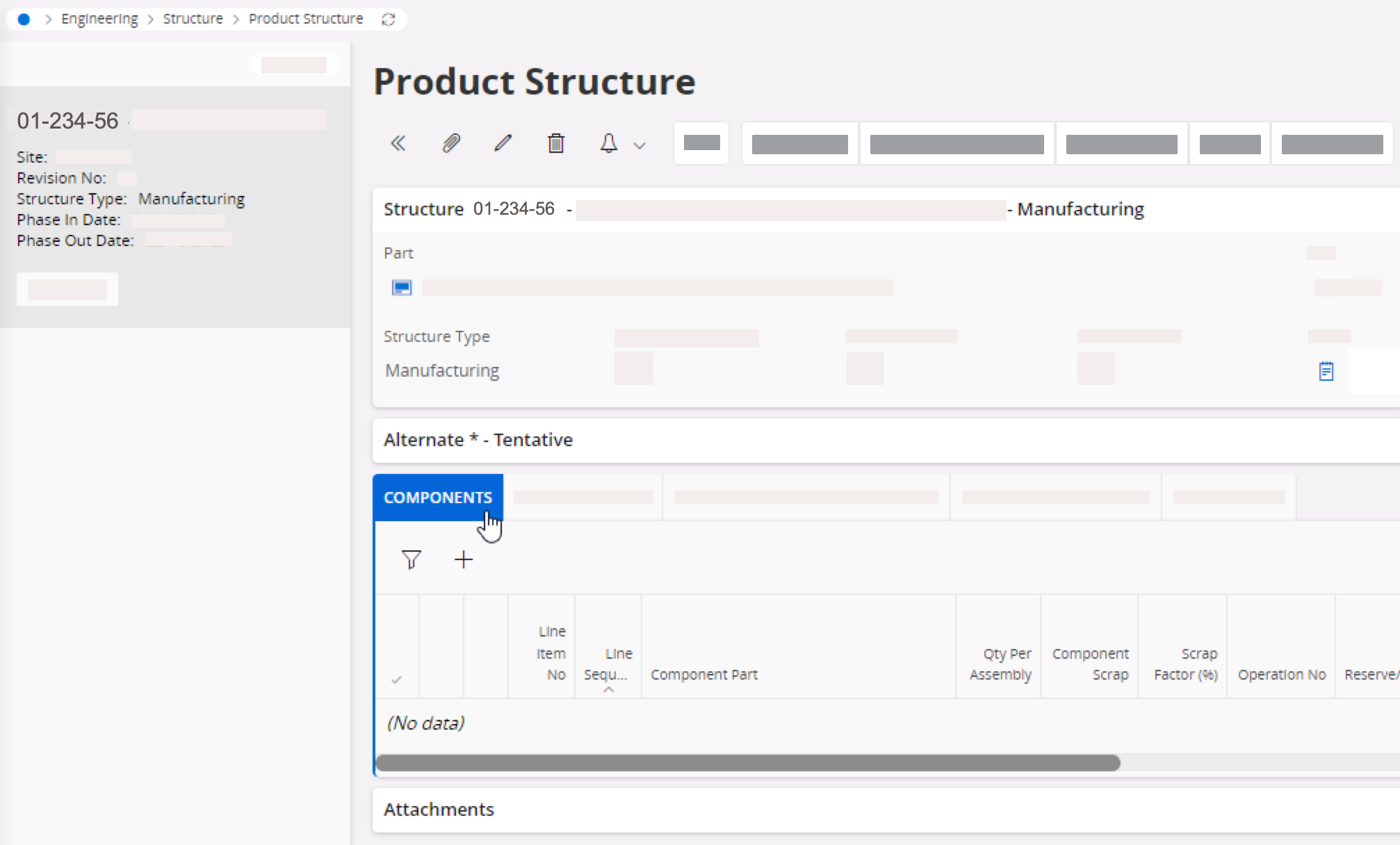
-
Click Part Revisions.
- To add a new component click New +.
-
Complete the following fields:
- Line Item No: the field automatically assigns a number, but you can also do it yourself.
- Component Part: inventory part used in the BOM structure.
- Qty per Assembly: quantity used to build the part.
- Reserve/Issue Method: set to Backflush.
- Consumption Item:
defines if a part is consumed or not consumed. Note:If the component is defined as an expense part, you can only set it as not consumed.
-
To remove a component from the product structure, select the component in the
list, then click Delete
 .
.
-
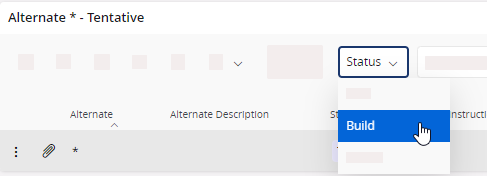
To validate the product structure, expand the box Alternate, then click .
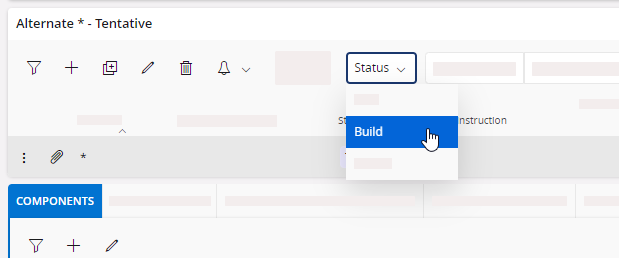
The product structure is now set as Buildable. When adding the part in a customer order, it will have the correct components.
-
If needed, you can keep track of the revisions made to the product
structure:
-
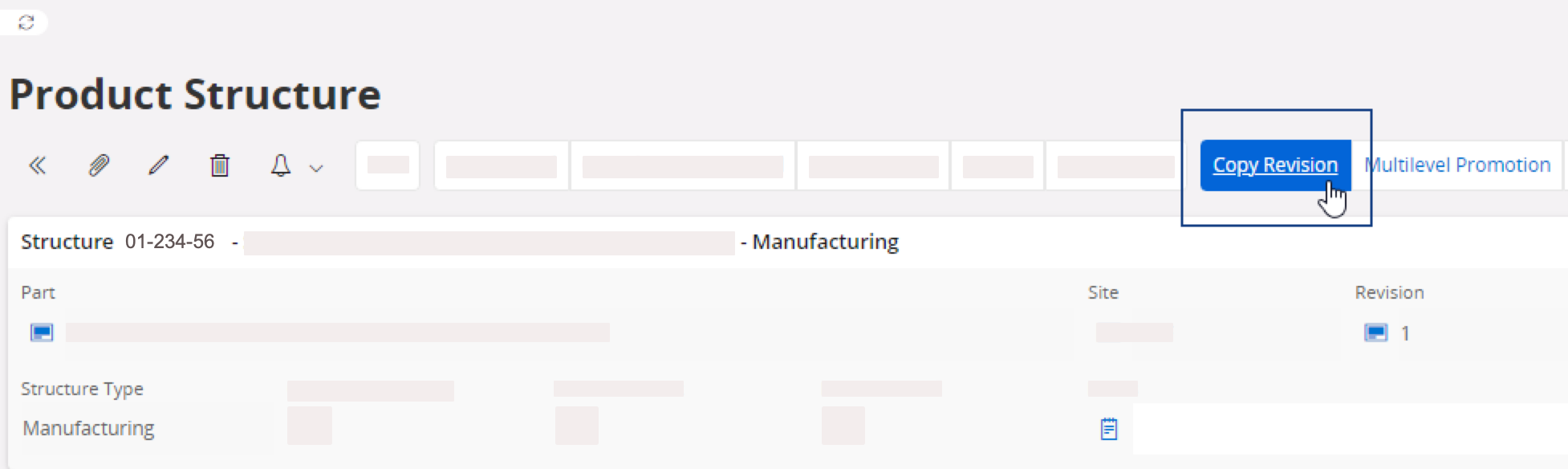
Click Copy Revision.
-
Update the product structure information if necessary, then click
OK.
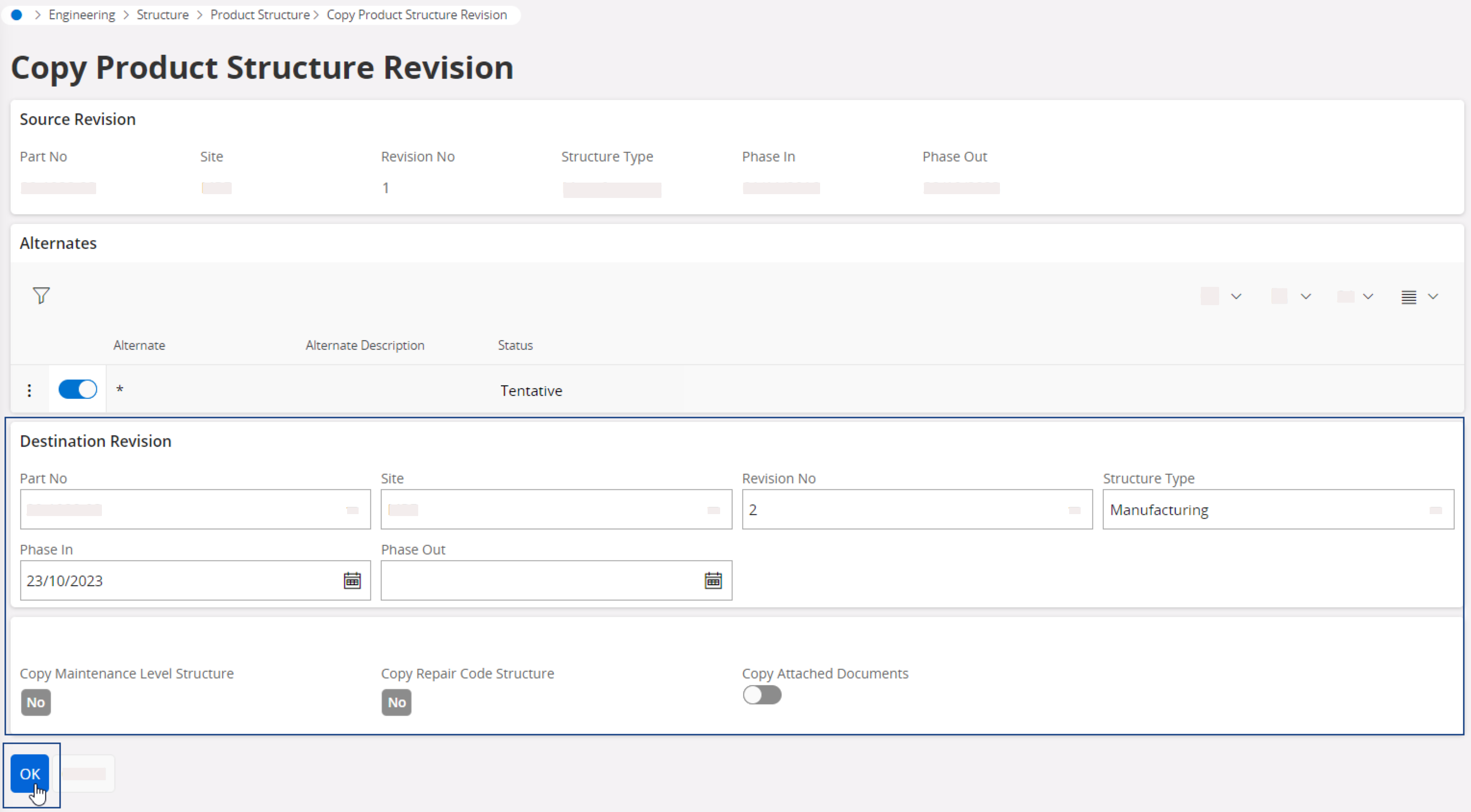
A new revision is created. The new product structure is given a revision number.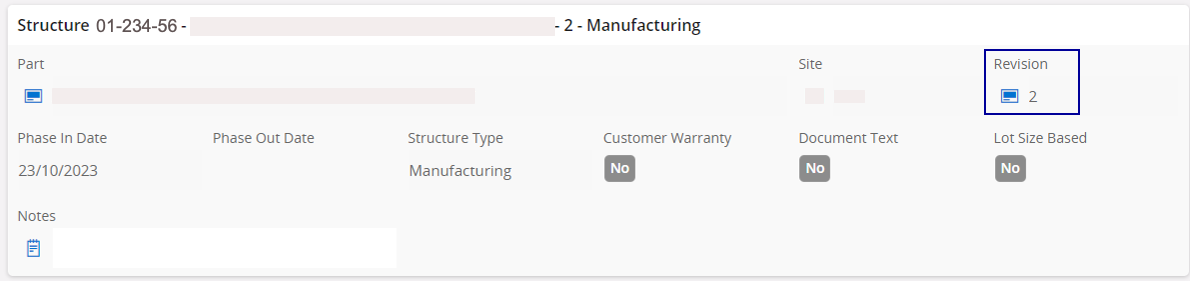
-
Update the components, then click when finished.
-
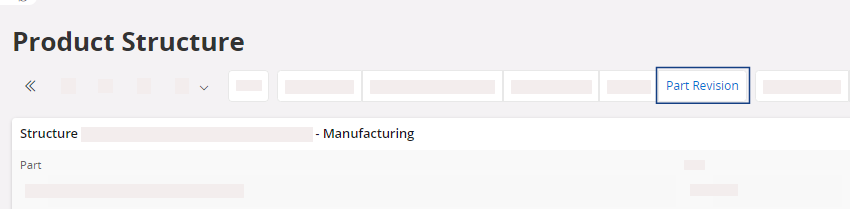
Click Part Revisions in the
toolbar to display the revision list.
-
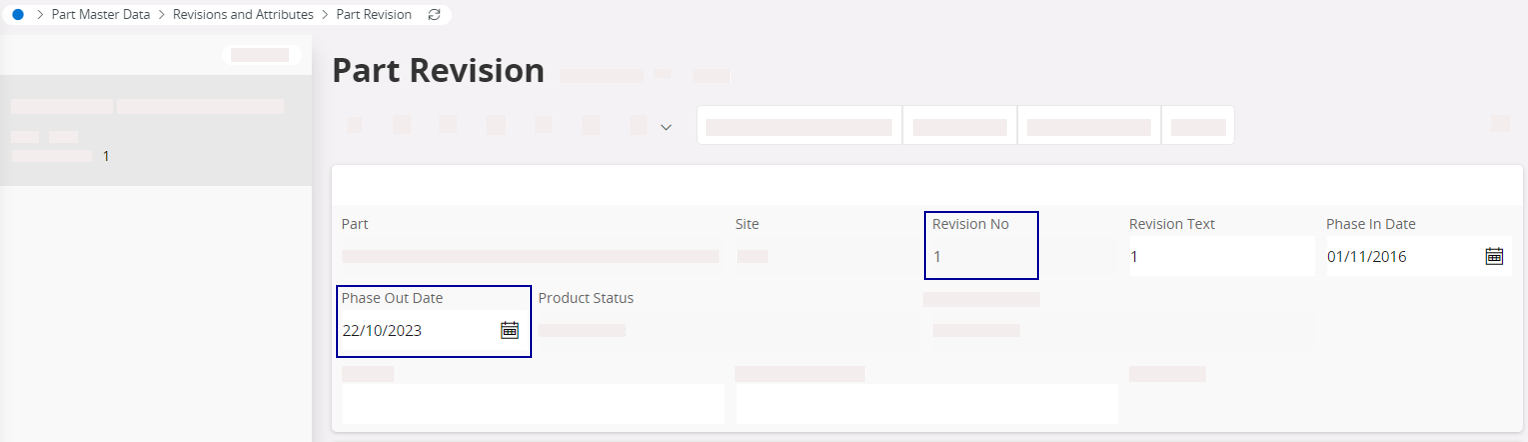
Click the older revision, then in Phase Out
Date, set the date
from which the product structure becomes obsolete. This way, it will not
be used in the future.
-
Click Copy Revision.