
Creating a Mixed Payment for a Customer
Creating a New Mixed Payment
- Go to .
-
Click New +.
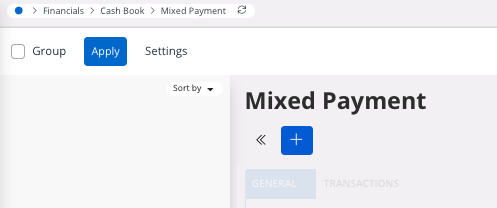
-
Select the Cash Account.
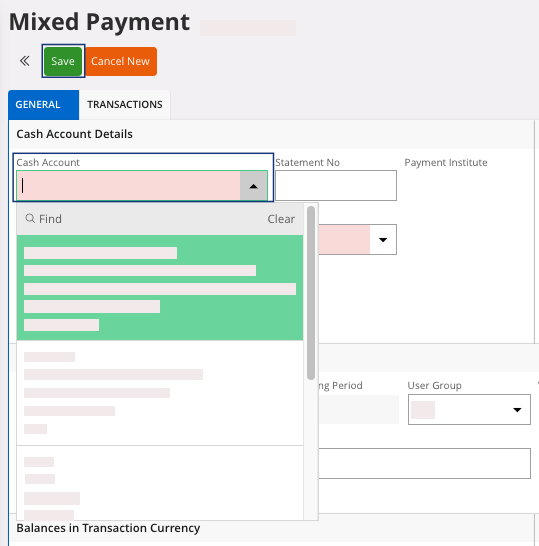
- Click Save.
Filling Transactions Details
- Go to the tab Transactions.
-
Click New + to add a
line to decide which payment you want to receive.
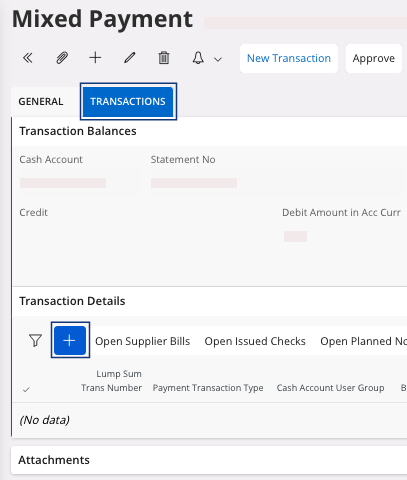
-
Fill the following fields:
- Payment Transaction Type: for a customer payment, select Enter Customer Payment.
- Payer/Payee Identity: enter your customer.
- Amount: you register a customer payment so the amount should be a gross amount and positive.
-
Click Save.
If you want to match your payment lines directly with the open invoice(s) for your customer: perform Settling Available Transactions in the Account.
-
If you do not want to match your payment lines directly, you need to
approve your mixed payment: in the header, click Approve.
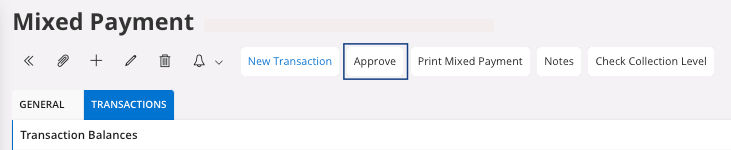
Note:If you did not match your mixed payment with your invoice at this moment, a dialog will appear. Click OK to continue without the invoice or click Cancel to change your information.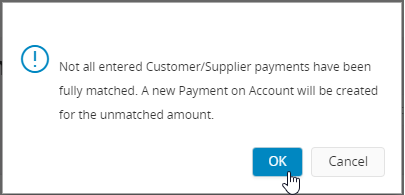 A new page appears, Voucher Information.
 - Take note of the Voucher Information, and click OK.