
Posting the Final Invoice
Once approved, the invoice can be posted in the system.
-
You have two options to do the final invoice posting:
-
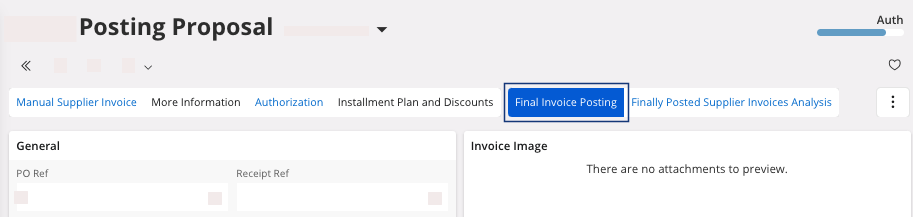
If you just authorized the invoice and you are on the page Posting
Proposal: click
Final Invoice
Posting.
-
You can go directly to the page Final Posting
Proposals: on your
invoice line, click the three dots
 and
click Final Invoice
Posting.
and
click Final Invoice
Posting.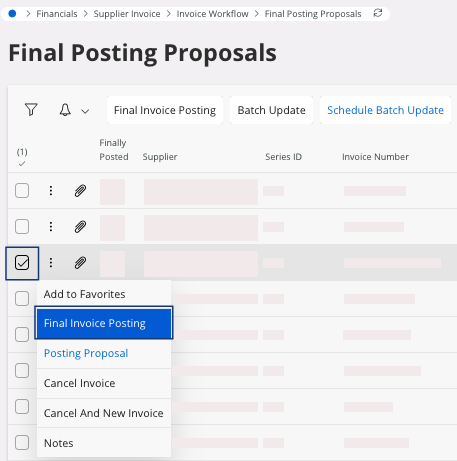
Note:You can find the list of invoices in status Auth. If you need to set up a batch for global invoice posting, contact your admin.
A pane appears. -
If you just authorized the invoice and you are on the page Posting
Proposal: click
Final Invoice
Posting.
-
Check the information and click OK.
A new pane appears, Voucher Information.
-
To keep track of your invoice, note the unique number: Voucher Type and Voucher No
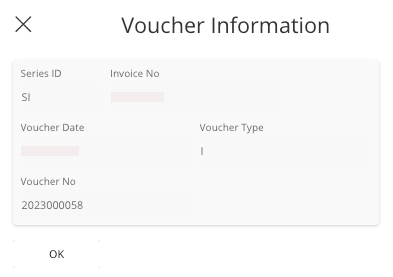
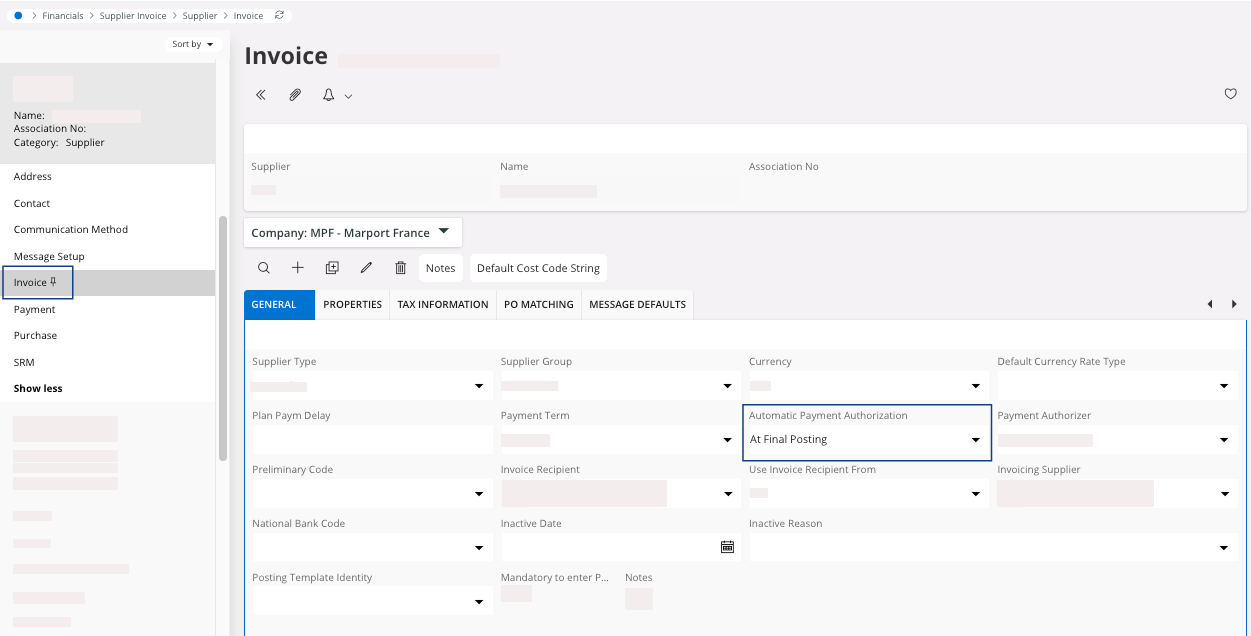
For example here, the unique number would be: I2023000058If you check your invoice from the page Manual Supplier Invoice, it has now the status Posted Auth.If your invoice does not have the status Posted Auth:- Go to .
- Select your Supplier on the left side of the screen.
- Click Show more below your supplier and select Invoice.
- On the page Invoice, in the tab General, change the field Automatic Payment Authorization to At Final Posting.
-
To see the accounting lines, go to the page Manual Supplier
Invoice and in the header
click View Voucher.
A new page opens, Supplier Invoice Vouchers. You can see the voucher details for each line.