
Matching Account Transactions
Perform the Account Matching process to match transactions from the general ledger. The purpose is to match one or more debit transactions with one or more credit transactions from the same account.
Note:
If the transactions are not balanced in the final match,
they can be temporarily saved and matched later on.
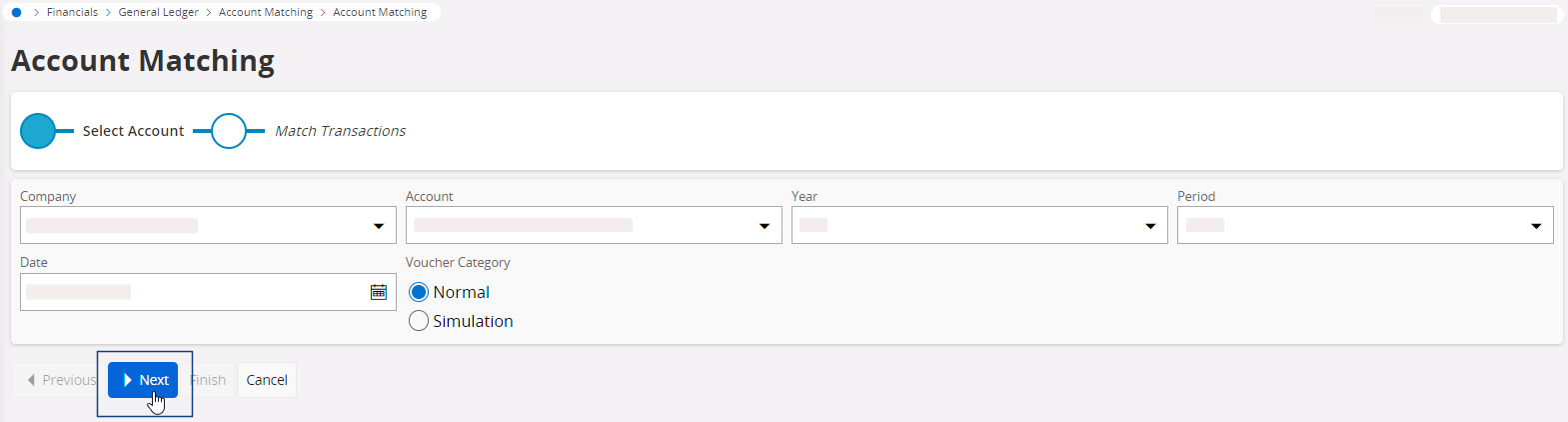
- Go to the page Account Matching and select the account on which you want to proceed the matching.
-
Select the Year and the
Period, then click
Next.
-
Go to Unmatched
Transactions section and
select the credit and debit lines you want to match together, then click
Match Selected Rows.
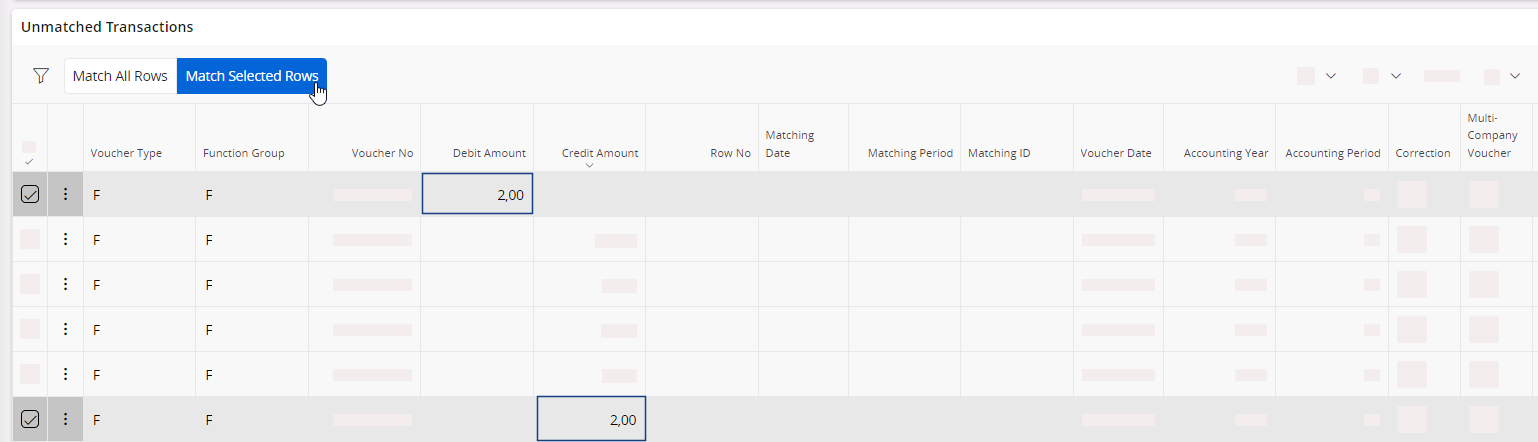
- If you want to match all the lines displayed, click Match All Rows.
-
Go to the bottom of the page and click Finish.
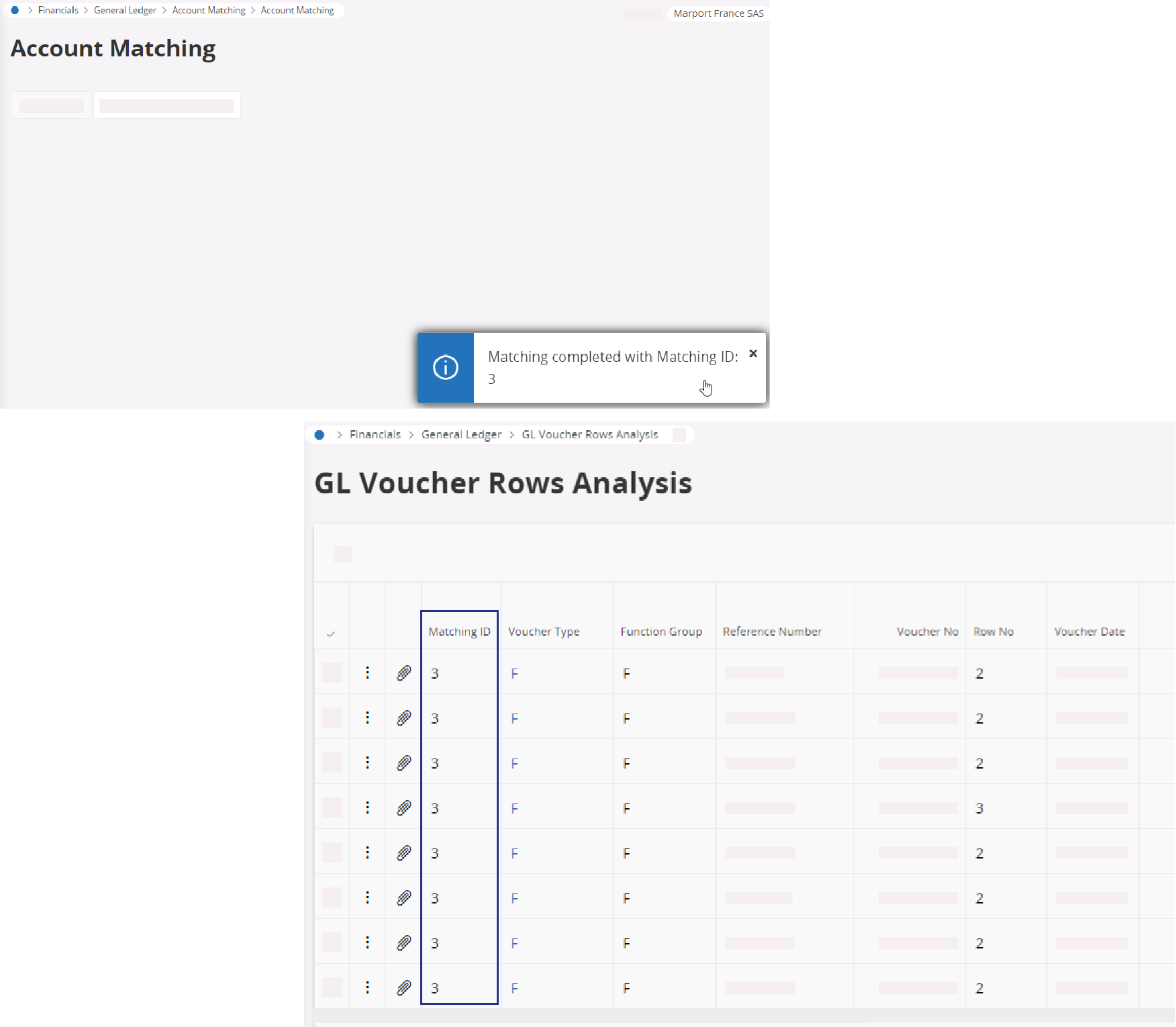
- If the account matching is in balance, the matching is completed and a
Matching ID is created.
In the general ledger, this Matching ID is associated with the
matched lines.
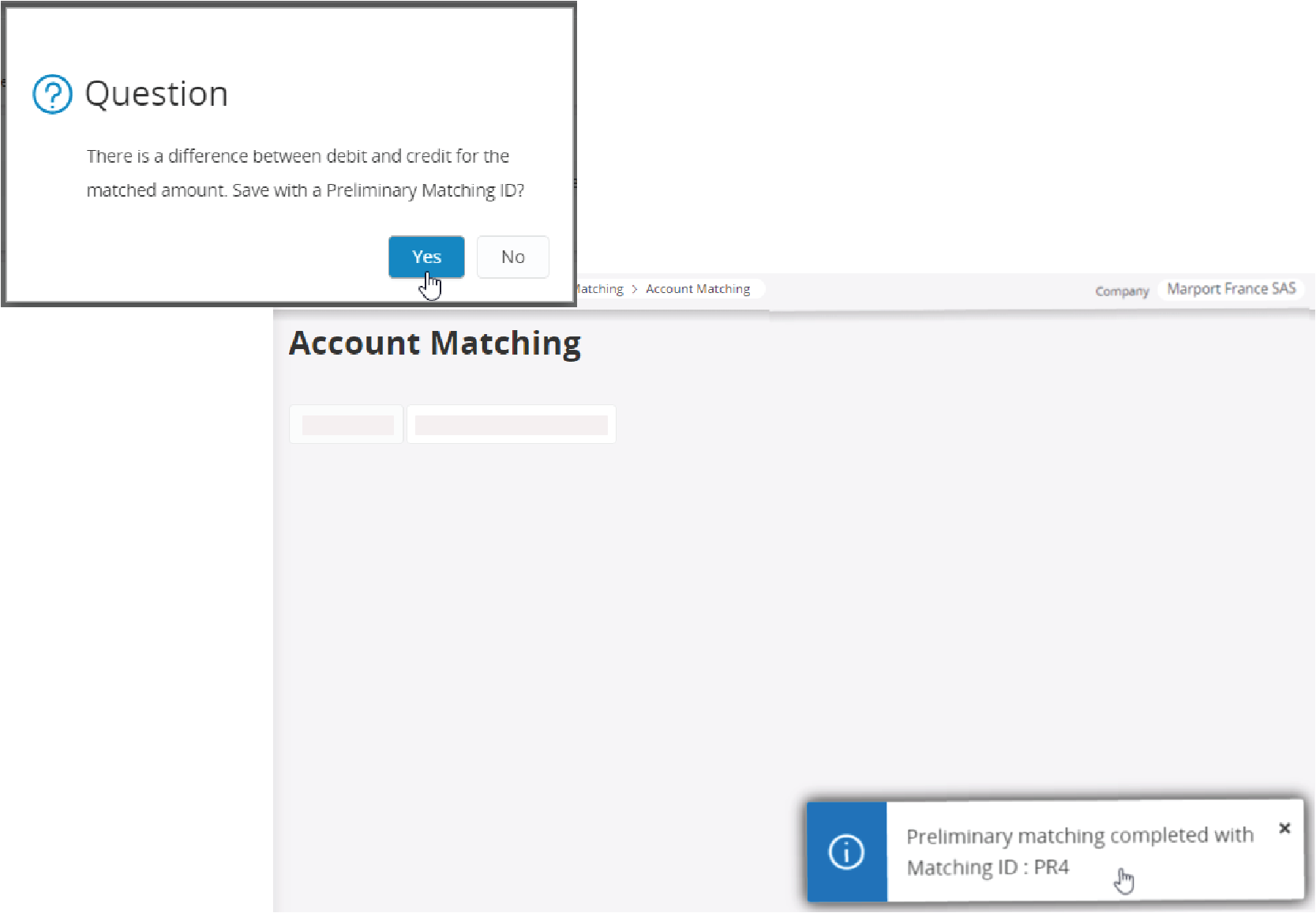
- If the account matching is not in balance, you can do a preliminary
matching and create a Preliminary Matching
ID when asked by the
prompt.
- If the account matching is in balance, the matching is completed and a
Matching ID is created.
In the general ledger, this Matching ID is associated with the
matched lines.
-
To see more details about the matching, click View Matched
Transactions.
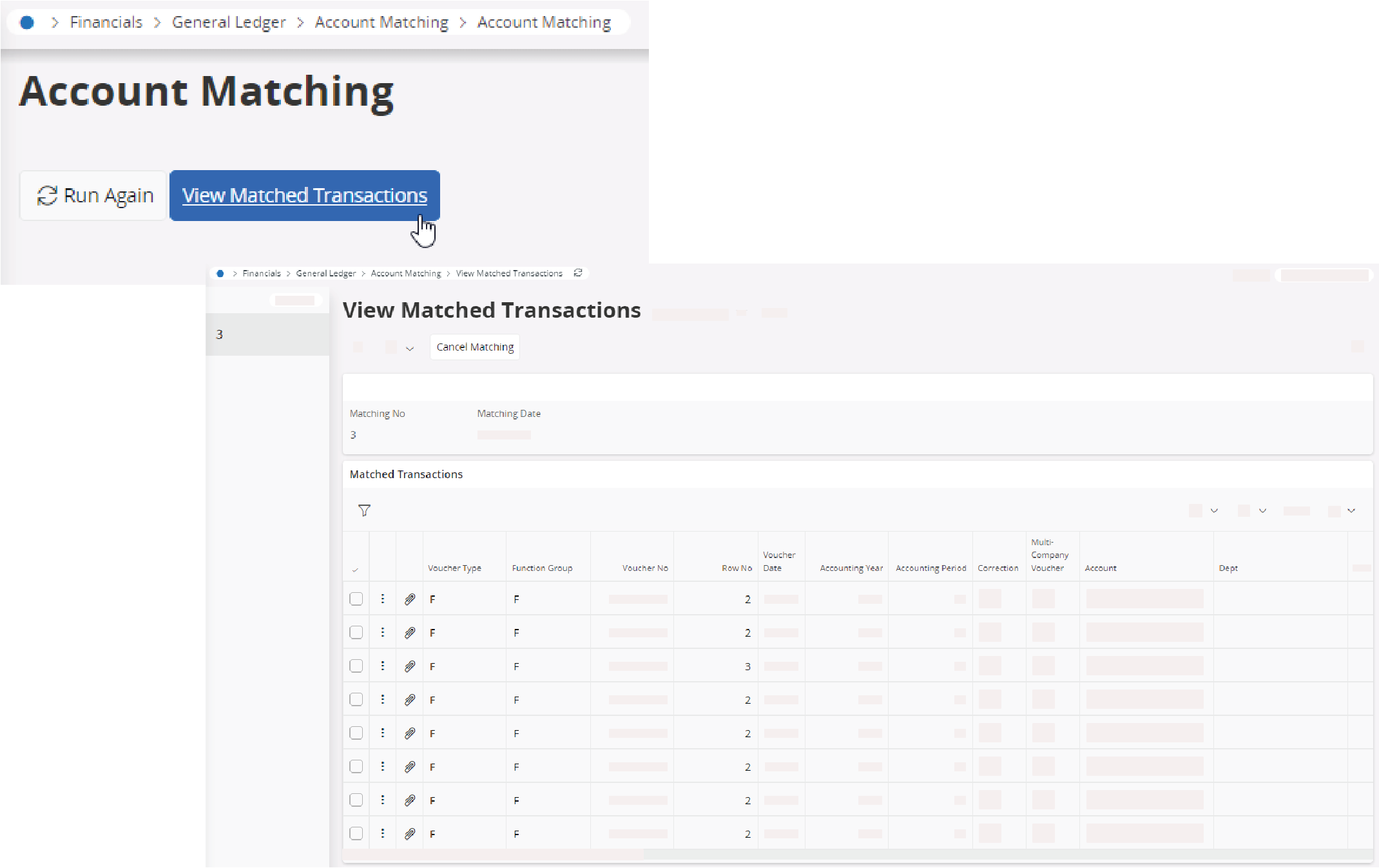
- To cancel all the matched transactions, click Cancel Matching in the top toolbar.
-
If needed, you can automate the account matching process:
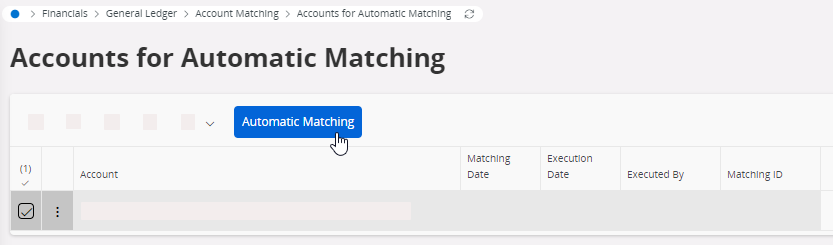
- Go to the page Accounts for Automatic Matching.
-
Select the account on which to apply the automatic matching, then click
Automatic Matching.
- Select the period and the correct matching attributes corresponding to the kind of account that you match.
- Go back to the View Matched Transactions page to see the matched transactions.