
Managing Fixed Asset Depreciation
Set the depreciation details of the value of one or several fixed asset(s).
- You need to have created a fixed asset, refer to: Creating a Fixed Asset.
- You need to have created a manual supplier invoice, refer to: External Purchase Invoice.
-
Once you have the fixed asset and the manual supplier invoice, you need
to:
- Update the GL voucher. This action is automatically proceeded each day, but you can perform it manually: go to the page Update GL Vouchers, choose your parameters in the Set Update Parameters area, click Next, then select the vouchers to update in the Select Vouchers area and click OK.
- Activate the fixed asset, refer to: Activating the Fixed Asset.
- You need to create a new depreciation proposal, go to .
-
Click New Depreciation
Proposal.
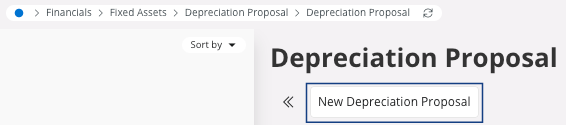
The New Depreciation Proposal pane appears. -
Select:
- A Depreciation Year, choose the year for which you want to test the fixed asset depreciation.
- A Depreciation Period, choose the period of time for which you want to test the fixed asset depreciation.
- The line that appears at the bottom of the pane when you enter this information is the method of depreciation for the part. For example, here it is linear, which means that the depreciation is proportional.
- Click Finish.
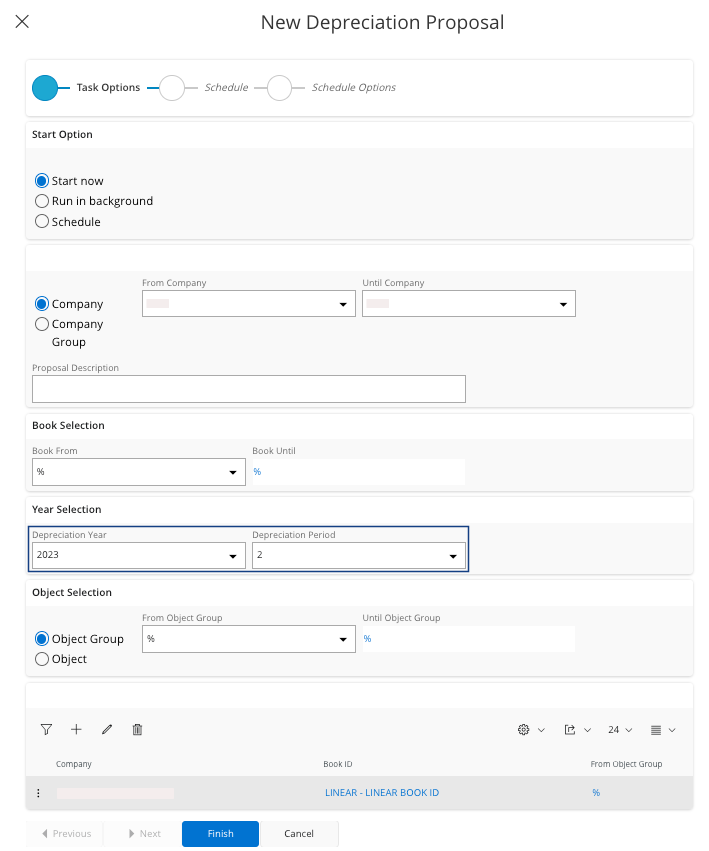
-
Click Authorize
Depreciation Proposal.
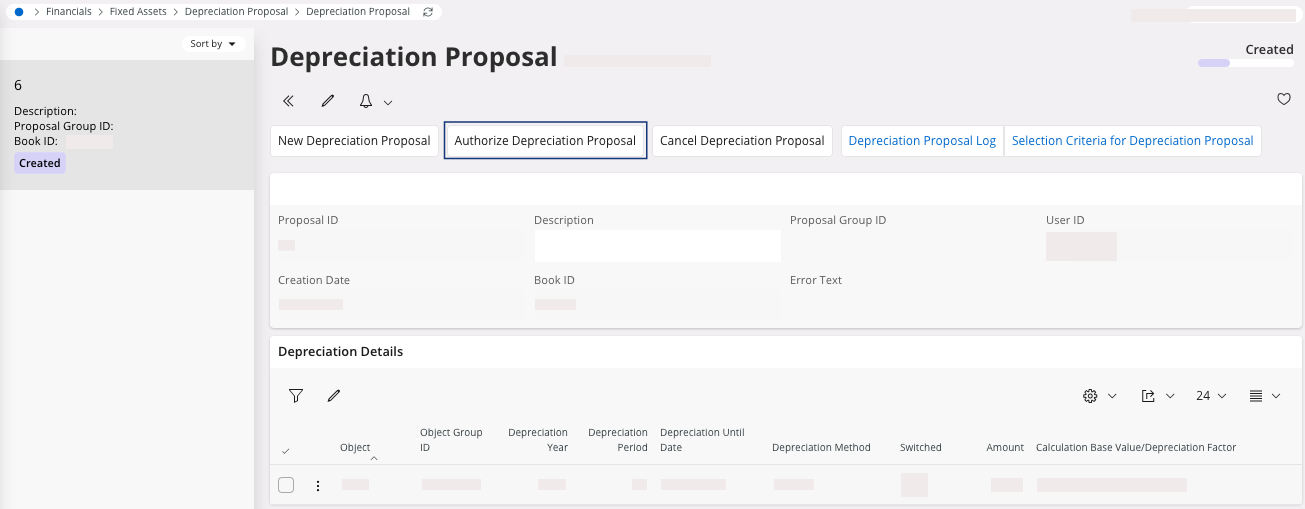
-
Click Post Depreciation
Proposal.
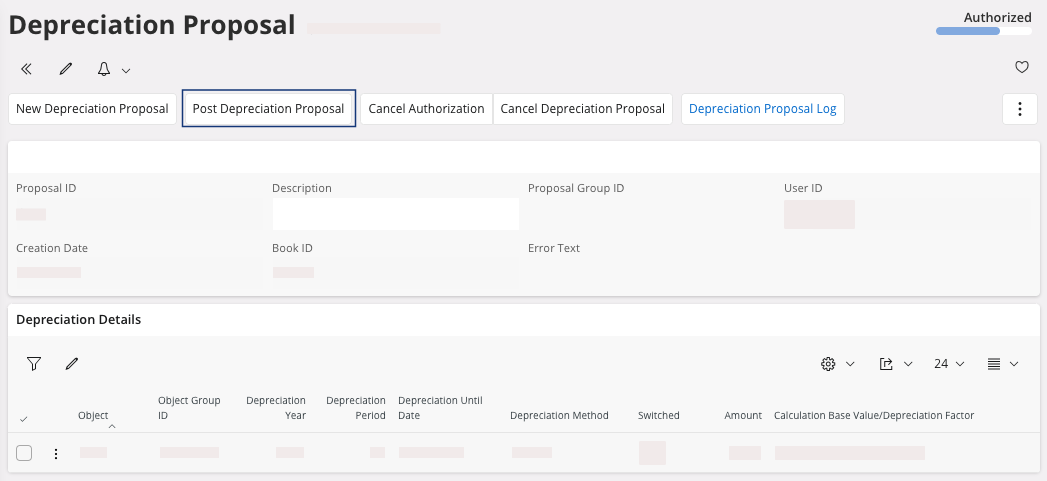
The Post Depreciation Proposal pane appears. - Click OK.
-
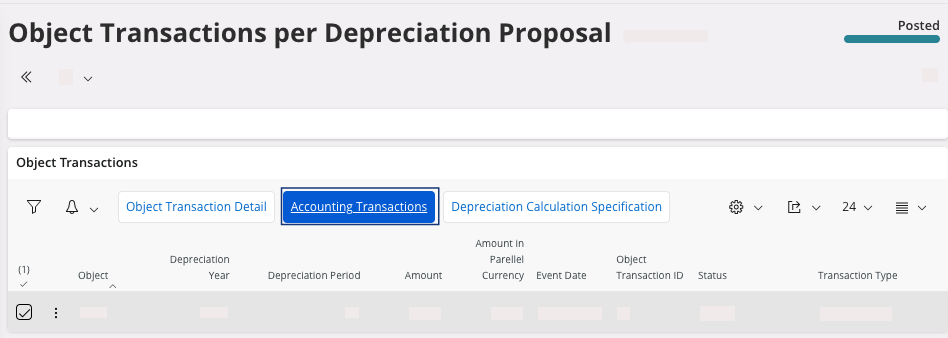
If you want to see the transaction details in accounting, click Object
Transactions per Depreciation Proposal, then click Accounting
Transactions.
- You can check the fixed asset status and their behavior on a specific period: go to the page Fixed Assets Balance History, and create a new record for the specific date. Select your record and click Details to see more information about the fixed asset like the net value at a specific date.