Managing Intrastat Declaration
Each month, you need to submit an Intrastat report. This report is mandatory when there are goods exchanged within the European Union and the total value of these transactions exceeds a certain threshold.
Through the Intrastat report or DEB declaration in French, you are required to monthly declare the details of your European exchanges to your government.
In the Marport offices, you need to submit the Intrastat for exports because the quantities of goods exported exceed the maximum authorized limit. The imports are a small part of the business and do not exceed the maximum authorized limit, so the Intrastat report is not necessary.
Before the Intrastat report creation, make sure that your master data parts
are correctly filled:
-
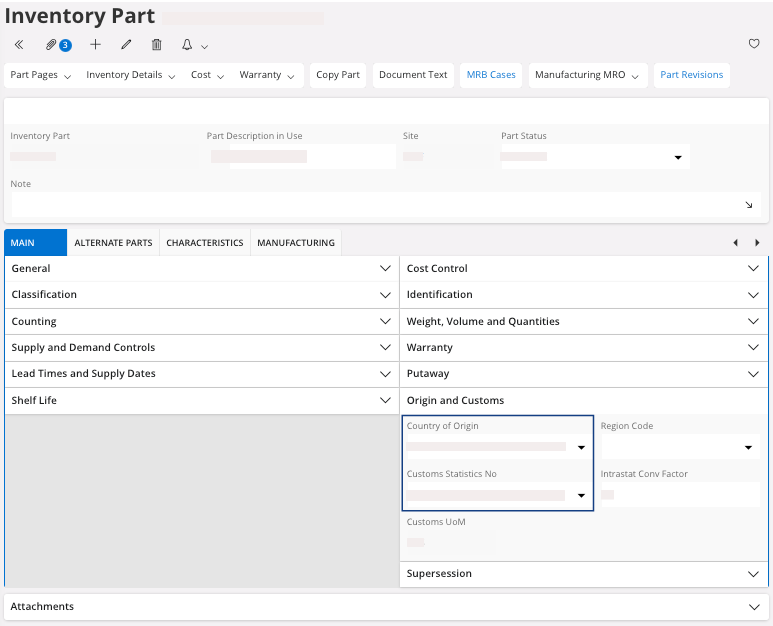
You need to enter the Country of
Origin and the Customs Statistics
No.
-
For an inventory sales part, go to . Check the Country of
Origin and the
Customs Statistics
No.
-
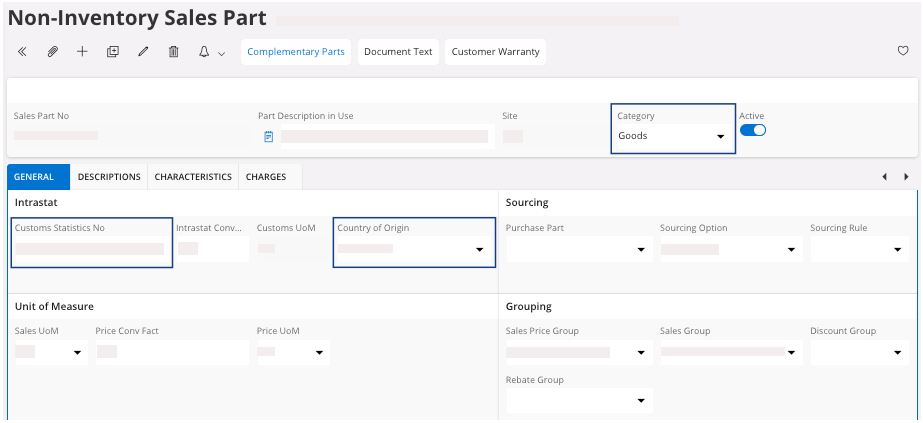
For a non-inventory sales part, go to .
Note:If the Category is Goods you have to fill the fields Country of Origin and Customs Statistics No. Otherwise you can only fill the field Country of Origin.
-
For an inventory sales part, go to . Check the Country of
Origin and the
Customs Statistics
No.
-
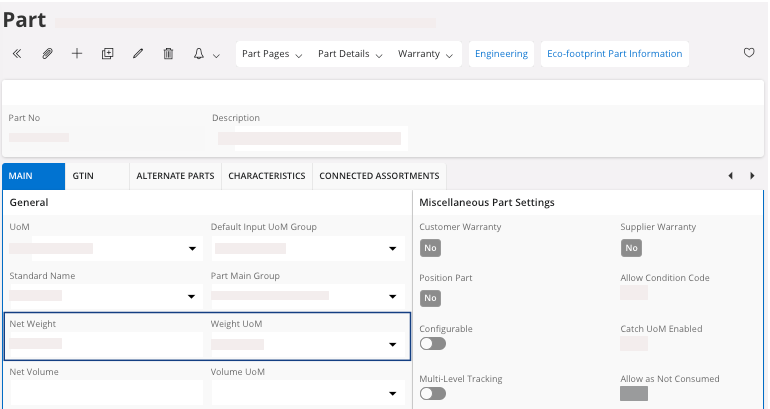
You need to enter the Net Weight
and the Weight UoM.
-
In the Main tab, fill
the Net Weight and the
Weight UoM for your
part.
-
In the Main tab, fill
the Net Weight and the
Weight UoM for your
part.
-
If the Weight UoM is not in
kg, you need to configure it in the Company default unit of measure as the
Intrastat needs to be in kg.
- Go to .
- Select the Supply Chain Information tab in the left side of the page.
- Select the Warehouse Management tab.
- In the Weight UoM field, select kg.

Once your parts are correctly configured, you can generate the
report:
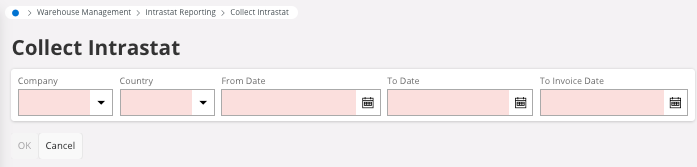
- Go to the Collect Intrastat page.
-
Fill all the fields.
-
Click OK.
Your Intrastat report has been created.
Before submitting the report, you need to check and update
it:
-
Go to the Intrastat page.
If your report is not available: refresh your page.
-
You must check the information. By default, IFS Cloud automatically creates the
report with the open transactions within the selected period. However, you need
to check if the report contains all the required data for the declaration and
make necessary updates. For each line in the report, you must check the
following fields:
- Customs Statistics No: classify the item according to its customs statistics numbers. Each stock item has a number registered in IFS Cloud.
- Opposite Country: where the goods are sent.
- Country of Origin of the goods. This information is in IFS Cloud for each stock item.
- Net Weight: weight sum of the goods.
- Mode of transport: ship-via code.
- Delivery Terms.
- Opponent tax ID: customers tax identification.
- Net Invoiced Price/Base: the invoiced price per inventory unit for the Intrastat line.
- Invoiced Charge Price: charges applied and linked to the goods. In the file extracted from IFS Cloud, the column Statistical Value includes the charges in the total amount.
- Federal State: state of departure of the goods, this field can be configured in the page Company, in the Address tab, when you edit the address information.
Note:You can only update your lines if your report has the Released status.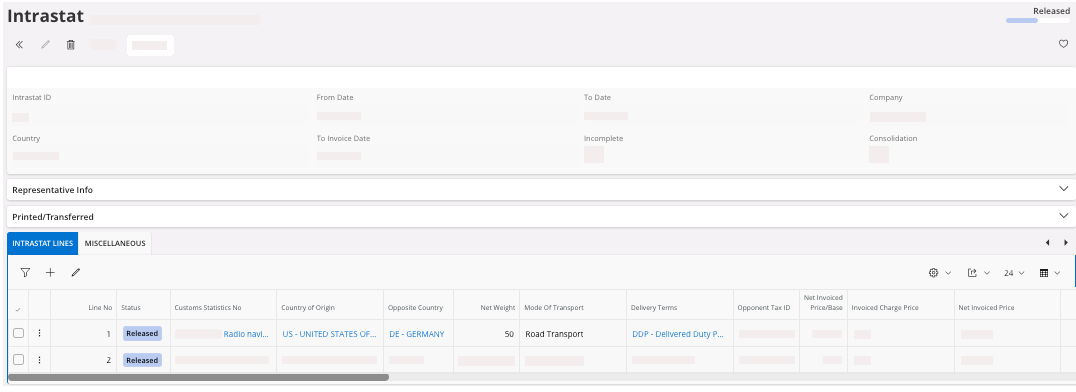
- Click .
- You can get the file in PDF, click .
-
To get the CSV file:
- Click .
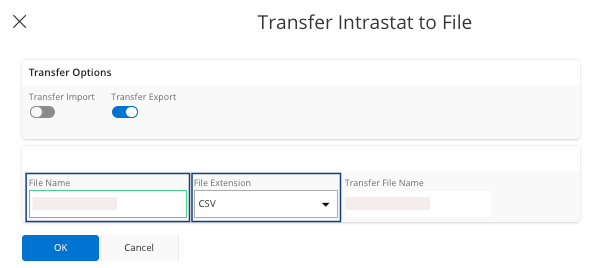
- In the Transfer Options area, turn on theTransfer Export toggle.
- Choose a File Name and select the File Extension CSV.