
Adding General Ledger Transactions
You can add transactions to the general ledger, whether manually line by line, or by uploading a file with a predefined format.
Adding Data Manually
Manually add rows to the general ledger, for example to do adjustments or corrections.
-
Go to and click New Voucher.

-
Go to Voucher Postings section
and click New
+ to create new lines.
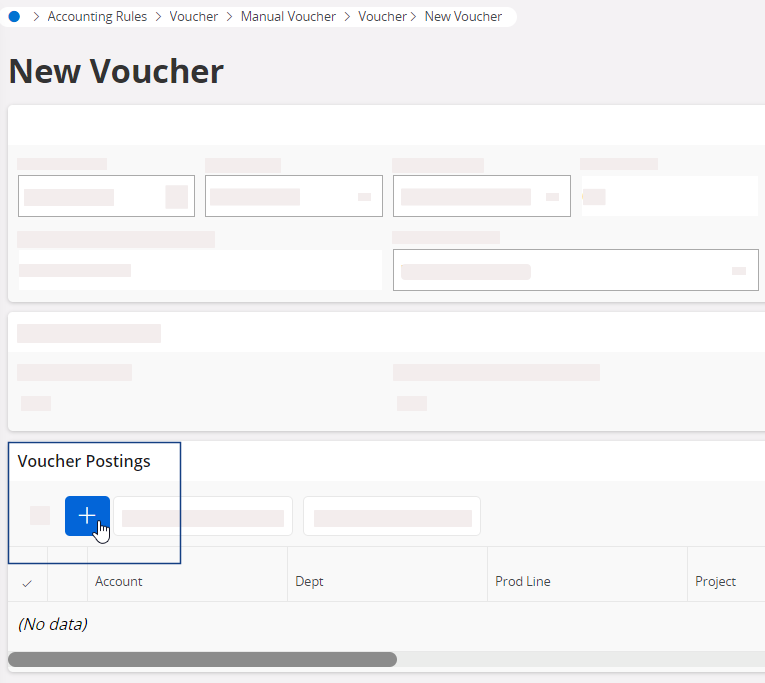
- Complete the details for each line.
-
Once you have finished, click Create Voucher.
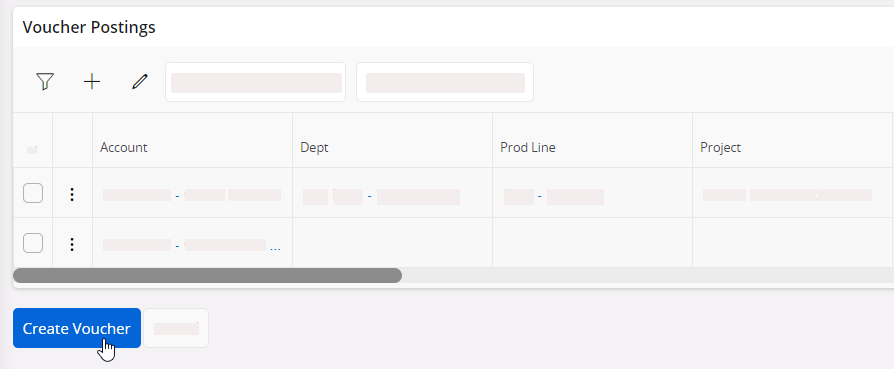
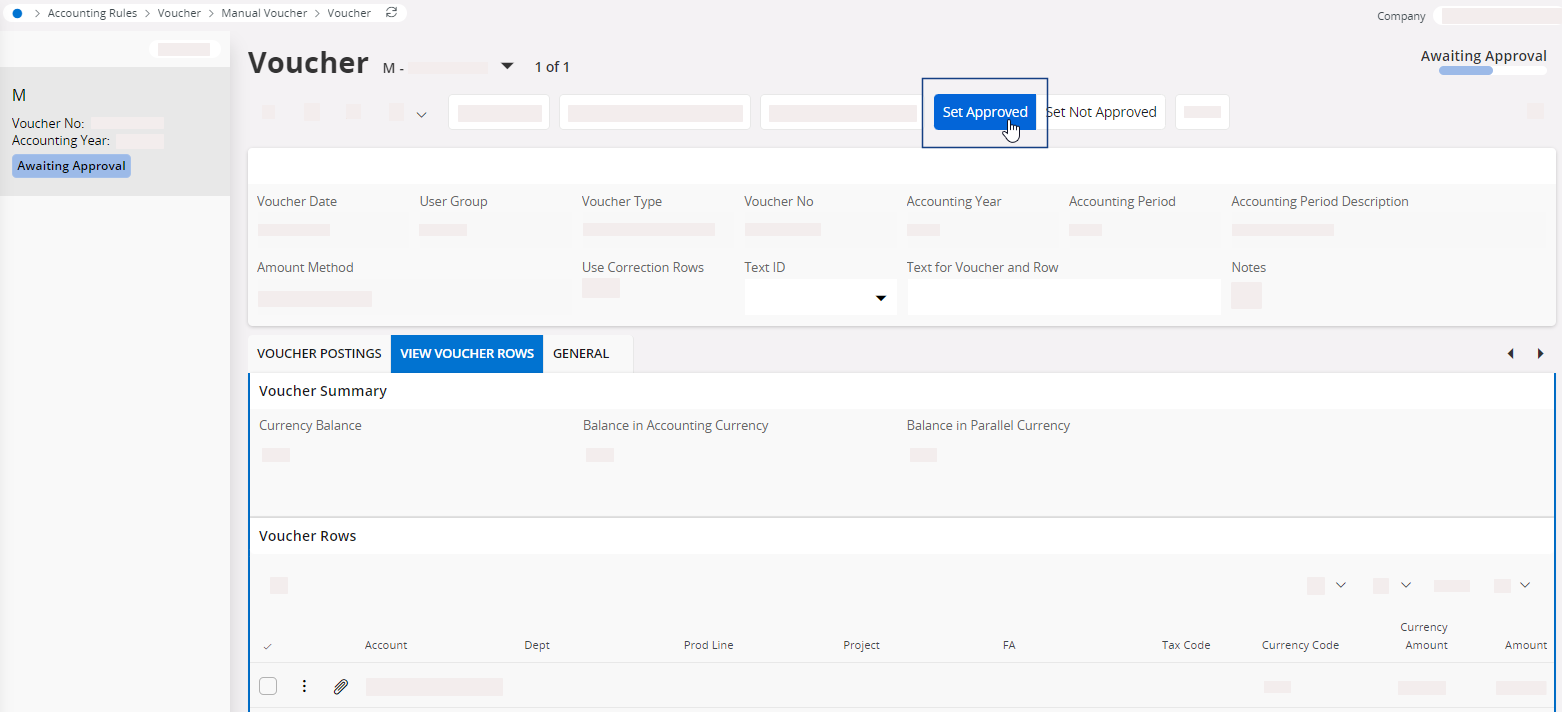
The voucher page is displayed. -
Click Set Approved from the
top bar.
-
To update the general ledger:
- You can immediately send the new voucher lines to the general
ledger: click Instant Update General
Ledger.

- Or else, wait for the automatic update at the end of the day.
- You can immediately send the new voucher lines to the general
ledger: click Instant Update General
Ledger.
Adding Data Using an External File
If you have a lot of data to upload to the general ledger, you can import a CSV file containing all the lines. This CSV file must have been exported in a compatible format from another software application.
- Go to .
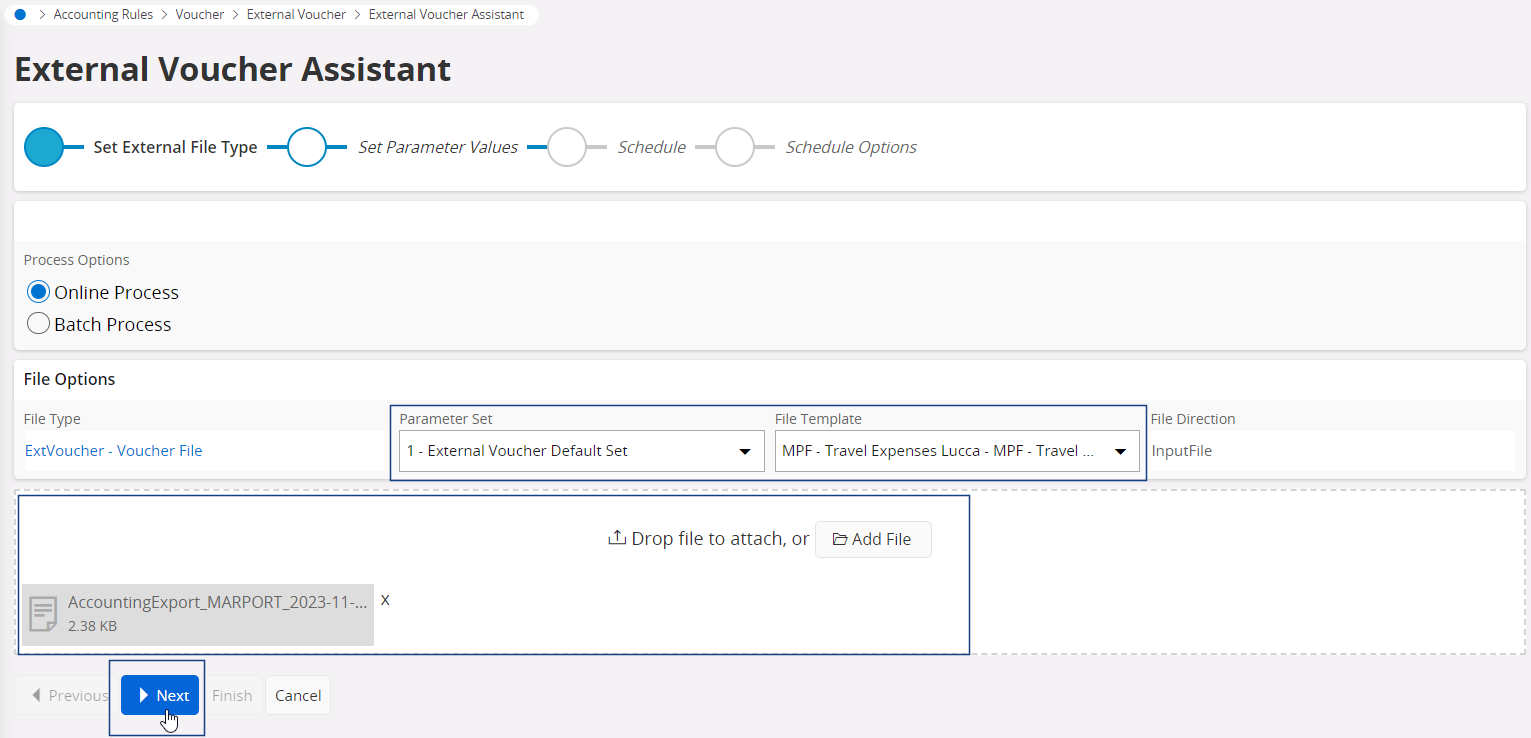
- Select a Parameter Set and a File Template according to the type of data you upload. The file template will match the fields in the file with the corresponding fields in IFS.
-
Add the external file as an attachment, then click Next.
-
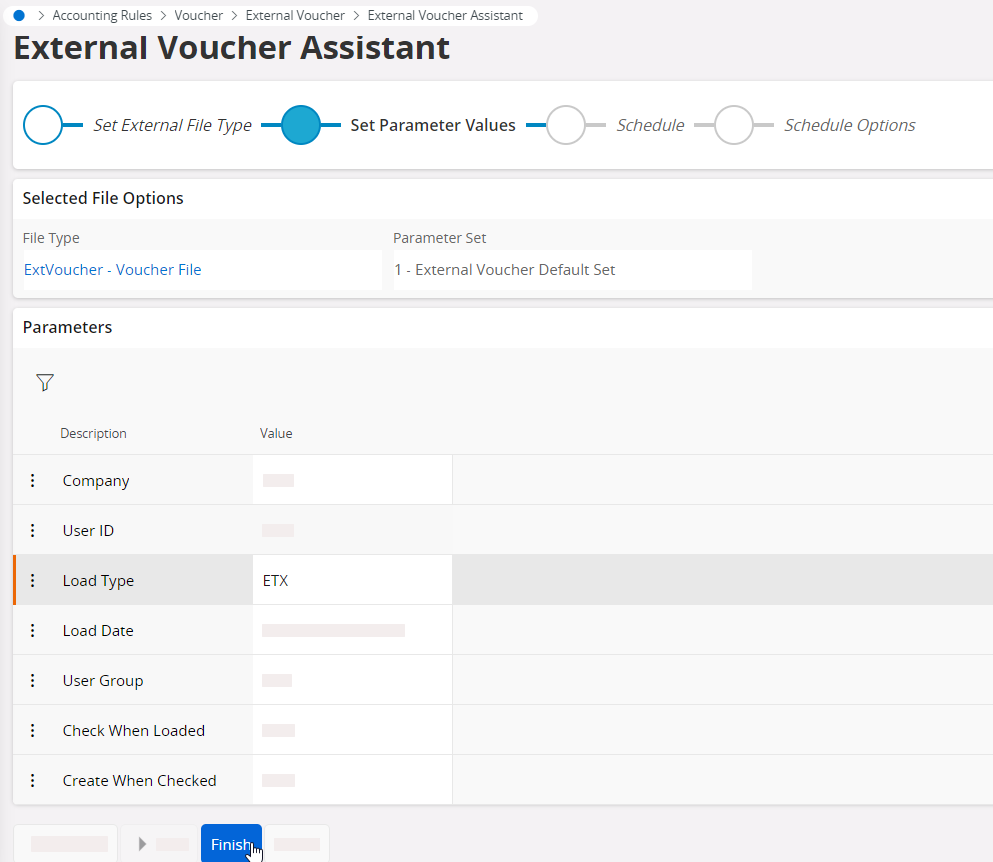
Check that all the parameters are correct, and update the Load Type field according to your
case.
For example, if this is a voucher for external travel expenses, select ETX.
-
Click Finish.
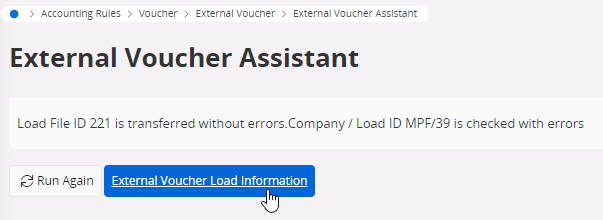
The page displays a message indicating if there are errors. -
On the top menu bar, click External Voucher Load
Information to display the
uploaded line.
-
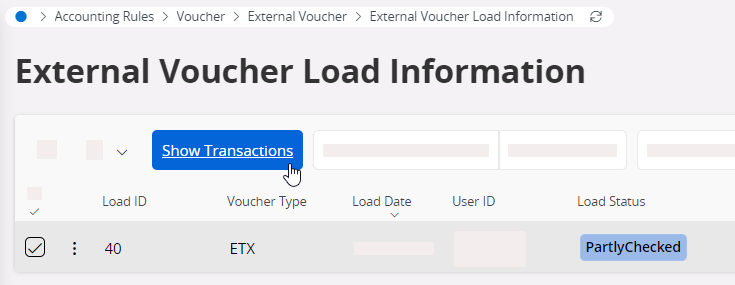
Select the line, then click Show
Transactions to see the details of
the transaction lines. If needed, you can correct errors or update the
lines.
-
Come back to External Voucher Load
Information page (for
example using the recently visited page view), then select the line and
click Check External
Voucher to
verify the validity of the transactions.
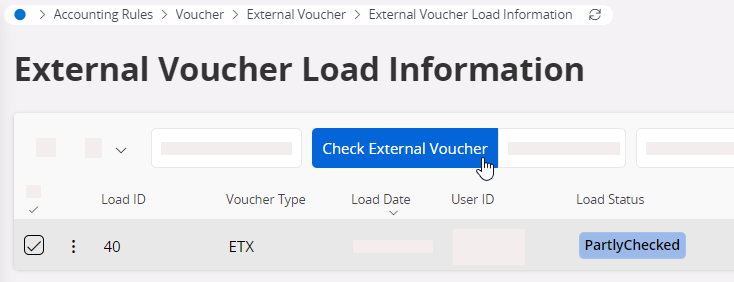
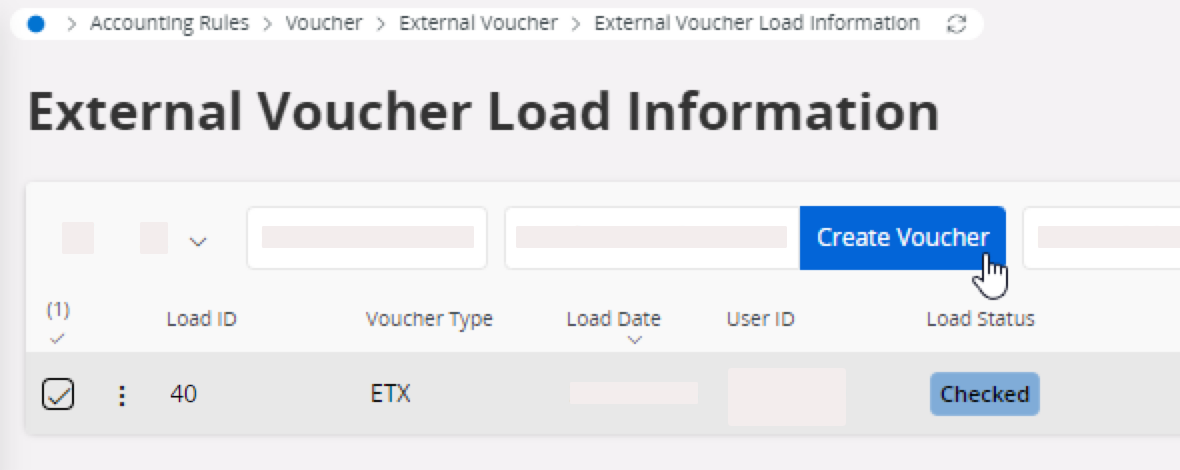
- If there are no errors, the load status changes to Checked.
- If the validity check finds errors: select the line, then click Show Transactions. Modify the transaction lines accordingly.
-
Click Create Voucher in the
top menu bar.
-
To send the transaction lines to the general ledger, you can:
- Wait for the automatic update at the end of the day,
- Or, to immediately update the general ledger: go to the page Update GL Vouchers. Select filters if needed and click Next. Select the lines to send and click OK.