Doing a Partial Credit Note
Correct a price or a quantity that do not impact the stock.
You can also perform this process if you need to correct charges lines.
- Go to .
-
Select the invoice you want to correct. In the header, click .
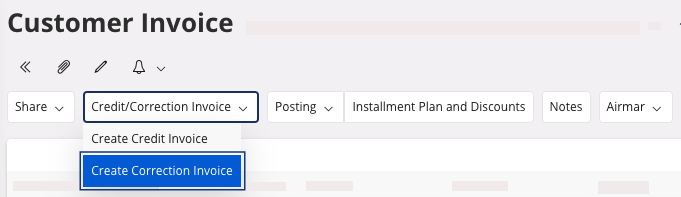
It creates a new Credit Invoice.Tip:To find your correction invoice number easily: go in the tab History, see the number on the line "correction invoice" created.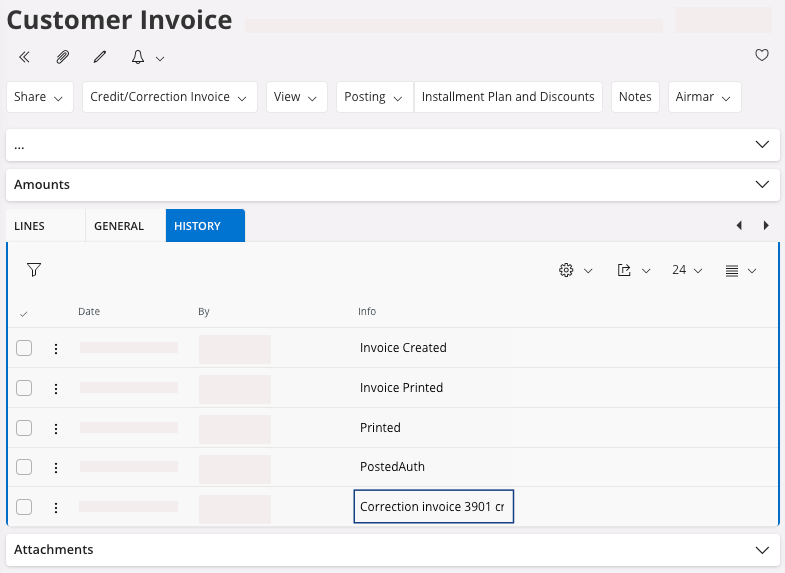
-
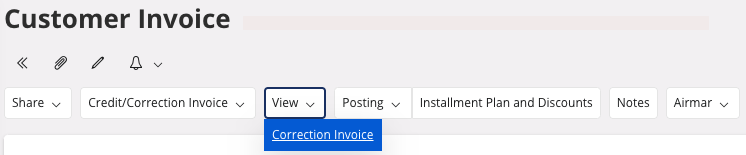
To access the correction invoice, click .
-
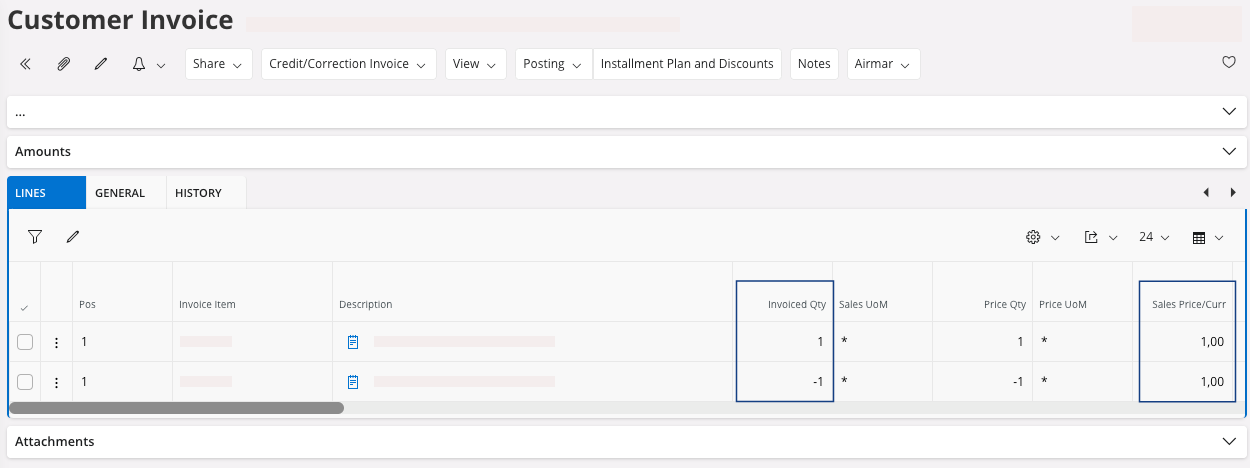
In your correction invoice, go in the tab Lines. You can:
- In the positive lines of Invoiced Qty, add the correct quantity to invoice.
- Change the Sales Price/Curr on positive line(s) to add the correct price to invoice.
- The negative lines cancel the original invoice lines. You cannot change them.
-
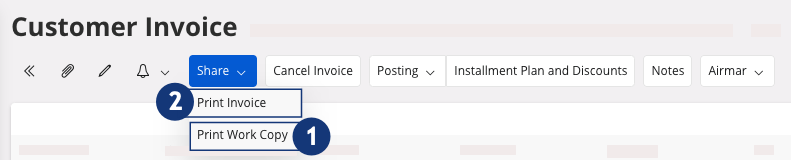
Once you have corrected all the information, you can print a work copy, click
 .
Note:On the correction invoice, a mention provides the original invoice number.
.
Note:On the correction invoice, a mention provides the original invoice number. -
Once you have checked all the information, you can print the final version,
click
 .
.