
Moving Inventory Part
Move stock from one location to another.
- Go to .
-
To display the list of items available in stock:
-
If not displayed, click Filter
 > and select On Hand Qty
-
Set the On Hand Qty
filter to > 0.
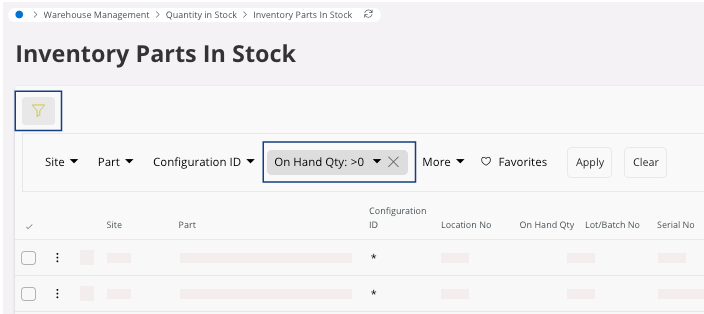
-
If not displayed, click Filter
-
Click the three dots
 on the line you want to focus on, then
click .
on the line you want to focus on, then
click .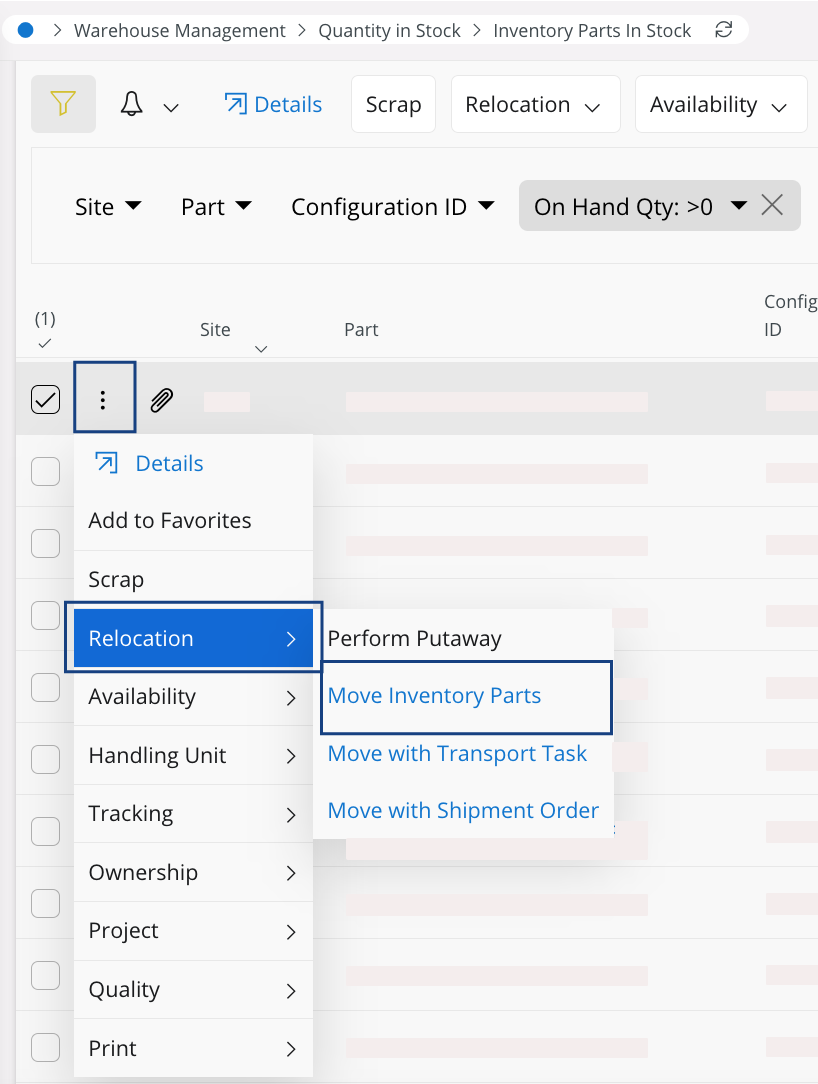
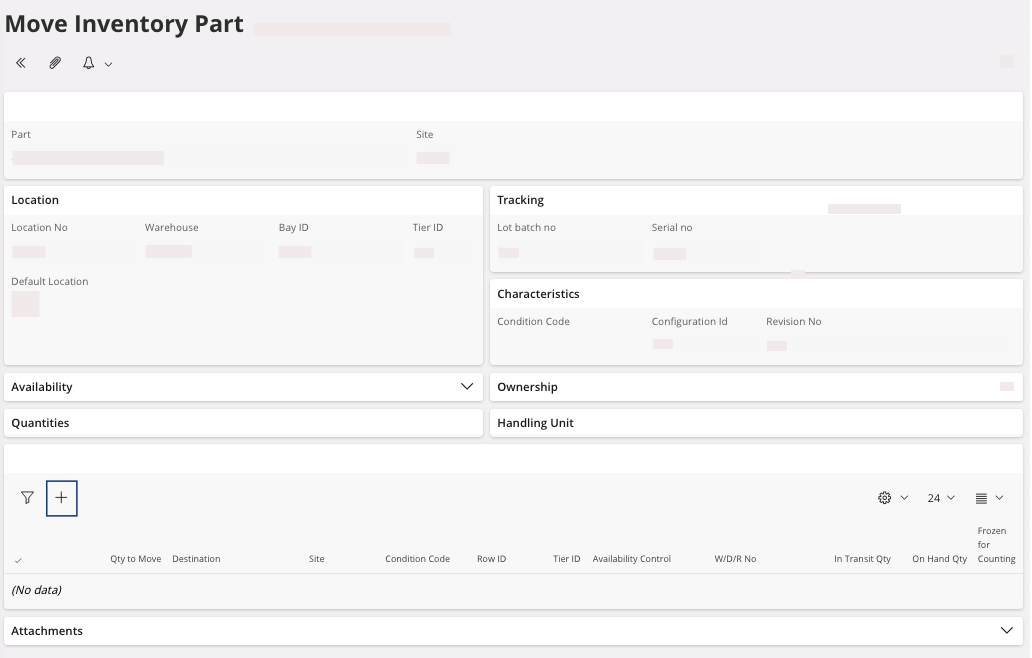
A new page opens, Move Inventory Part. -
On this page, Move Inventory
Part, scroll down, then click New
+ to add a new line.
- Provide at least the value Qty to Move and Location No to set up the new location.
-
You must complete the field Note to justify the stock movement.
Note:The field Location No can be Filtered by your Site where the part is actually located, remove the filter to choose the new location.
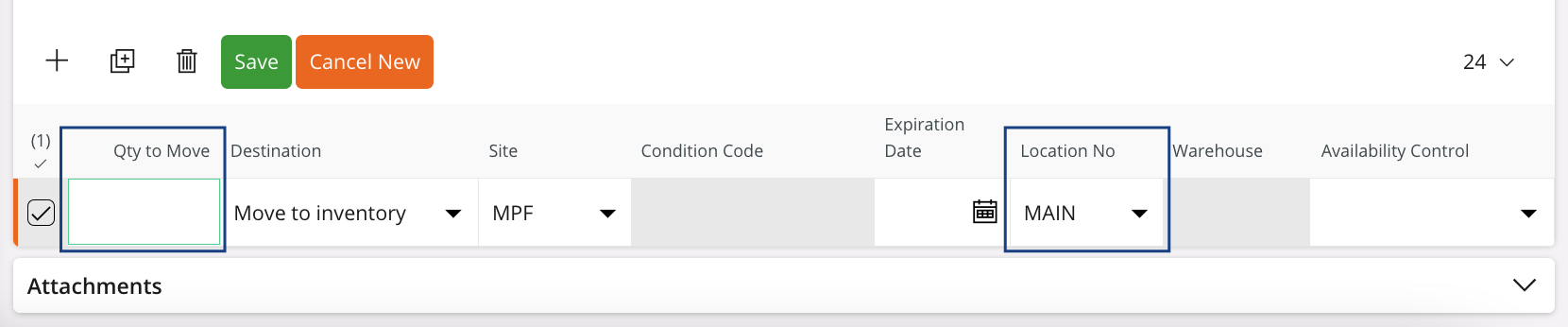
- Click Save to validate.