
Removing a Quantity from an Inventory Part
If for an unknown reason, you have more inventory parts counted in IFS Cloud than in your existing stock, you need to remove a quantity from the stock in IFS Cloud.
Important:
This process must be exceptional and create a
specific adjustment in your stock. It must not replace consumption of stock like
shop orders, customer order delivery, counting or any other process consuming
stock.
- Go to .
-
In the search toolbar, filter the page on the Site or the Part to get the corresponding
product(s)
 .
.
-
Click Edit
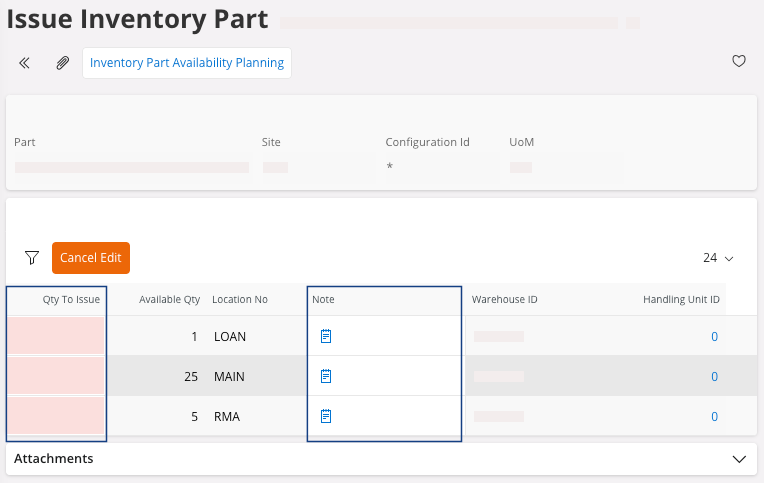
 to adjust and change the quantity:
- In the field Qty to Issue, enter the quantity to remove.
- You must enter a note to justify the negative adjustment of your stock in the field Note.
-
Click Save.
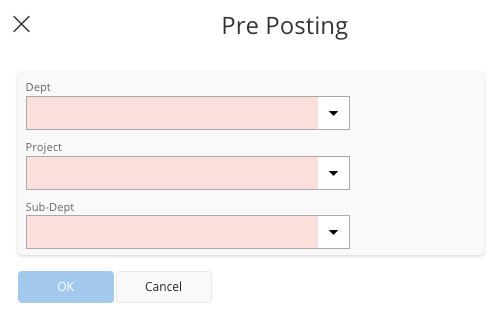
The Pre-Posting dialog appears.
-
In this dialog, you need to link the new part added to a Dept, a Project and a Sub-Dept.
- Click OK.