
Creating a Customer Order
You can directly create a customer order if your customer did not need a sales quotation.
Notice:
We advise you to create a sales quotation and
change it into a customer order, see
Creating a Sales Quotation.
- Go to .
-
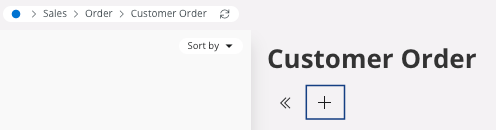
Click New +.
The image below appears. The fields in red are mandatory.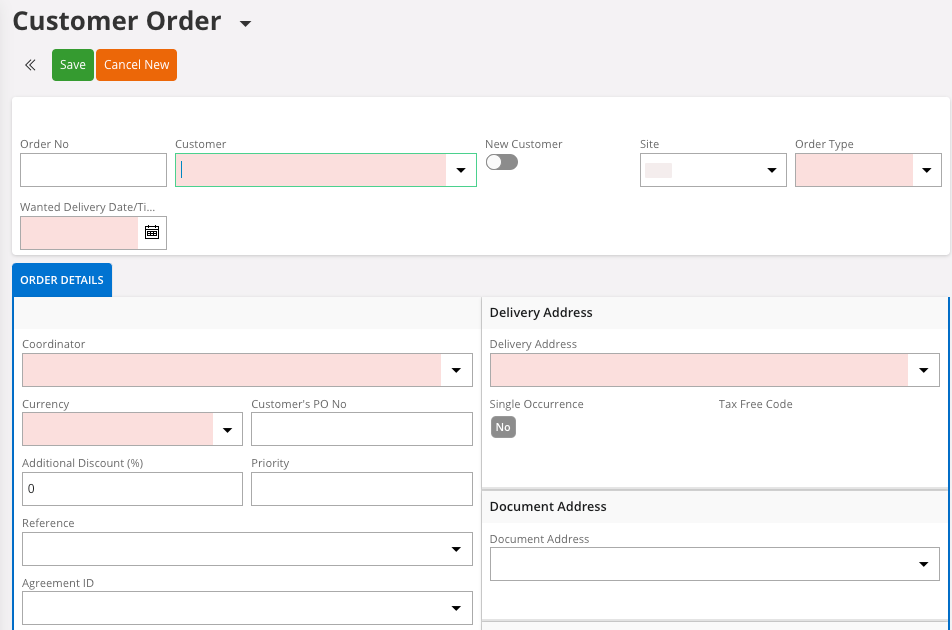
-
Select your Site and fill the
field Customer with your
Customer No or Name.
Once your customer is selected, some fields are automatically filled with information from the Customer Master Data, your clients already registered. If you want, you can change these default value.
-
Enter the mandatory information in the fields in red.
Note:You may review fields that are not mandatory but important for your customer order like delivery information such as Ship-via, Wanted Delivery Date/Time,…
-
Once you have checked all the information, in the header, click Save.
Your customer order has been created.
-
You can specify to which department, project, or sub-department this customer
order is allocated:
-
In the header, click .
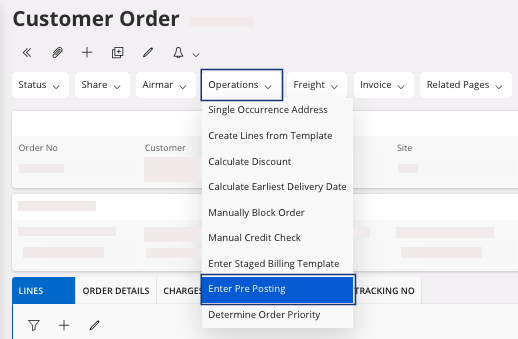
The Pre-Posting pane appears. -
You can associate the customer order to a Dept, a Project or a Sub-Dept. You can fill the three
fields or choose one of them.
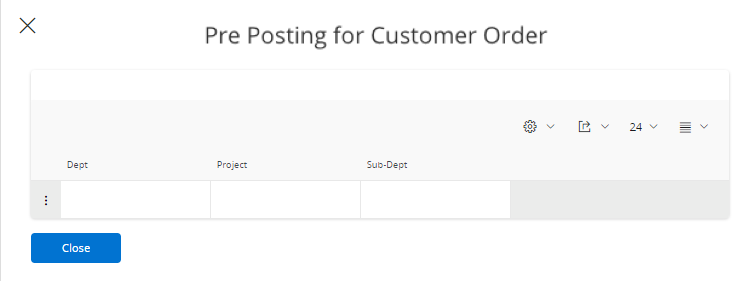
Note:If you specify information in the pre-posting header, the same information is applied to each line. However, you can directly modify it in the lines. -
In the header, click .
-
To add your lines:
- Go in the Lines tab.
- Click New +.
- Fill the fields: Sales Part No and Sales Qty. The other fields should be filled automatically.
- Click Save.
-
In the lines, you need to define to which department, project, and
sub-department this customer order will be allocated:
Important:The Pre-Posting is mandatory in these lines.
-
Select one or several lines and click .
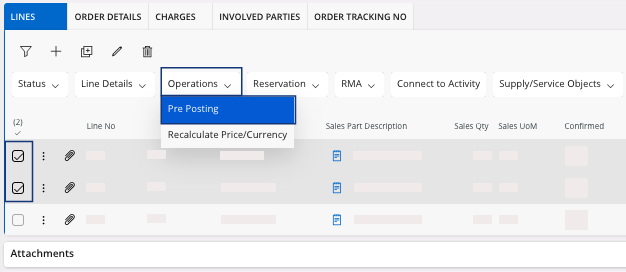
The Pre-Posting pane appears.
Note:If you specified information in the pre-posting header, the same information is applied to each line. -
Select one or several lines and click .