
Printing a Customer Statement
You can print a statement for your customer in PDF.
-
You can access the Customer Statement of
Account page to print
your statement through the page Customer
Analysis, click Print Statement of
Account in the
header.

- Otherwise, go to .
-
Select criteria that you want in the area Selections:
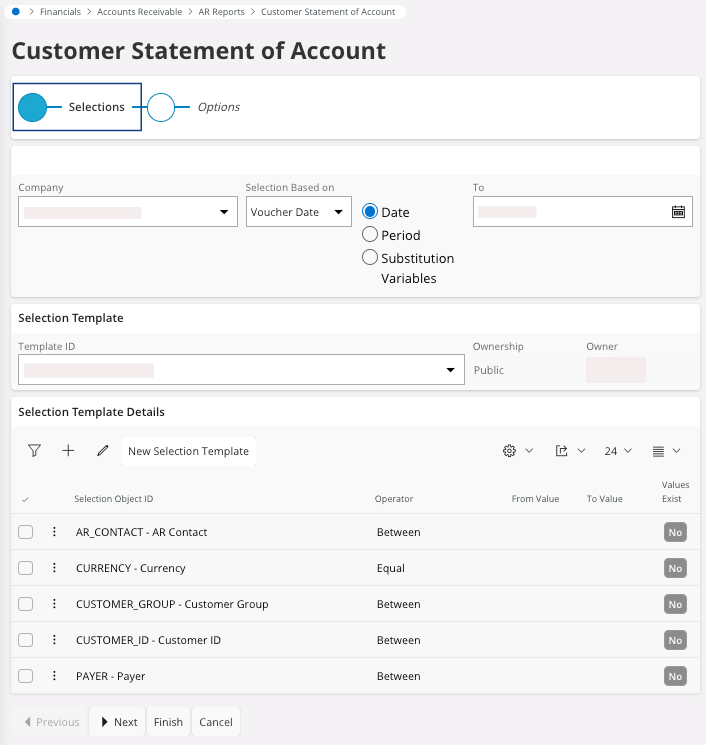
- Click Next.
-
Choose your Options.
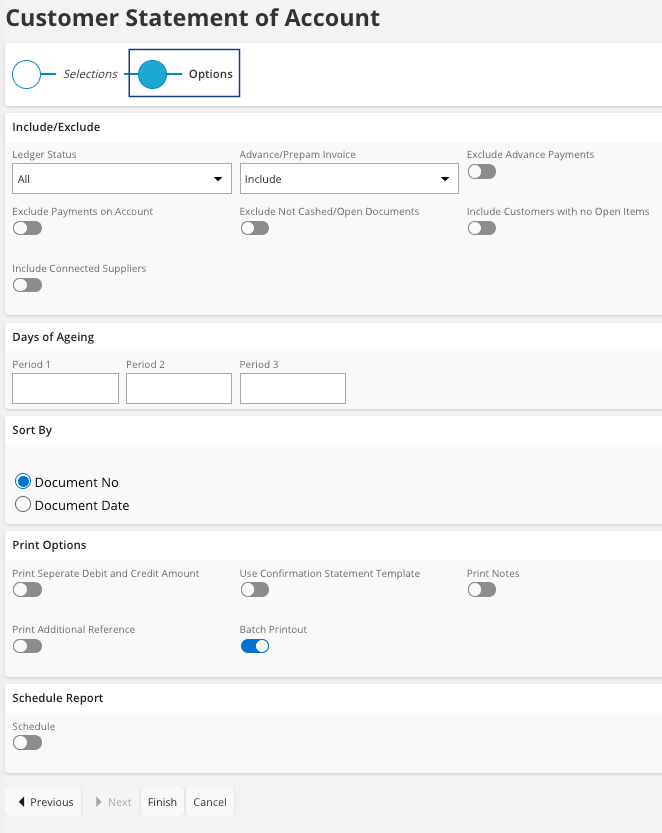
-
Click Finish.
The Report Format & Output pane appears.
-
You have several options:
- Preview button: to do before
printing. Click Preview: the
document appears on your screen. From here, you can check your information,
print your document or keep it on your computer in PDF.Trouble:If the preview is not displayed, your browser might block your pop-ups. Check your authorization in your browser settings.
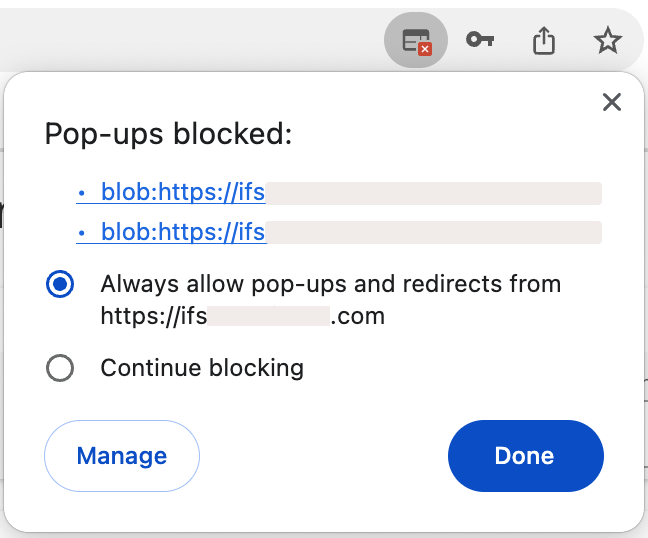
- Print: if you want your document on paper, choose your printer, or if you want to keep it on your computer in PDF, choose IFS PDF Archiver.
- Email: fill in or check the email address and send it.
- Preview button: to do before
printing. Click Preview: the
document appears on your screen. From here, you can check your information,
print your document or keep it on your computer in PDF.
- Click OK.