
Returning the Product to Stock
If you do not return the product to the customer, you can permanently put it back in your stock.
Note:
This step impacts your stock and accounting at the time you
receive a part. After this step, you can pick this material in your stock for
further actions.
- In the Return Material Authorization page, go to the tab Return Material Lines.
- Select the lines that you want to receive.
-
Click .
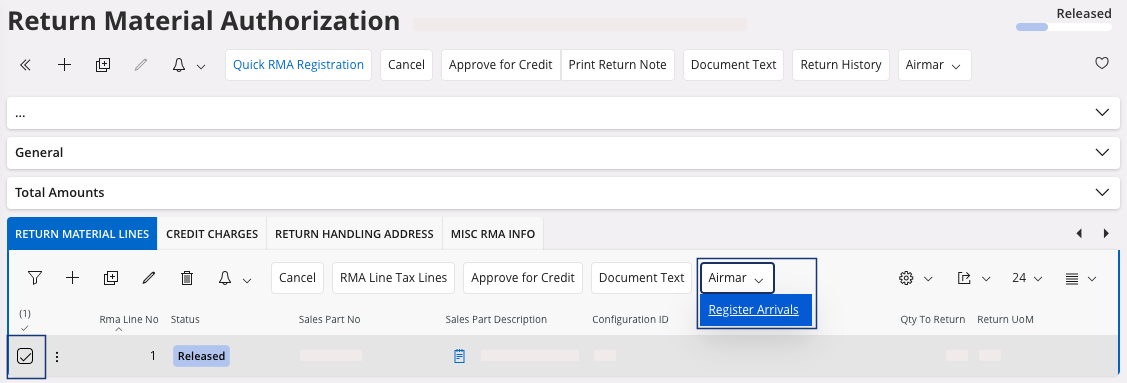
The Register Arrivals page appears. -
You are able to receive parts back in your stock through three options. Select
your line and choose to click:
- Receive if your part(s) are not serialized.
- Receive with Serials/Lots, if your part(s) are serialized.
- Receive Parts against Order Deliveries, if you connected your RMA to a customer order.
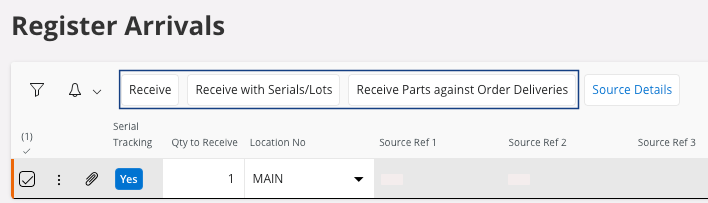
The Receive, Receive with Serials/Lots, or Receive Parts against Order Deliveries pane appears according to your choice. -
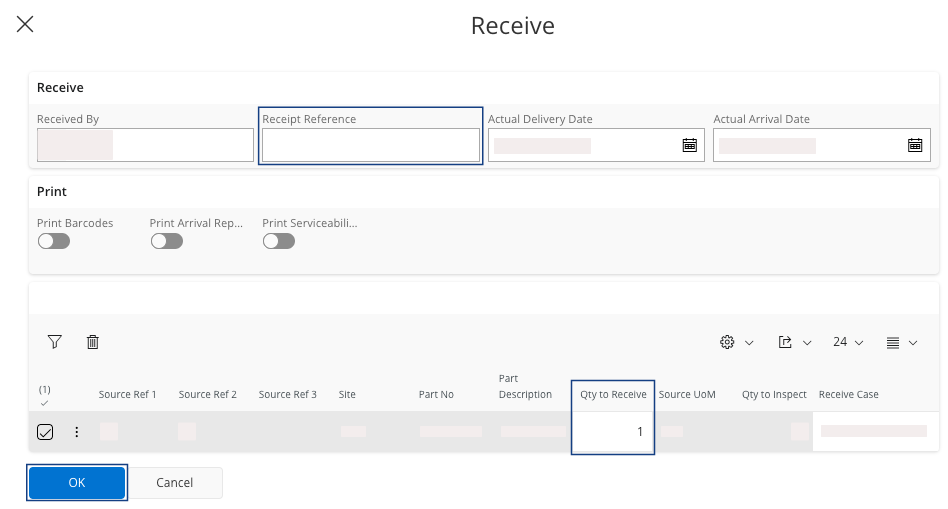
If you click Receive or
Receive Parts
against Order Deliveries you
need to fill the following fields:
- Receipt Reference.
- Qty to Receive: check the quantity to receive.
-
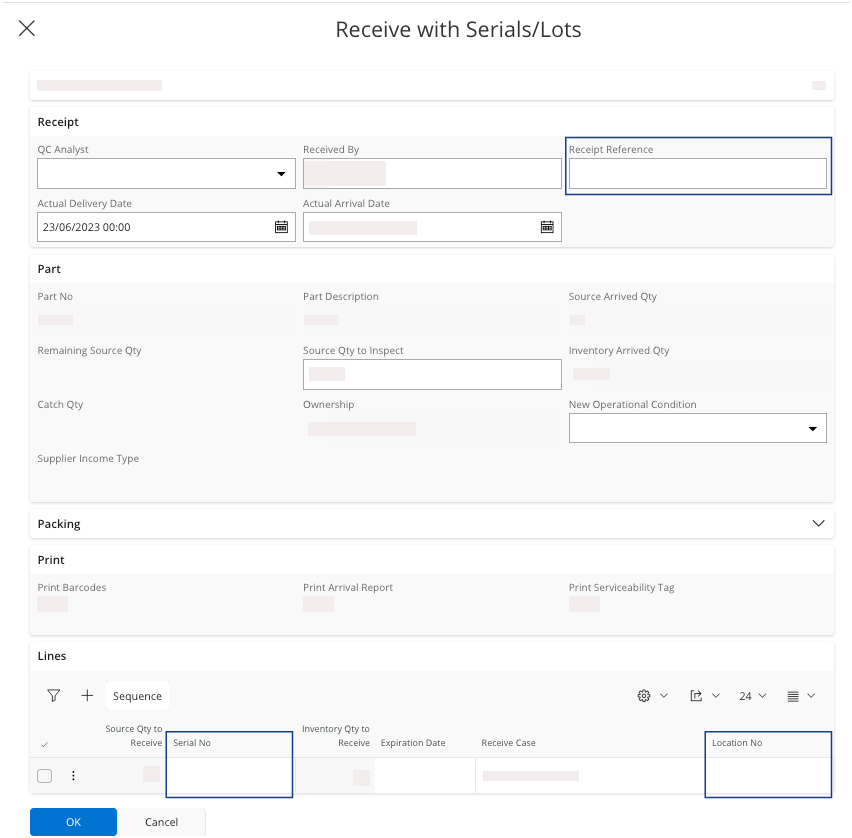
If you click Receive with
Serials/Lots, fill the
following fields:
- Receipt Reference.
- Location No: choose a location where the part will be stocked.
- Serial No, mandatory on those parts. It must correspond to the serial number on the delivery note from the supplier or on the product.
-
Click OK.
A new pane appears.
- Click Proceed to confirm.
If you do not need to credit your invoice, you finished your process.