
Changing Invoice Settings
If needed, you can change some settings of your invoice before printing it.
- Go to the page .
-
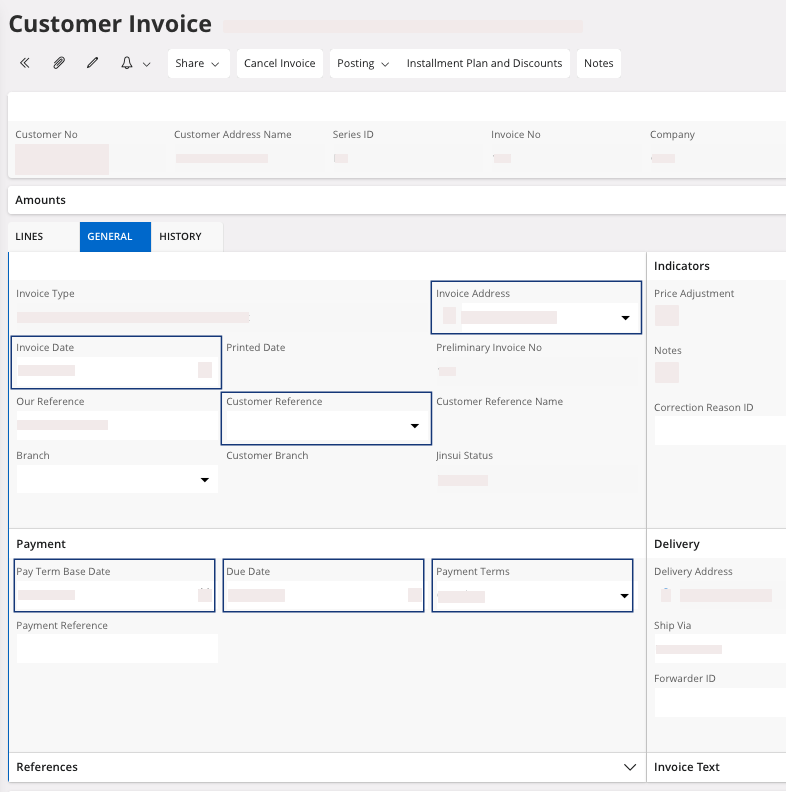
Select an invoice from the menu on the left side, then click the tab General. You can change the following
settings:
- Invoice Address.
- Invoice Date.
- Customer Reference, the contact.
- Pay Term Base Date.
- Due Date.
- Payment Terms.
Note:In the tab Lines, you are able to change some values but this action is not recommended as invoice lines should be aligned with the customer order lines. -
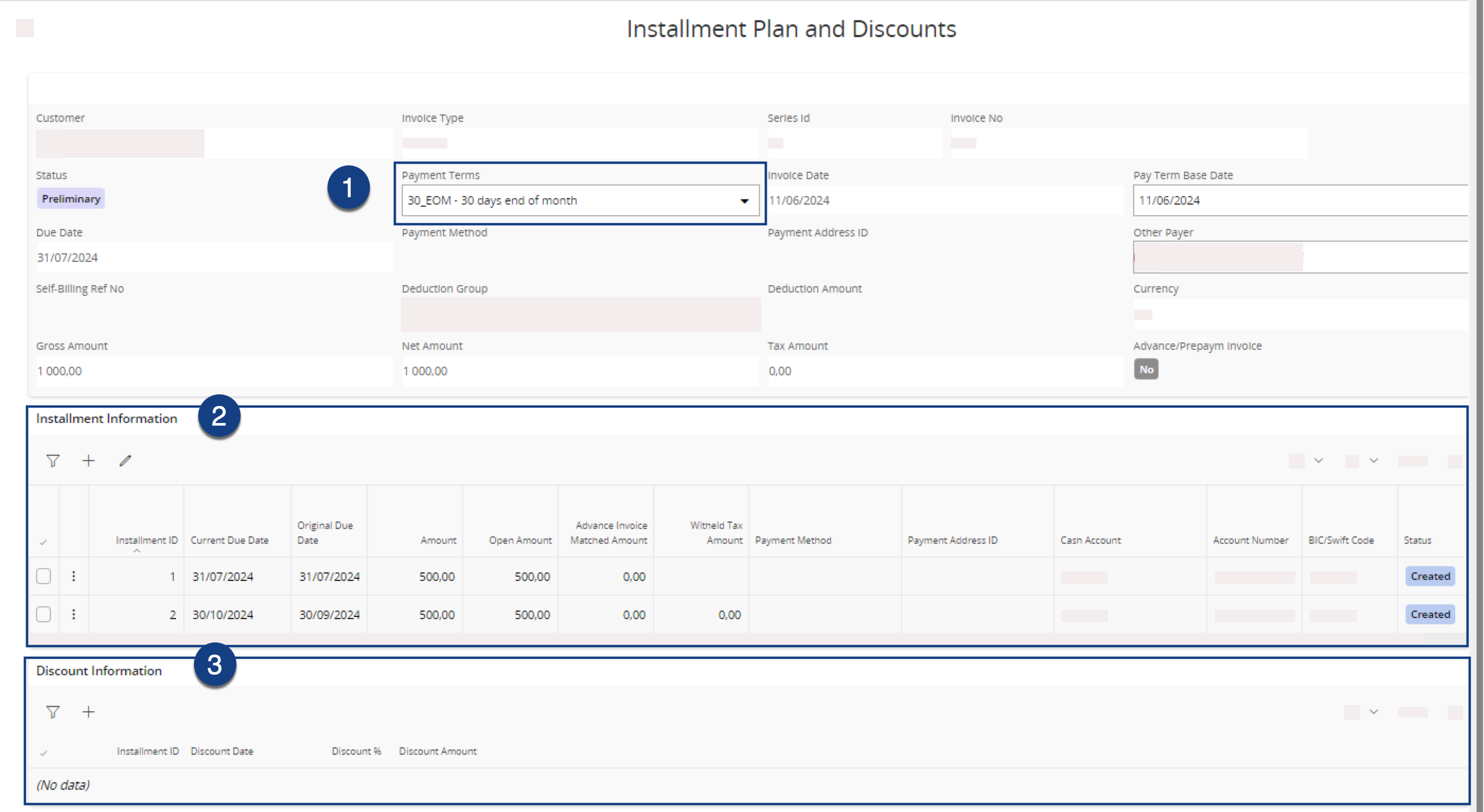
You can also add to the invoice more details about installment plans and
discounts:
-
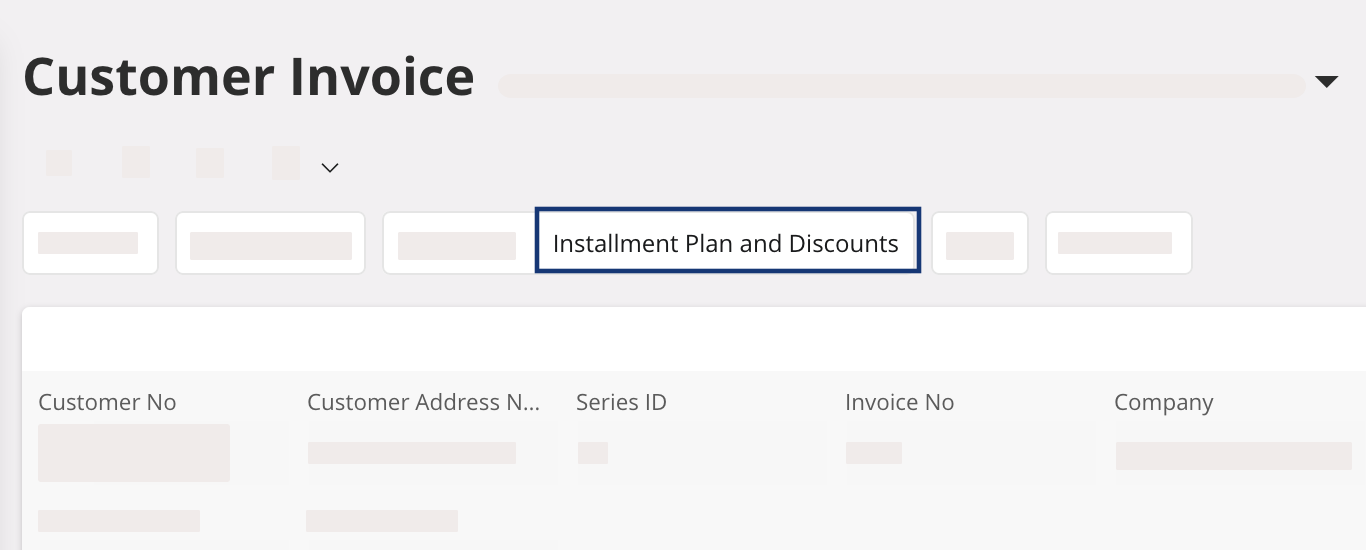
Click Installment Plan and
Discounts.
-
Click Installment Plan and
Discounts.