Changing a Sales Quotation into a Customer Order
If the sales quotation has been accepted by the customer, you need to change it into a customer order.
-
In your Sales
Quotation page, in
the header, click Create Order.
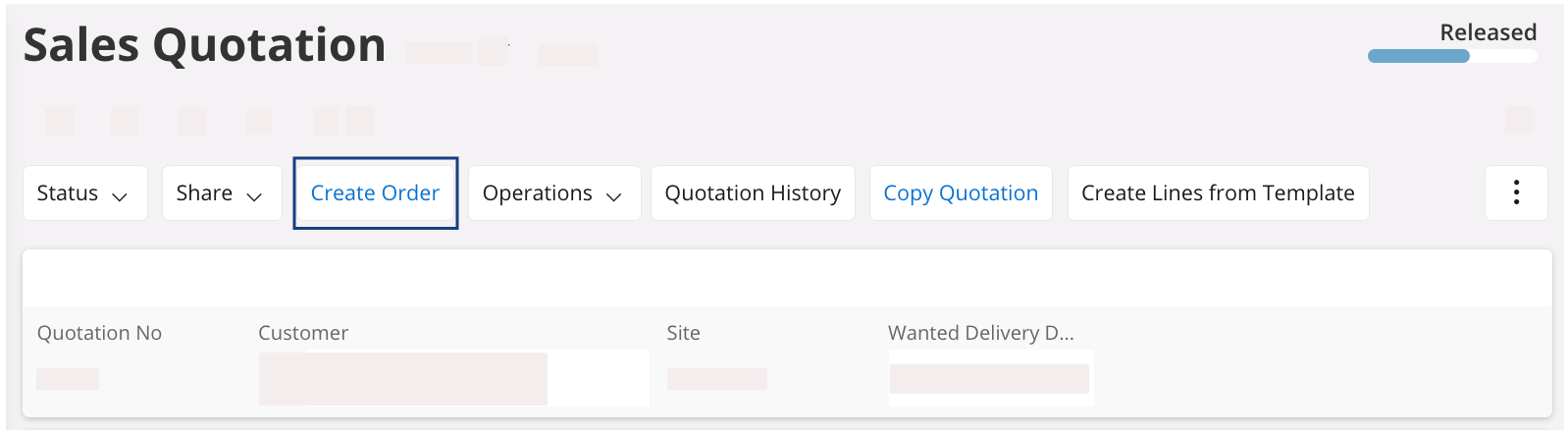
The page Create Order from Quotation appears. -
In this page:
-
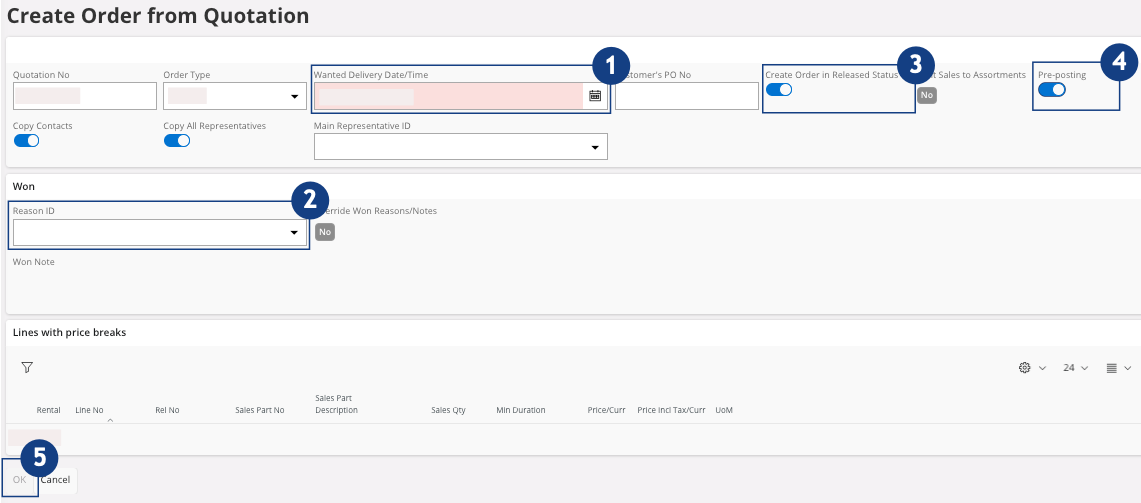
In the Wanted Delivery
Date/Time field, select the delivery date needed
 .
.
-
Fill the Reason ID
field: it identifies why the customer accepts your sales quotation and
which advantage he finds in your sales quotation
 .
.
-
You can turn on the toggle Create Order in
Released Status
 to directly set a Released status to the customer
order. If not selected, you will have to manually change the status from
Planned to
Released.
to directly set a Released status to the customer
order. If not selected, you will have to manually change the status from
Planned to
Released.
-
You can select the Pre-Posting toggle
 to specify the department, project, or
sub-department to which this customer order will be allocated. A pane
will appear when you validate the order to enter this information.
to specify the department, project, or
sub-department to which this customer order will be allocated. A pane
will appear when you validate the order to enter this information.
- Complete any other field that you may need.
-
In the Wanted Delivery
Date/Time field, select the delivery date needed
-
Click OK
 .
.
-
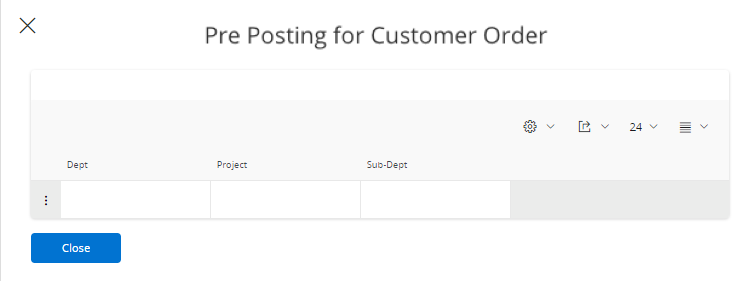
If you selected the Pre-Posting
toggle, a pane appears:
- Enter a Dept, a Project and a Sub-Dept.
- Click Save.
- Click Close.
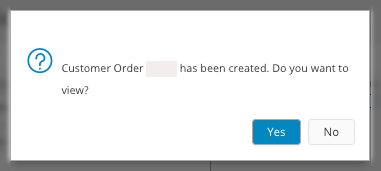
A dialog appears. You can choose if you want to see your Customer Order:- If you select Yes, you go to the Customer Order page created.
- If you select No, you stay on the page Sales Quotation.