
Printing a Sales Quotation
You need to print your sales quotation to send the offer to your customer to get his validation.
-
Click .
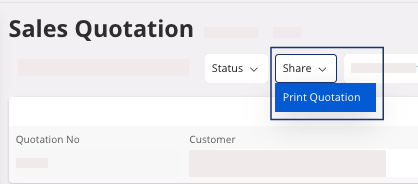
The Report Format & Output pane appears.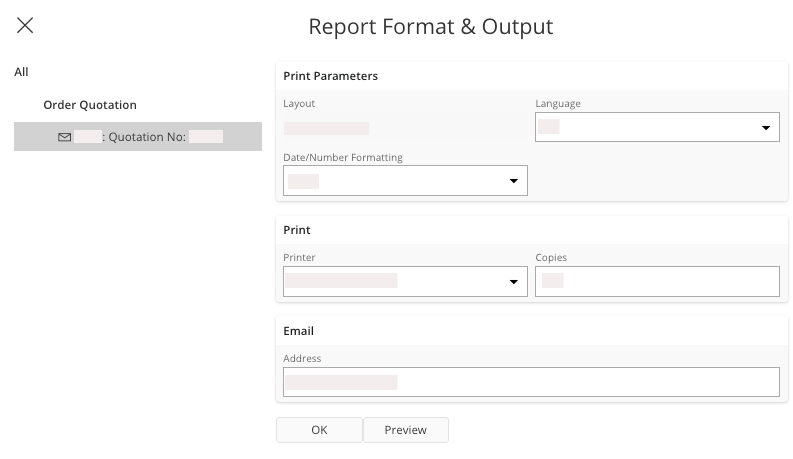
-
You have several options:
- Preview button: to do before
printing. Click Preview: the
document appears on your screen. From here, you can check your information,
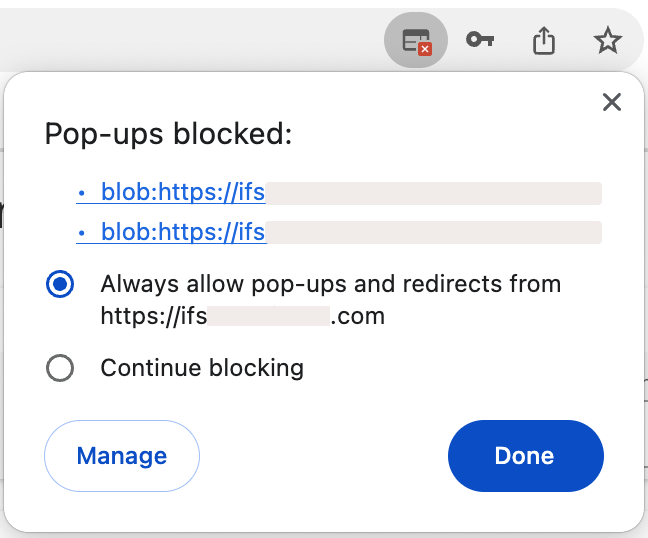
print your document or keep it on your computer in PDF.Trouble:If the preview is not displayed, your browser might block your pop-ups. Check your authorization in your browser settings.
- Print: if you want your document on paper, choose your printer, or if you want to keep it on your computer in PDF, choose IFS PDF Archiver.
- Email: fill in or check the email address and send it.
- Preview button: to do before
printing. Click Preview: the
document appears on your screen. From here, you can check your information,
print your document or keep it on your computer in PDF.
- If he validates the sales quotation you need to perform Changing a Sales Quotation into a Customer Order.
- If your customer wants to add or change information, you need to go back on the sales quotation and perform the process from Adding Lines in your Sales Quotation.
- If your customer does not accept the sales quotation, you need to perform Canceling a Sales Quotation.