
Managing a Mixed Payment for Direct Cash Payments
You need to use direct cash payment for all the payments that are not customer or supplier related.
- Go to your Mixed Payment.
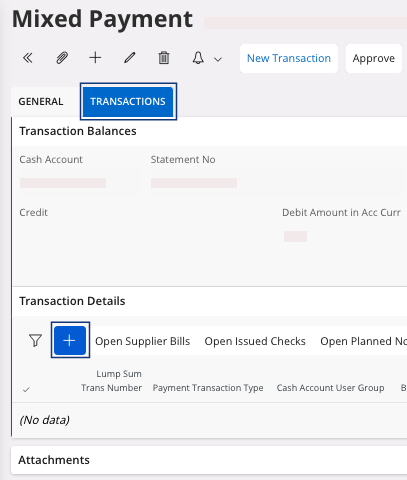
- Go to the tab Transactions.
-
Click New + to add a line in
your transactions.
-
Several information are mandatory:
- You need to register this mixed payment when the cash movement appears on your bank statement.
- In the Payment Transaction Type field: select Direct Cash Payment.
- Select the Account that corresponds to your payment.
- Check the Currency.
- Enter the payment Amount. If you entered correctly the Balances in Accounting Currency in the General tab. You can check in the area Transaction Balances, in the field Remaining Amount which transaction you need to do. This field must show 0 when transaction lines are correctly filled.
- You have to define a Dept, Sub-Dept, Project and a Prod Line. According to the Account selected, these fields can be unavailable.
Note:If you cannot see the field(s): click > Column Chooser > Configure columns
manually and choose the fields that you want to
display.
> Column Chooser > Configure columns
manually and choose the fields that you want to
display.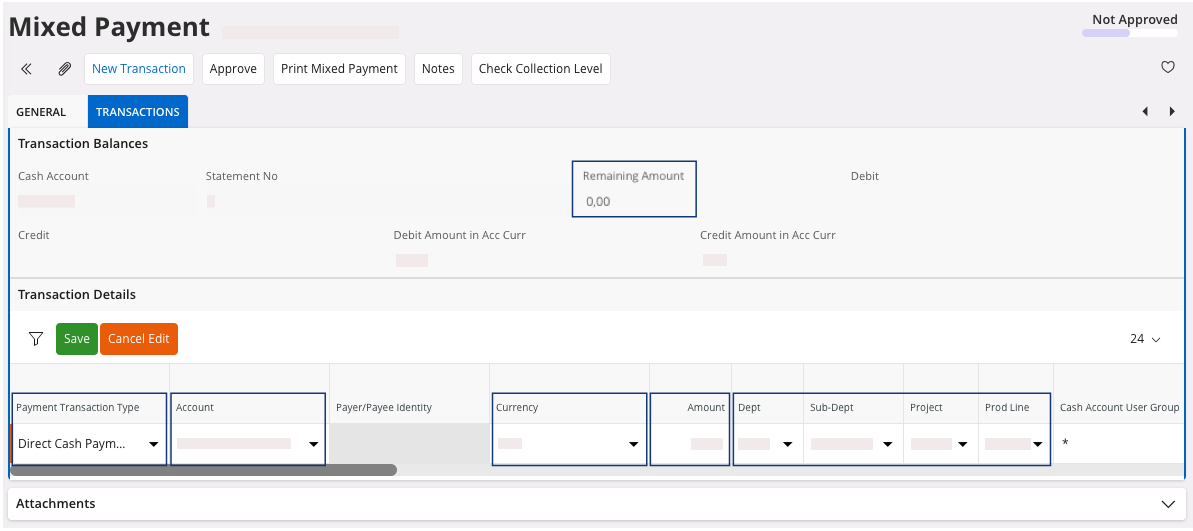
- Click Save.
- If you need to register other Direct Cash Payment, perform the same process. If you have customer or supplier payment, perform Customer and Supplier Mixed Payment.
-
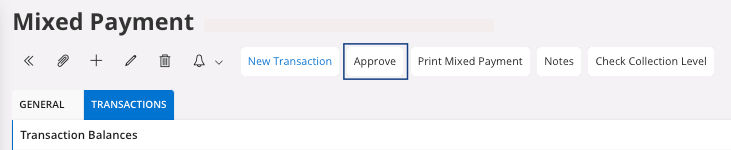
When you register all your payment lines, you need to approve the mixed
payment: in the header, click Approve.
A new page appears, Voucher Information. - Take note of the Voucher Information, and click OK.