
Creating a Supplier Payment Proposal and a Payment Order
- Calculate a proposal based on an invoice already registered in the system.
- Create manually a supplier payment proposal and add new invoice(s) not registered.
Creating a New Supplier Payment Proposal
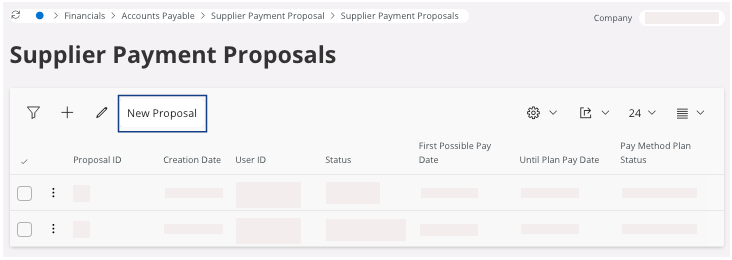
- Go to .
-
Click New Proposal.
The New Supplier Payment Proposal pane appears. -
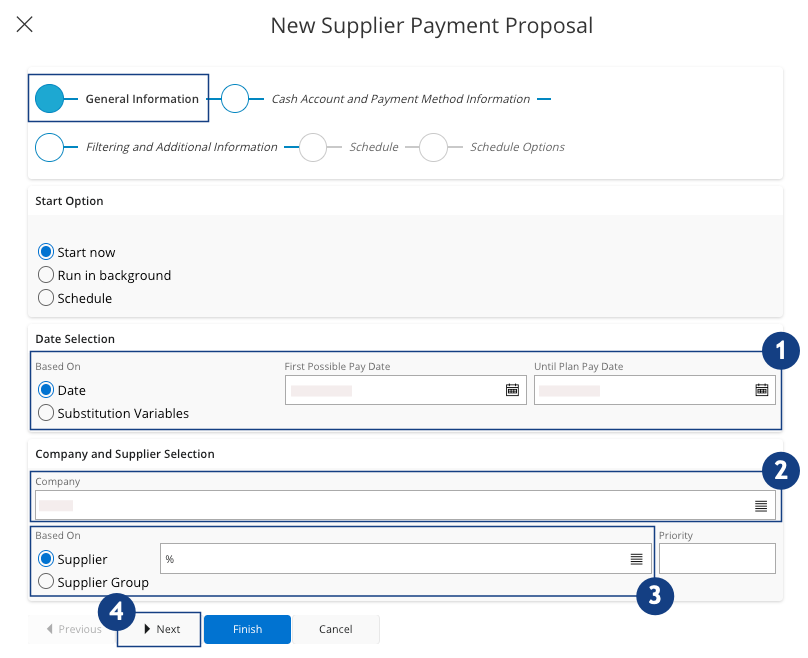
To use the standard proposal function, in the General
Information section, you
need to fill:
-
In the Date Selection area, your dates for the proposal
 .
.
-
In the Company and Supplier
Selection
area, your Company
 and your Supplier selection
  .
.
-
Click Next
 .
.
-
In the Date Selection area, your dates for the proposal
-
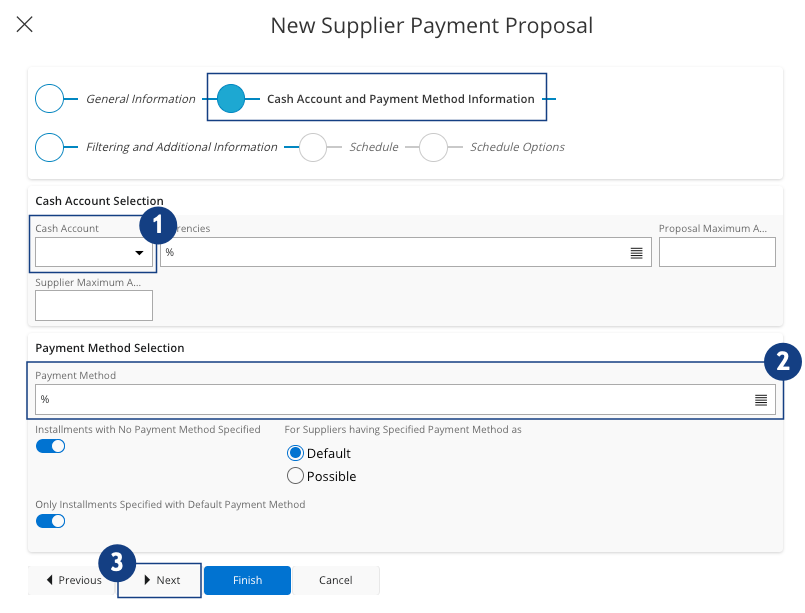
In the Cash
Account and Payment Method Information section, you need to fill:
-
In the Cash Account
Selection area:
the Cash Account used
to pay .
-
In the Payment Method
Selection
area: the Payment Method used .
-
Click Next
.
-
In the Cash Account
Selection area:
the Cash Account used
to pay
-
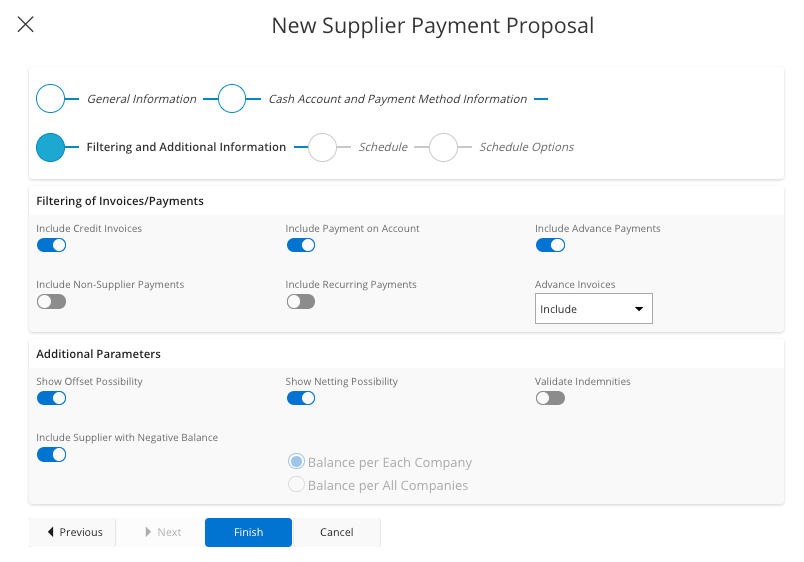
In the Filtering and
Additional Information
section, select the type of documents you need to include.
-
Once you have entered all your information, click Finish.
Your new proposal has been created.
-
To adjust the proposal that you just created, select your proposal, click
the three dots
 and click Details.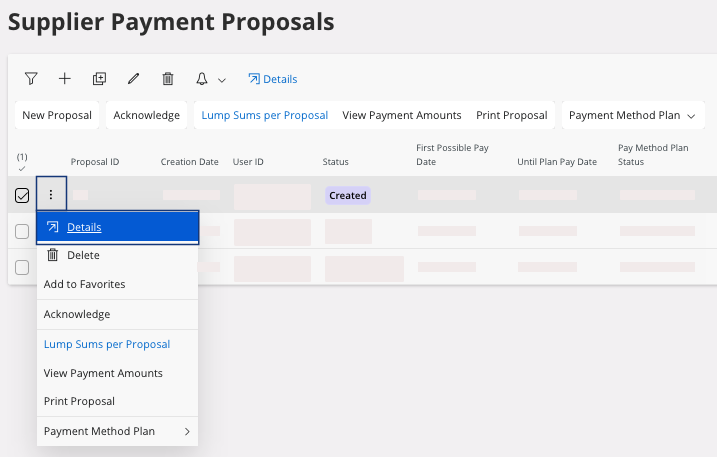
-
On the Supplier Payment
Proposal Details
page, click Edit
 to adjust, delete, add, change amounts
matched.
to adjust, delete, add, change amounts
matched.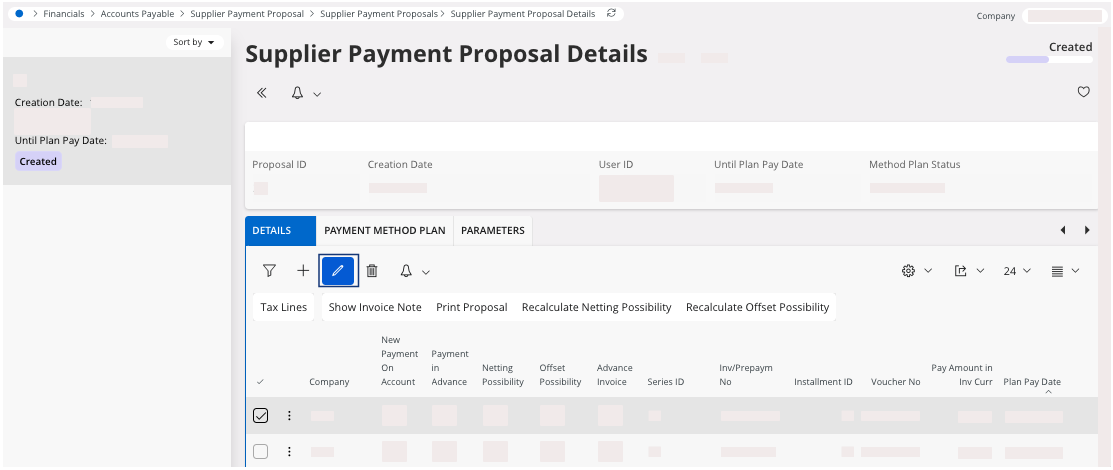
- Once you have finished adjusting your amounts, you can go back to the Supplier Payment Proposals.
Creating a New Payment Order
Before creating a payment order, you can perform several actions on
your proposal:
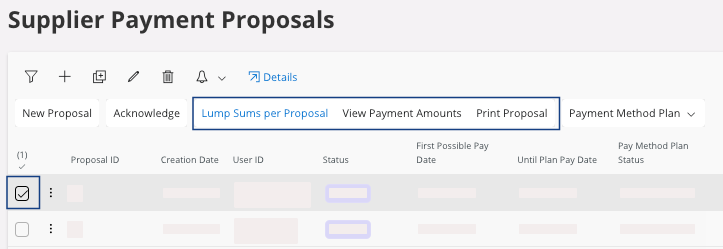
- On the page Supplier Payment Proposals, select your proposal.
-
You can:
- Get an overview per supplier: click Lump Sums per Proposal.
- Get information about the full payment amount included in the supplier payment proposal: click View Payment Amounts.
- Get a report that summarizes the payment proposal: click Print Proposal.
-
Click Acknowledge.
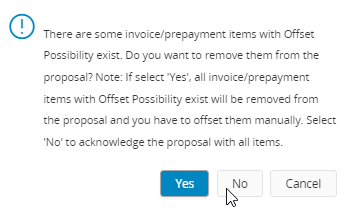
You proposal get the status Acknowledged.You can get an alert message if you are including prepayments in the proposal. If you want to take them into account, then select No.
-
Once acknowledged, to create a payment order click New Payment
Order.
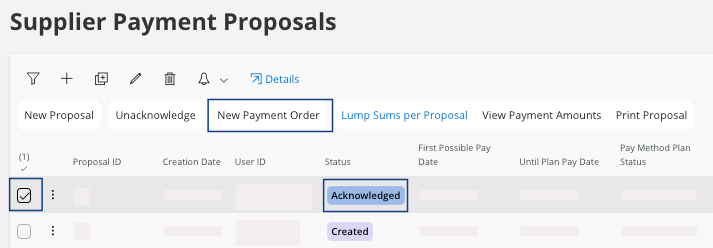
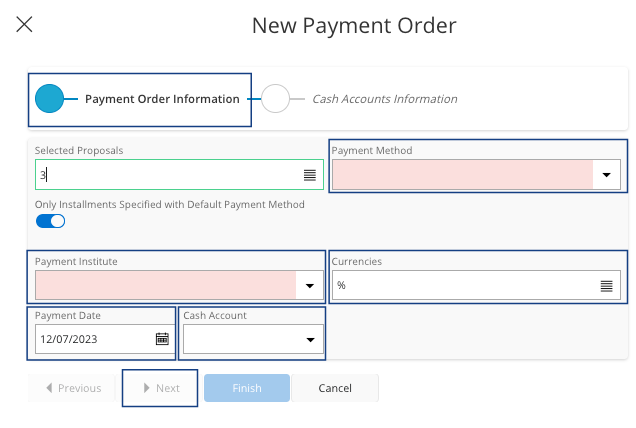
A new pane appears: New Payment Order. -
In the Payment Order
Information section,
select your:
-
Click Next.
-
Click Next.
-
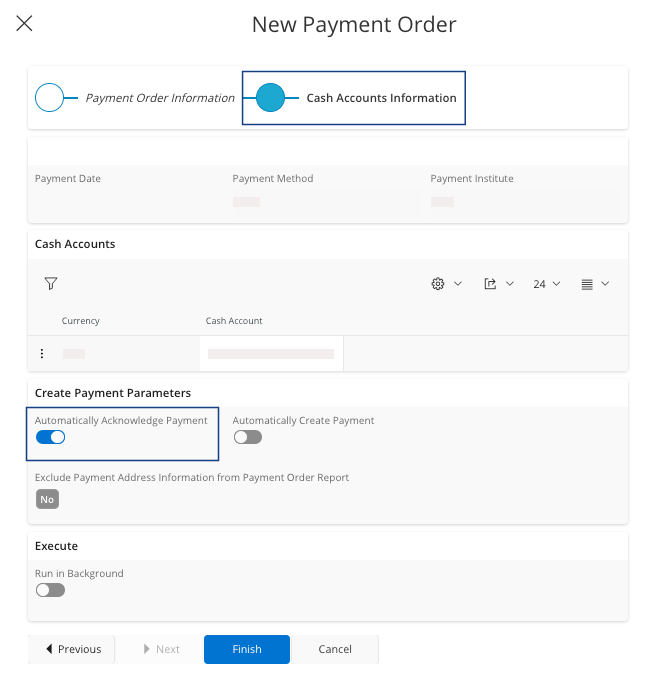
In the Cash Accounts
Information section,
select your payment parameters.
Note:We advise you to turn on only the Automatically Acknowledge Payment toggle. This option generates the file automatically without posting anything into accounting yet.
-
Once your entered all your information, click Finish.
Your proposal disappears from the Supplier Payment Proposals page, a supplier payment order is created and a payment file is generated and available in your folders on your computer.
 Note:You can see an overview of your payment order in the page Supplier Payment Orders.