
Reserving a Shop Order
If you have parts that have a Shop Order supply code, you need to reserve them through a specific process.
 > Column Chooser and add
the column Supply Code. In this
column, you can see if your part is a shop order or an invent
order or has another supply code.
> Column Chooser and add
the column Supply Code. In this
column, you can see if your part is a shop order or an invent
order or has another supply code.-
On the Customer Order page:
select the line with your shop order, then click the three dots
 and select .
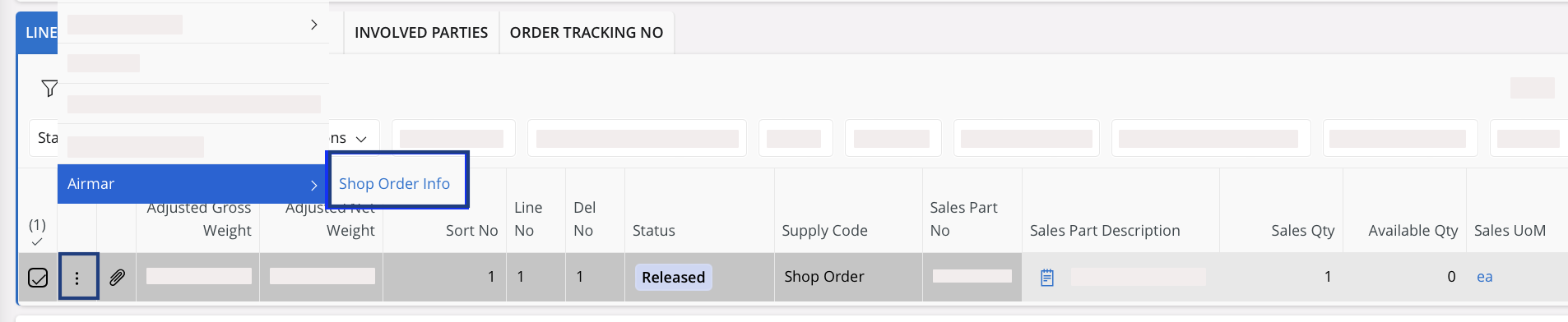
Note:If you need to change information in your shop order, see Changing Shop Order Settings.Shop Order page opens. -
Click the tab Materials:
-
Click in the menu above the list.
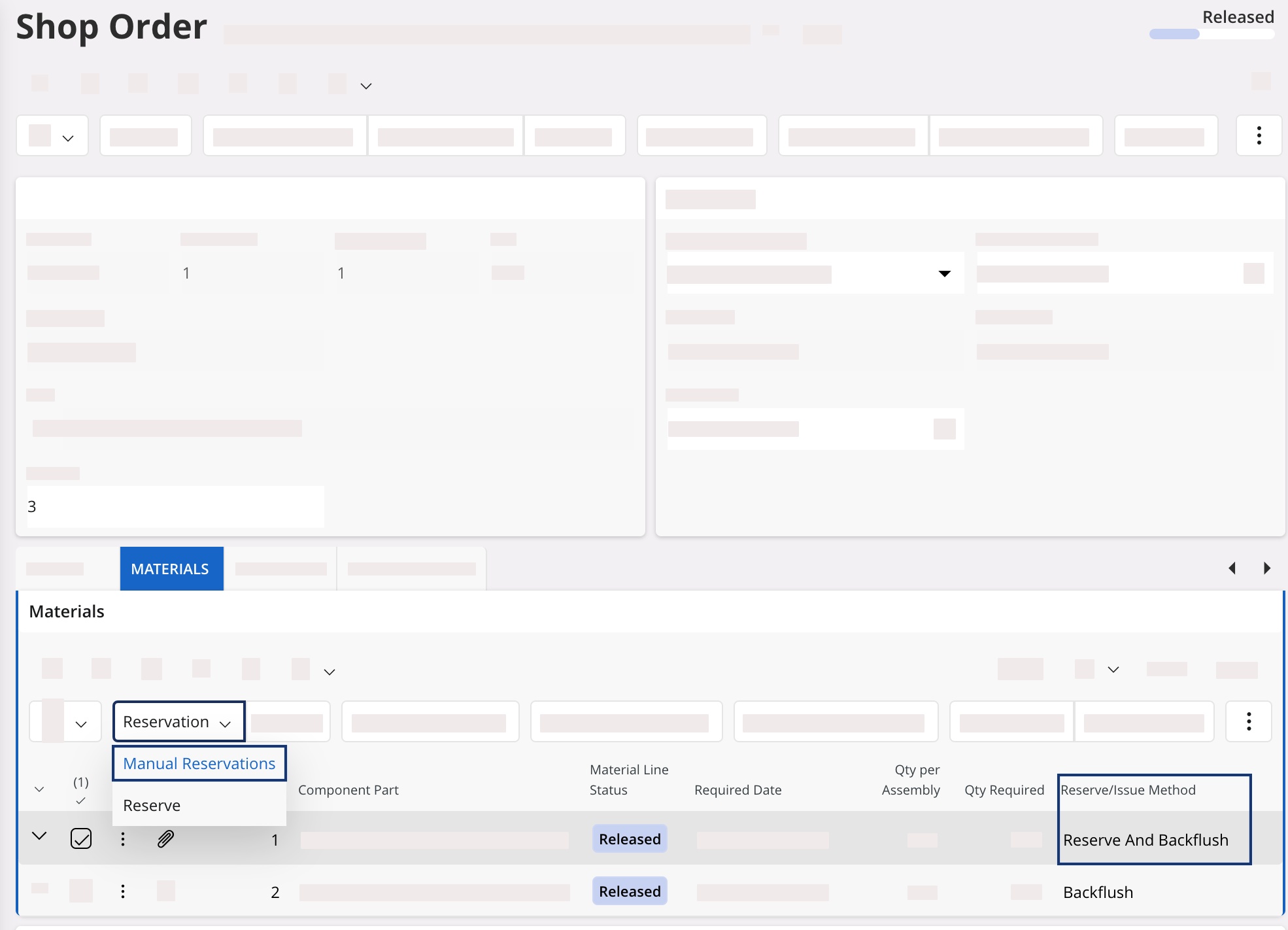
Manual Issue Shop Order Material Line page opens. It shows the list of the parts available in your stock. -
Click in the menu above the list.
-
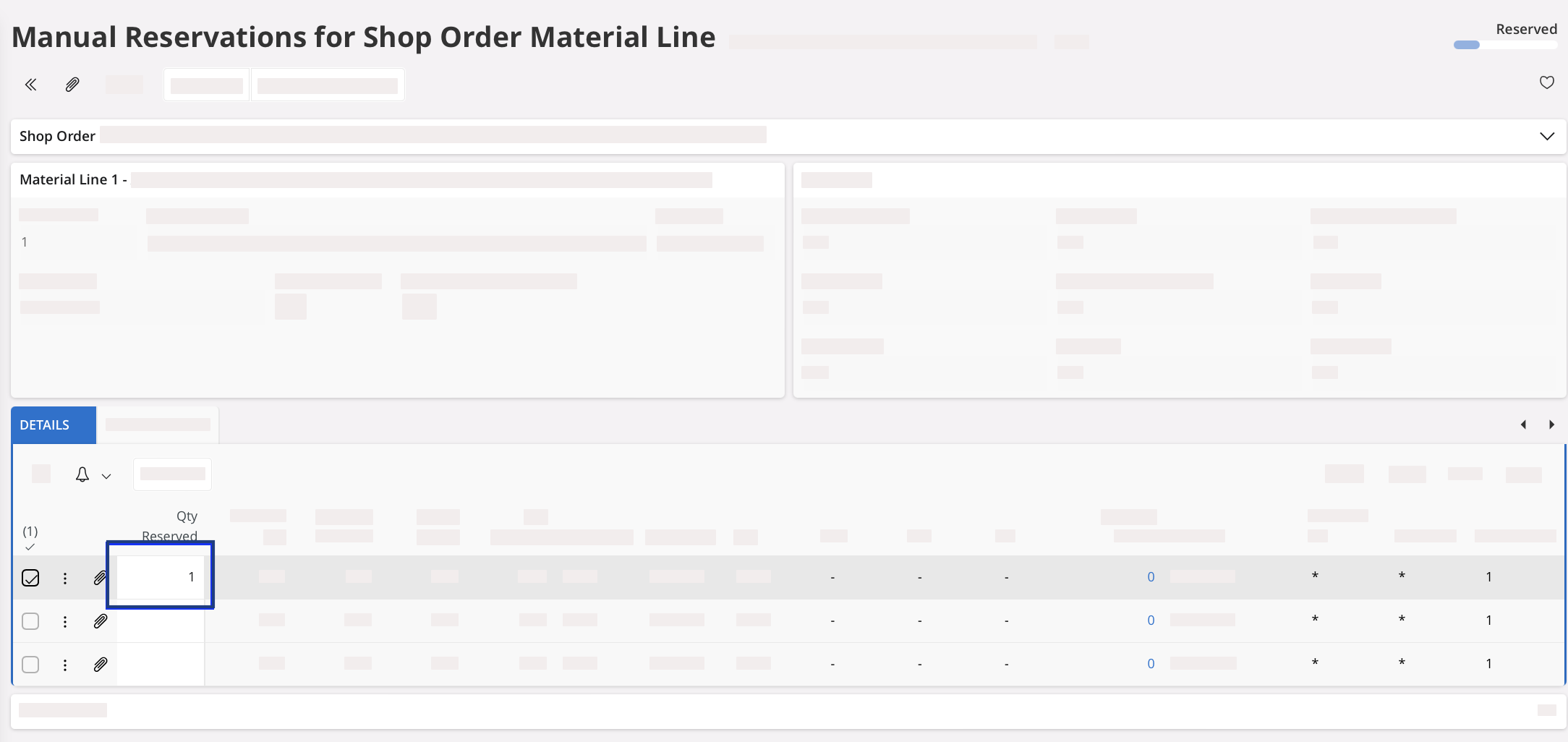
On this page:
- Select the line of the part with the serial number that you picked in the stock.
- Enter the Qty Reserved.
-
Click
 or click outside the field
to save the change.
or click outside the field
to save the change.
- Click Shop Order in the header to go back to your Shop Order page.
-
In the page Shop Order, in the
header, click .
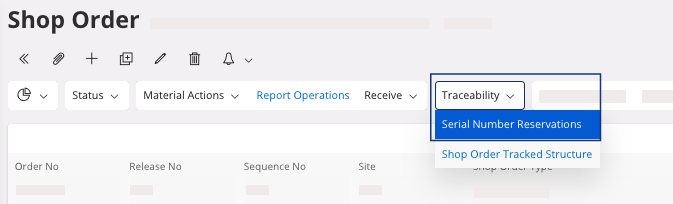
A new pane appears. -
In the Serial Number
Reservations
pane:
-
When you have assigned a serial number for the shop order, click
Save.
Note:You must reuse the serial number from the main component. This action helps keep track of serialized components used and ensures consistency in the final product's serial number.
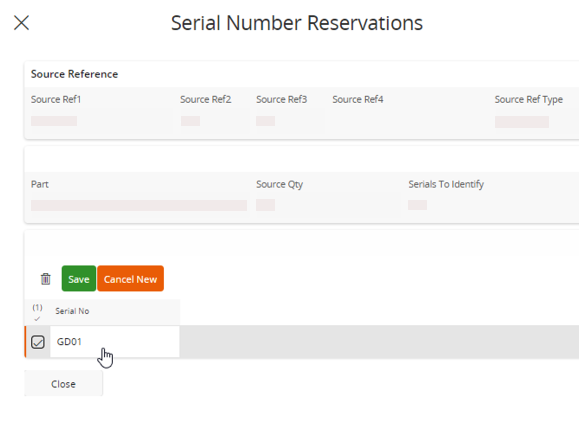
In the example below, the main component of the order picked in the stock has the serial number GD01, so we assign the same serial number to deliver on our customer order.
-
When you have assigned a serial number for the shop order, click
Save.
-
In the header, click
Receive Shop Order pane appears.
-
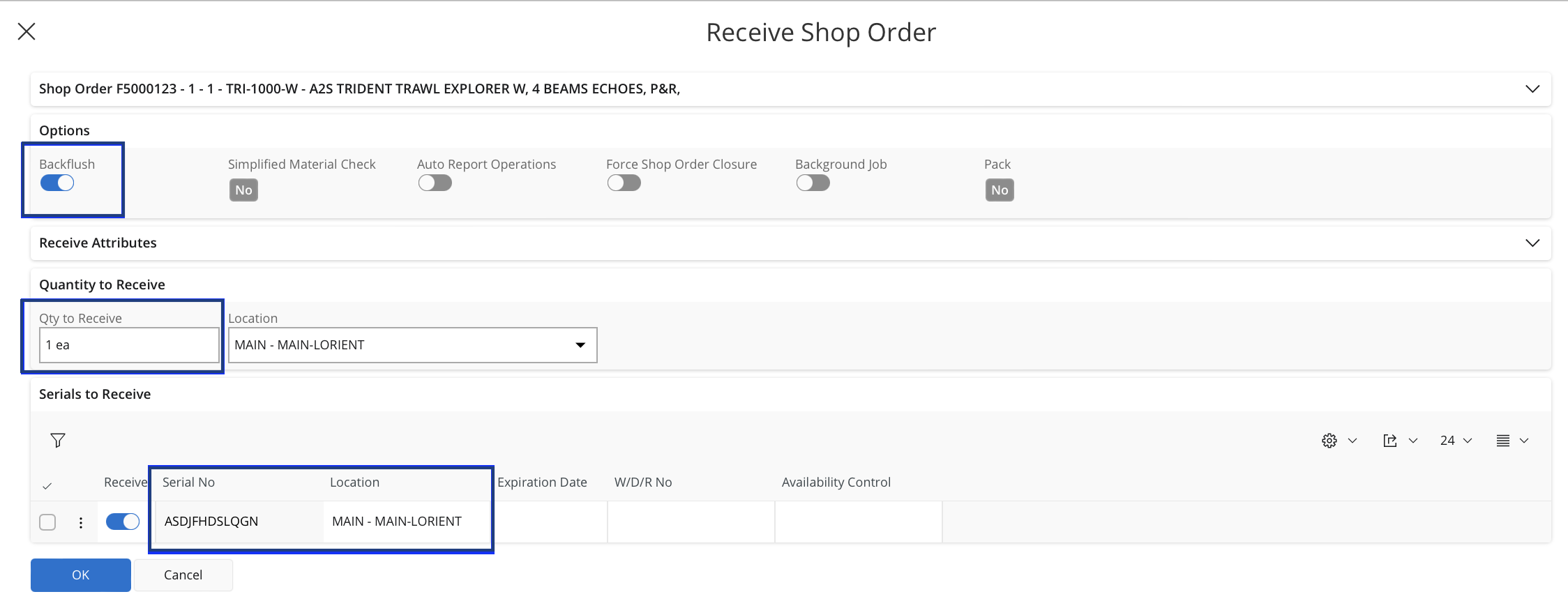
Complete the following fields:
- In Options, select Backflush: it automatically adds parts without serial numbers that are needed in your shop order.
- Quantity to Receive: Qty to Receive must correspond to the quantity of parts in your shop order.
- Serials to reserve: you can find your Serial No and its Location for this new part manufactured.
-
Click OK: your shop order
status changes to Closed.
Going back to your initial Customer Order, the line linked to your shop order has a Reserved status.Remember:Click the Airmar button at the top of the page to access the next process pages directly.
If you have an invent order in your customer order, you also need to reserve it. Perform Reserving an Invent Order.
If you finished your reservations, you need to deliver your customer order: perform Delivering a Customer Order for a delivery without specificity or Delivering a Customer Order with Shipment Details if you want to deliver with specific shipment details like handling units.