
Settling Available Transactions in the Account
You can match your lines one by one directly with the open invoice(s). The lines must reflect what have been received from your bank account.
Note:
You can register on the same mixed payment: supplier,
customer and direct cash payments.
-
On the Transactions tab, click the three
dots
 and click Edit
Transactions.
and click Edit
Transactions.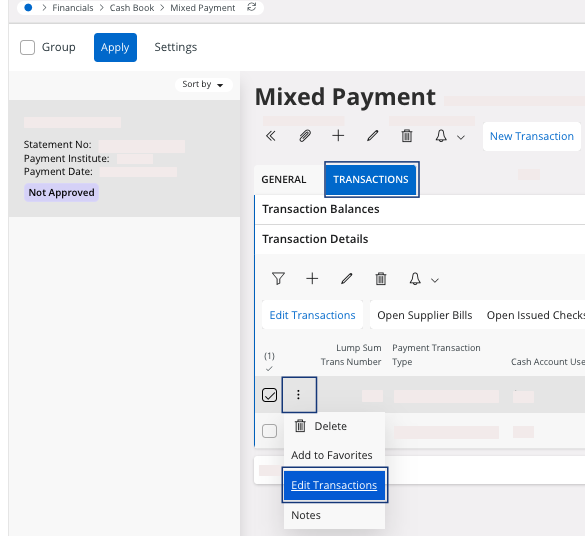
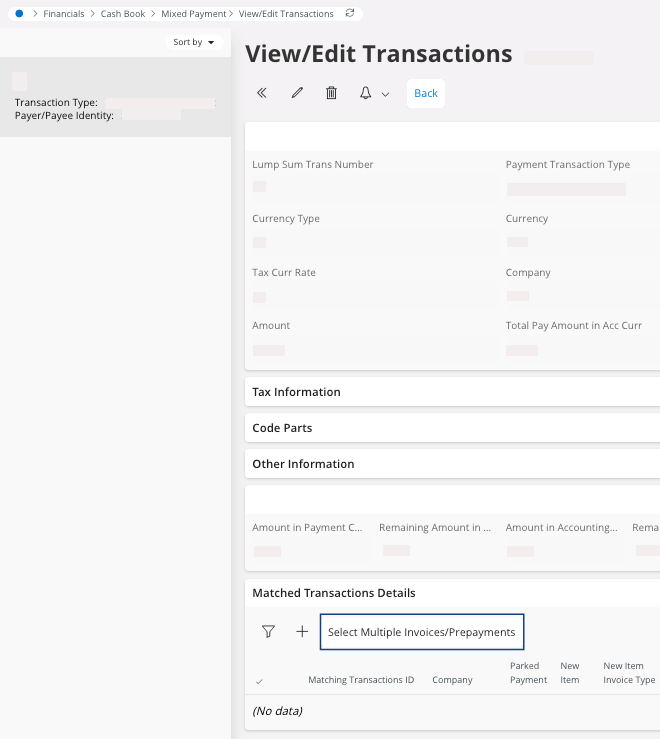
The View/Edit Transactions page appears. -
In the area Matched Transactions
Details, click
Select Multiple
Invoices/Prepayments.
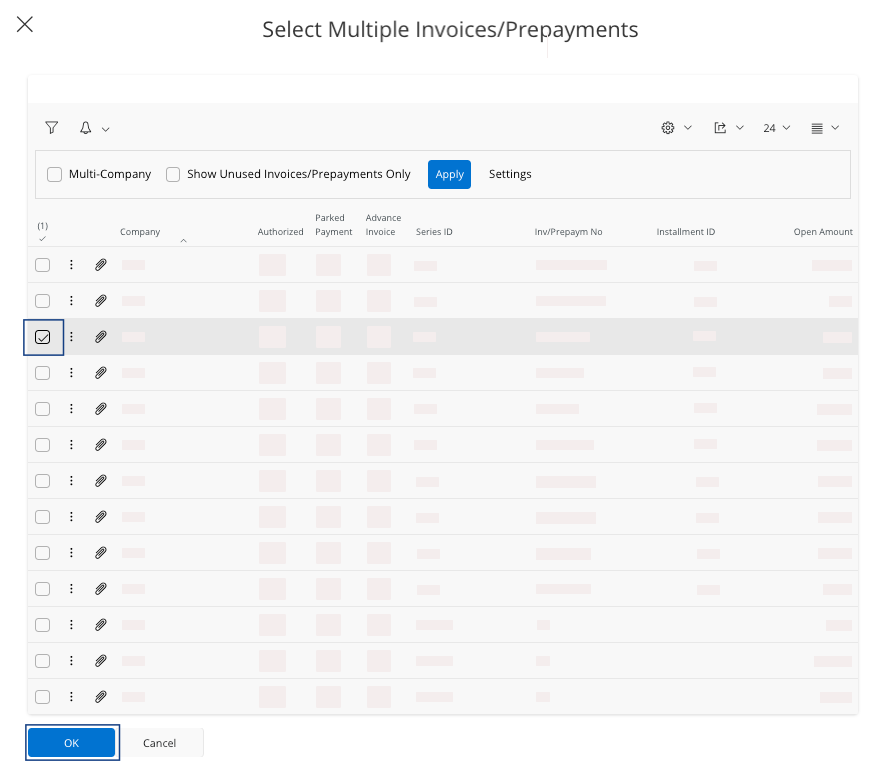
A pane appears. -
Select the line(s) that you want to link your payment
with, and click OK.
-
To perform a partial payment for this invoice, you need to change a field. On
the page View/Edit
Transactions,
in the area Matched Transactions
Details:
-
Click Edit
 .
.
- Change the field Pay Amount in Pay Curr with your correct payment amount.
-
Click Edit
-
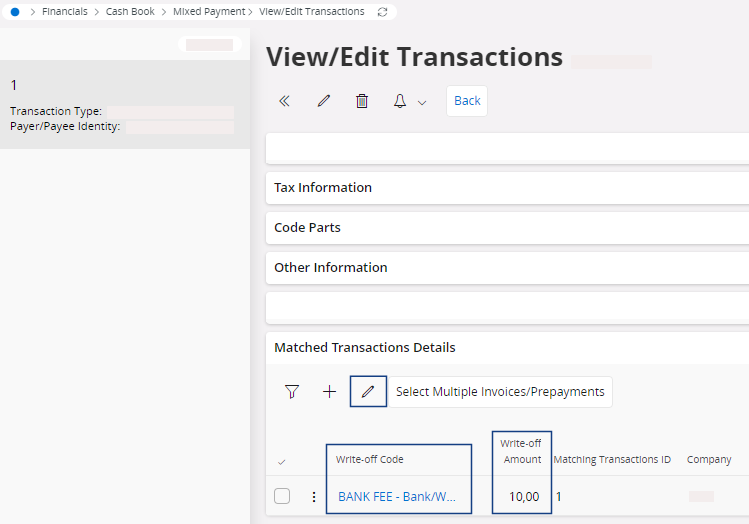
In some specific situations, you could have to write off amounts. For example,
to exclude the bank fees of the payment. On the page View/Edit
Transactions, in the area
Matched Transactions
Details,
you need to fill the fields:
- Write-off Code with the reason of the write off.
- Write-off Amount with the amount associated.
-
To go back to your mixed payment: click Back.
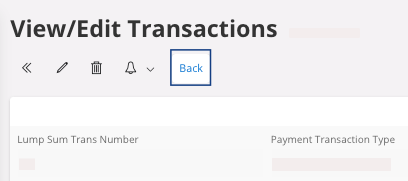
- Perform the same process for your other Transactions lines.
-
To approve your mixed payment, in the header,
click Approve.
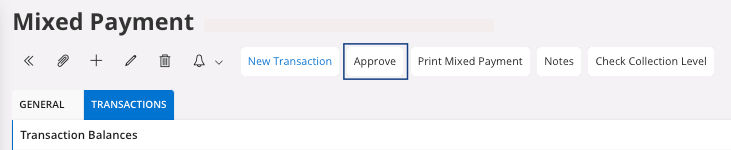
A new page appears, Voucher Information. - Take note of the Voucher Information, and click OK.