
Adding a Financial Invoice with Different Tax Amounts
You need to perform a specific process if your manual supplier invoice has more than one tax amount.
If not, you can start the creation of your new manual supplier invoice:
- Go to .
You need to complete the Header
Information:
-
Select your Company and the Supplier of the invoice.
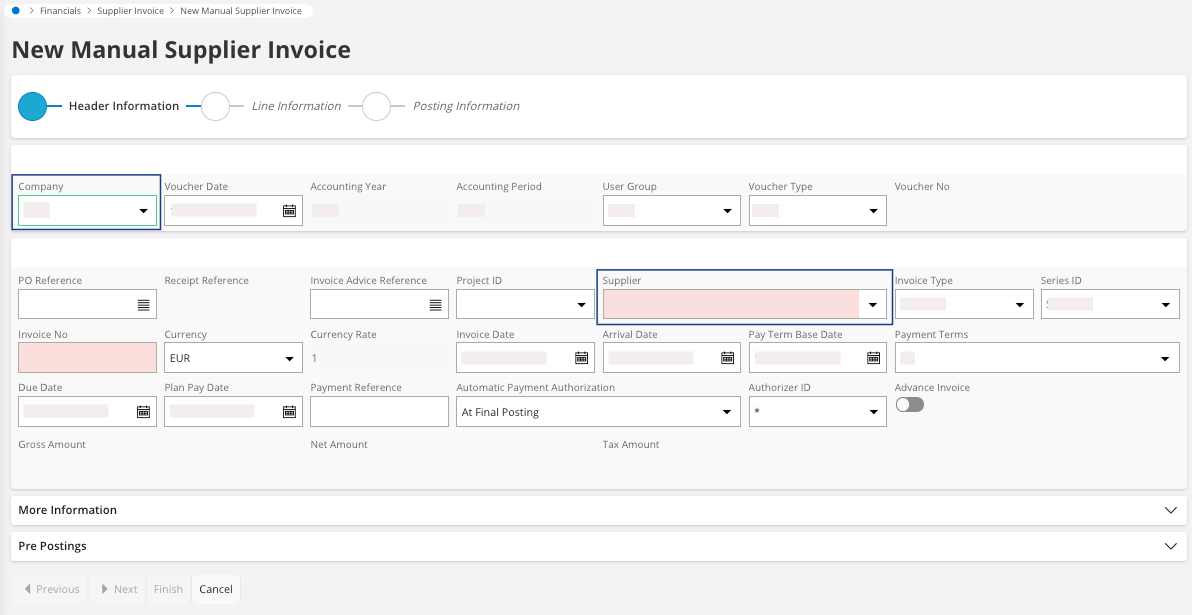
If they have been correctly configured, the fields linked to the company and the supplier appear automatically. -
Check and fill the various information
linked to the supplier: Invoice No, Invoice Date, Payment Terms, Due Date, Authorizer ID, etc.
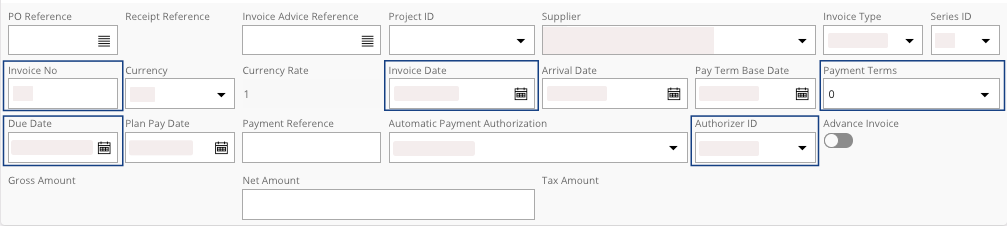
-
Insert the Net Amount: the
amount of the invoice without the tax amount. The Tax Amount is filled automatically but
in this case, you have several tax amount so you need to correct it to
correspond to your invoice.
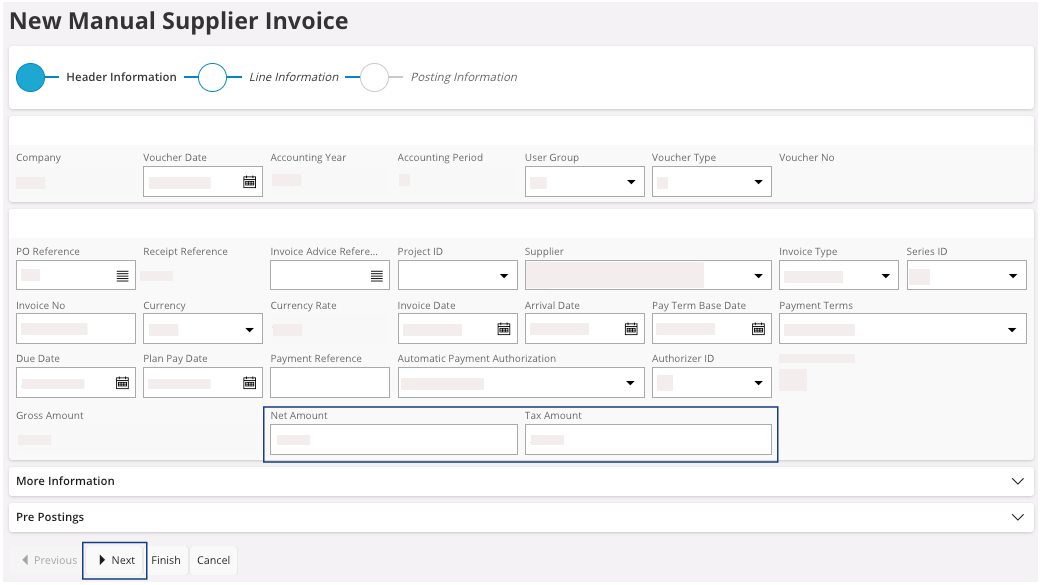
-
Once you have filled and checked all the fields, click
Next.
You move to the Line Information section.
-
Click New + to add a
line.
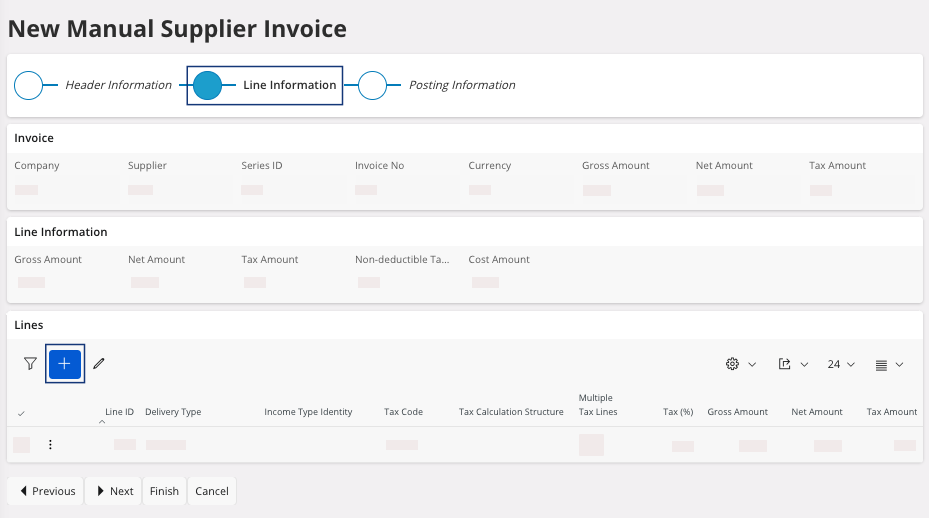
-
Add as many lines as you have different Tax Code.
Note:Pay attention to put the right amount for each Tax Code.
- Click Done above your lines.
-
Click Next.
You move to the Posting Information section.
-
Click New + to add lines.
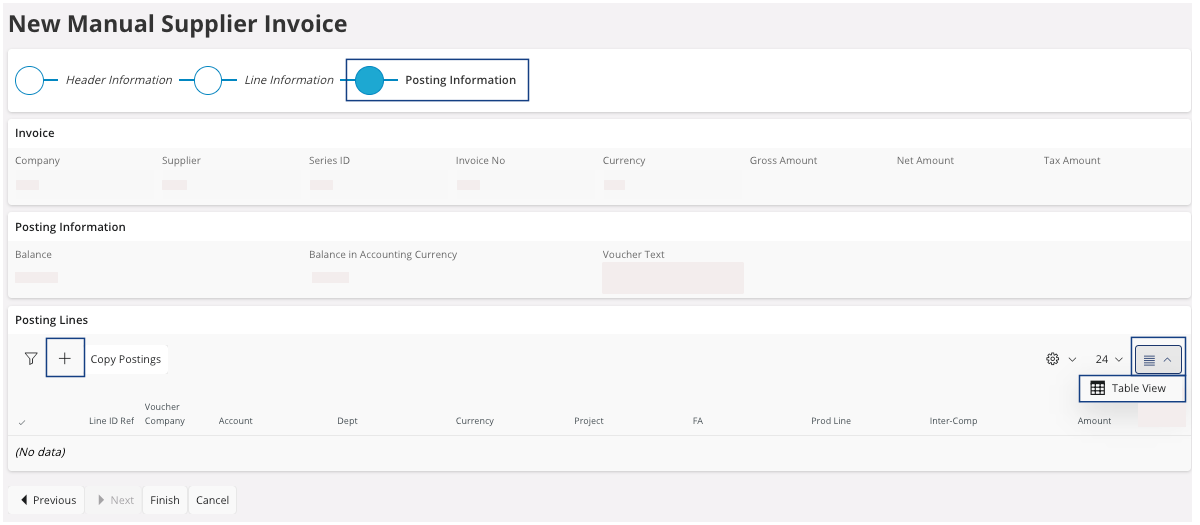
Tip:You can click Table View to display all your records. - Change the Tax Code and the Amount for each line.
- Click Done above your lines.
- The Account, Dept, Currency and Prod Line should filled automatically with the supplier information if it has been correctly created. Otherwise, complete the fields.
-
Click Finish.
If the tax amount entered in the header does not match the invoice line total entered, a dialog appears and ask you if you want to change the value of the tax amount. Click Yes and change it.