
Assigning Items to Handling Units
Once you have created the handling units, you need to attach the parts that you added in your shipment, to one or different handling units.
-
On your page Shipment Handling
Unit Structure, on the
left section, click Expand to
see your different handling units available.
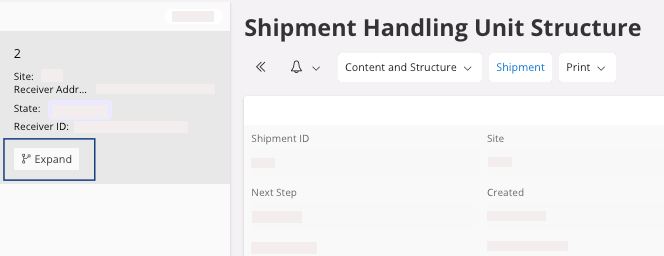
- Click a handling unit to select it.
- Click the tab Unattached Shipment Lines. You see all the items of the customer order added in the shipment that are not attached to any handling units yet.
-
Select the line of the customer order and click Attach Part.
A new pane appears.
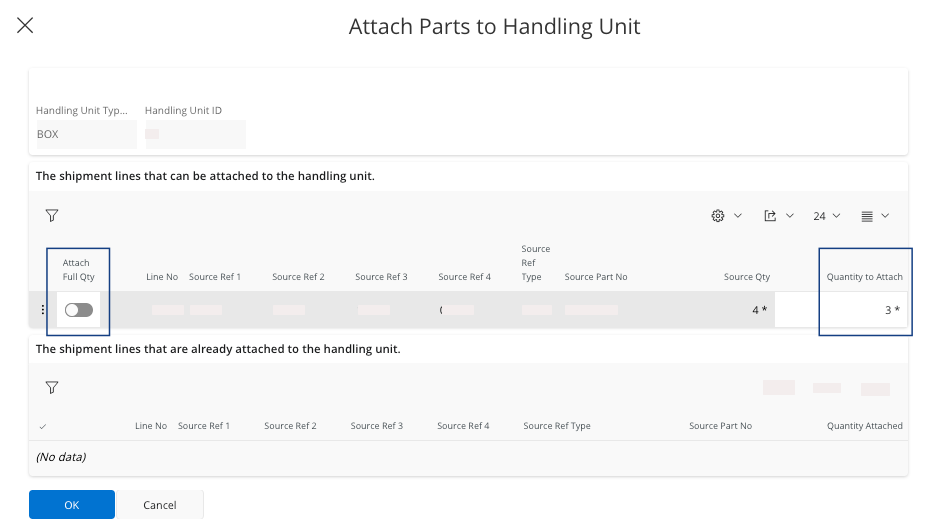
- If you want to attach all the parts of the order to the handling unit, pay attention that the button Attach Full Qty is selected and click OK.
If you do not want to attach all the parts to a same handling
unit:
-
Deselect Attach Full Qty and
select the Quantity to
Attach you
want to put in the selected handling unit.
If you are doing partial attachment of serialized parts to your handling
unit, a new pane, Attach
Reservation
appears automatically.
-
You have to choose which serialized part(s) available in the customer order you
want to put in the selected handling unit:
-
Select the button Attach to select the part you want to attach to the handling unit.
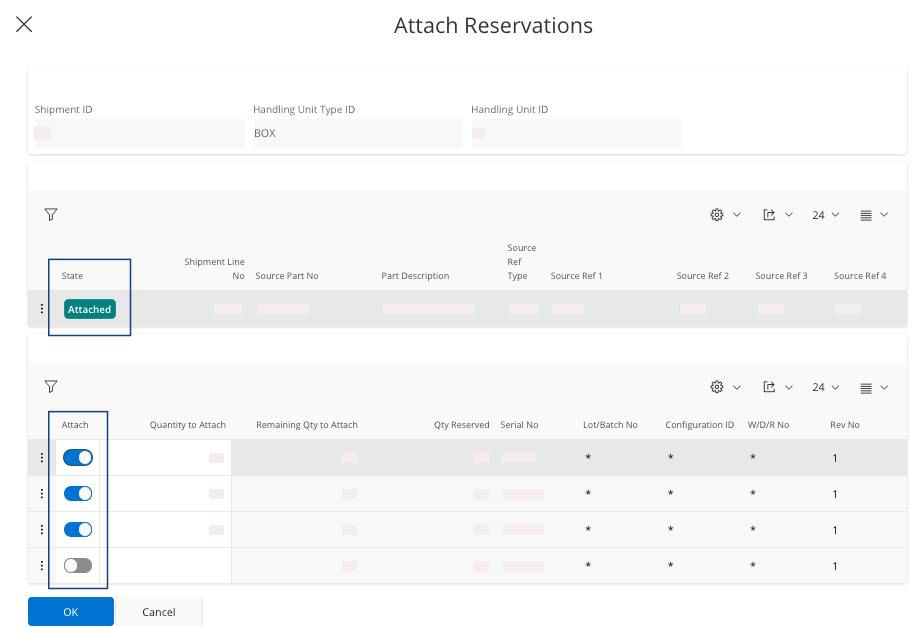
Note:The State change from Not attached to Attached.
-
Select the button Attach to select the part you want to attach to the handling unit.
-
You can reassign an handling unit to another handling unit as parent. For
example, one pallet can contain two boxes. You can:
- Click
 and drag & drop one handling
unit to another.
and drag & drop one handling
unit to another. - Or in the tab Handling Units:
- Select your line and click the three dots
 , click Change Parent Handling
Unit ID.
, click Change Parent Handling
Unit ID. - A new pane appears, in the field New Parent Handling Unit ID, choose the number of the new parent.
- Click OK.
- Select your line and click the three dots
- Click
- Perform the same process for all the handling units created.
- If you need to change the weight and volume of the handling units before finalizing the shipment, perform Changing the Weight and Volume of Handling Units.