
Doing a Full Delivery While Keeping the Customer Order Open
You can deliver all the parts of a customer order, but keep it open in case other lines are added to the order later on.
Keeping the Customer Order Open
- Go to .
- Choose your customer order and click New + to add a new line.
-
Complete the line:
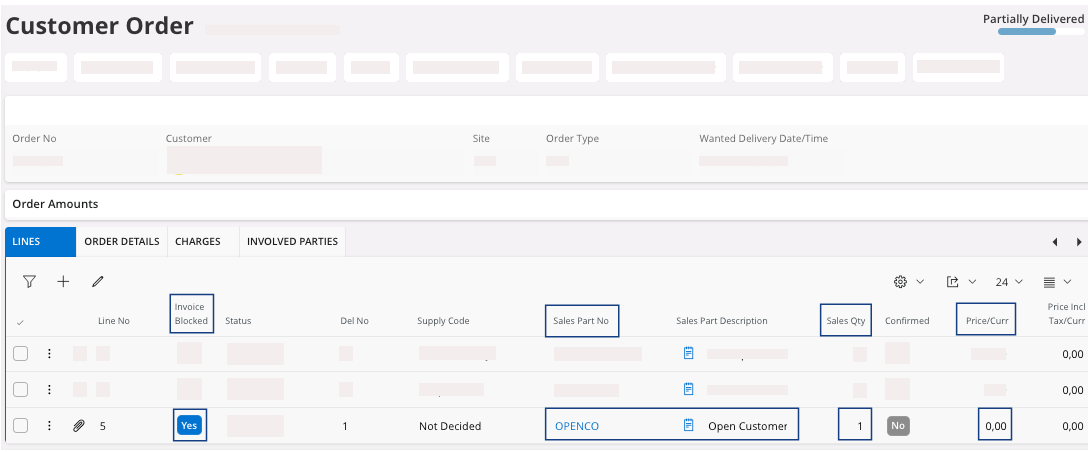
- Add a non-inventory sales part: in the field Sales Part No, select OPENCO which is a sales part created specifically to keep a customer order open.
- In Sales Qty enter 1.
- Select Invoice Blocked.
- Check that the Price/Curr is 0.
- Click Save.
Important:If you keep a customer order open, make sure to close it once the order is finalized. We recommend to periodically control these lines.If you want to close your customer order, perform Closing the Customer Order.
- Then you can deliver your customer order. Go to .
-
On your lines, click the three dots
 and
click Deliver.
and
click Deliver.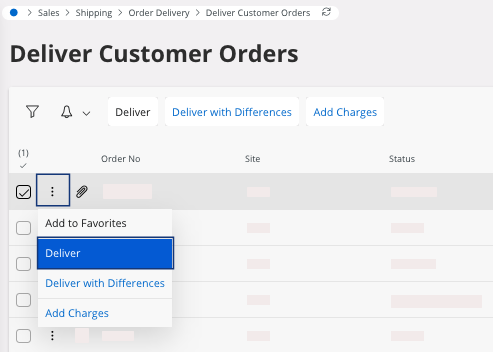
Your lines have been delivered except the OPENCO line. Your customer order status changes to Partially Delivered.Note:If you made a mistake or want to change data after the delivery in IFS Cloud but before the physical delivery, see Undoing a Customer Order Delivery.
Closing the Customer Order
Note:
Do not perform this process
if you want to do changes in the future.
-
On the page Customer Order,
select the line OPENCO and
click the three dots , then click .
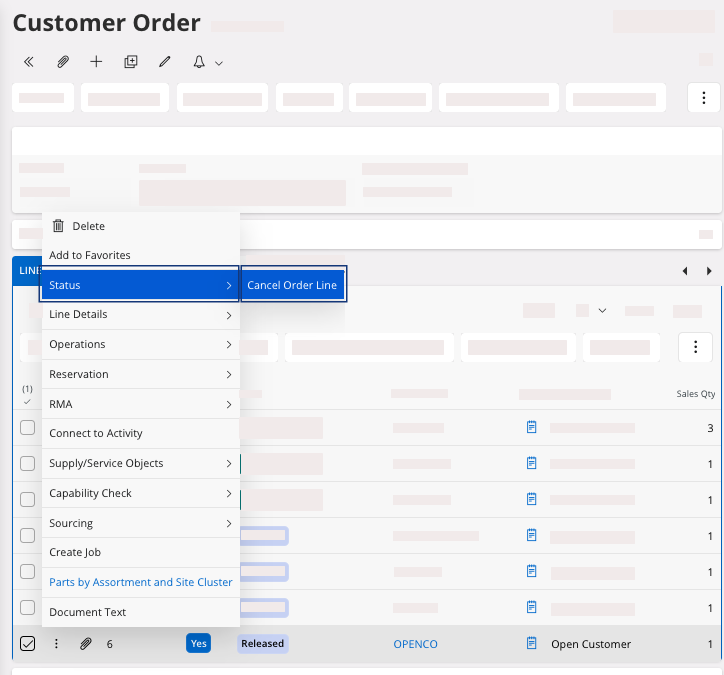
A pane appears. -
Add the cancellation reason: Not Needed and click Proceed.
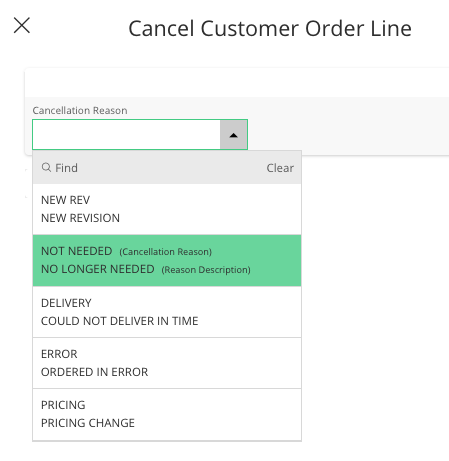
Your line get the status Cancelled.
Remember:
Click the Airmar button at the
top of the page to access the next process pages
directly.