
Printing a Delivery Note for a Deliver Order
Once your customer order has been delivered in IFS Cloud, you can print a delivery note to send with the physical delivery.
-
Go to .
Note:If a configuration has been done on a specific printer on your office, you may have already the version printed on your local printer.
-
Filter your page with the Order No of your customer order to find the delivery note(s) linked. Then on your
line, click the three dots
 and click Print.
A pane appears.
and click Print.
A pane appears. -
You have several options:
- Preview button: to do before
printing. Click Preview: the
document appears on your screen. From here, you can check your information,
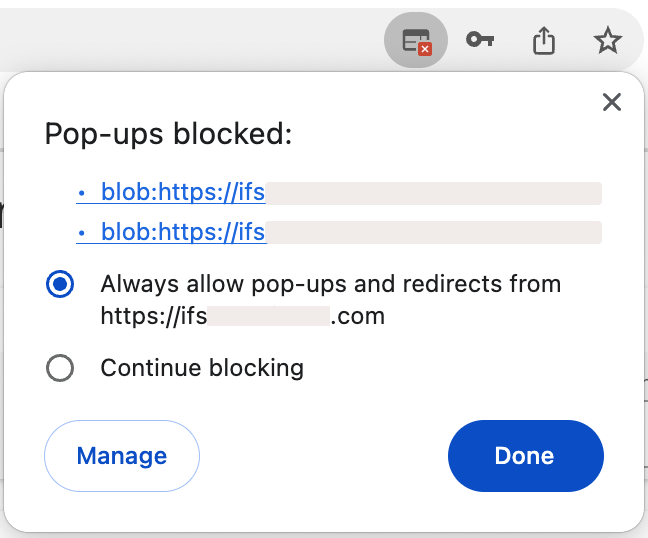
print your document or keep it on your computer in PDF.Trouble:If the preview is not displayed, your browser might block your pop-ups. Check your authorization in your browser settings.
- Print: if you want your document on paper, choose your printer, or if you want to keep it on your computer in PDF, choose IFS PDF Archiver.
- Email: fill in or check the email address and send it.
- Preview button: to do before
printing. Click Preview: the
document appears on your screen. From here, you can check your information,
print your document or keep it on your computer in PDF.
Remember:
Click the Airmar button at the
top of the page to access the next process pages
directly.