
Creating a Purchase Order Template
If you frequently create purchase orders with the same items, you can use a template to automatically fill in a new purchase order.
- Go to the page Purchase Order Template.
-
Click New
 to create a new template.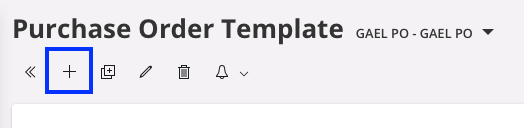
-
Enter a Template ID, Description, Supplier and Site and click Save.

-
To add parts to the template:
-
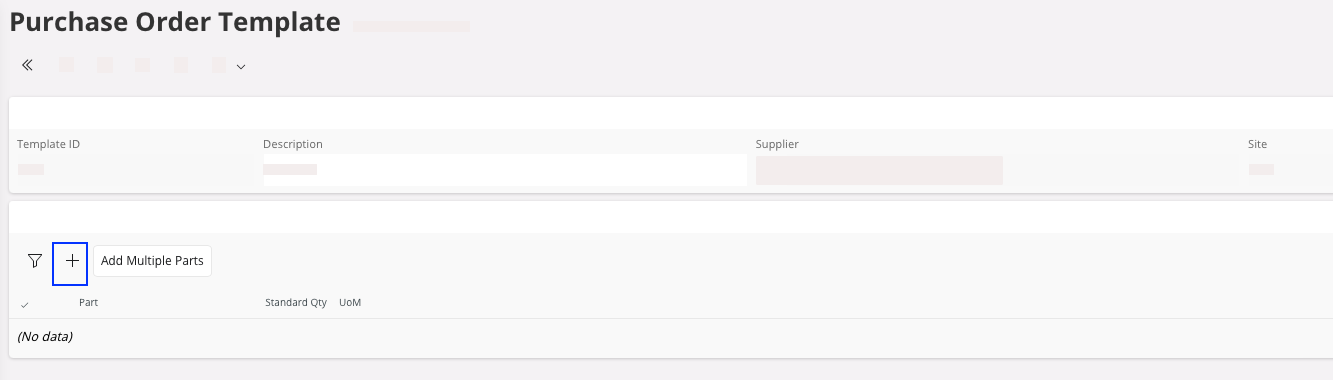
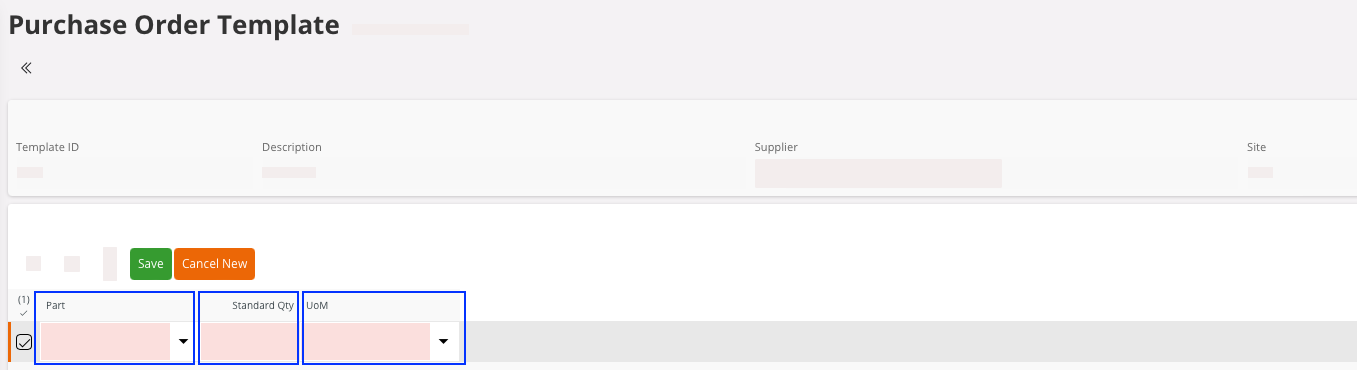
To add parts one by one, click New
, then choose the part and
quantity.
-
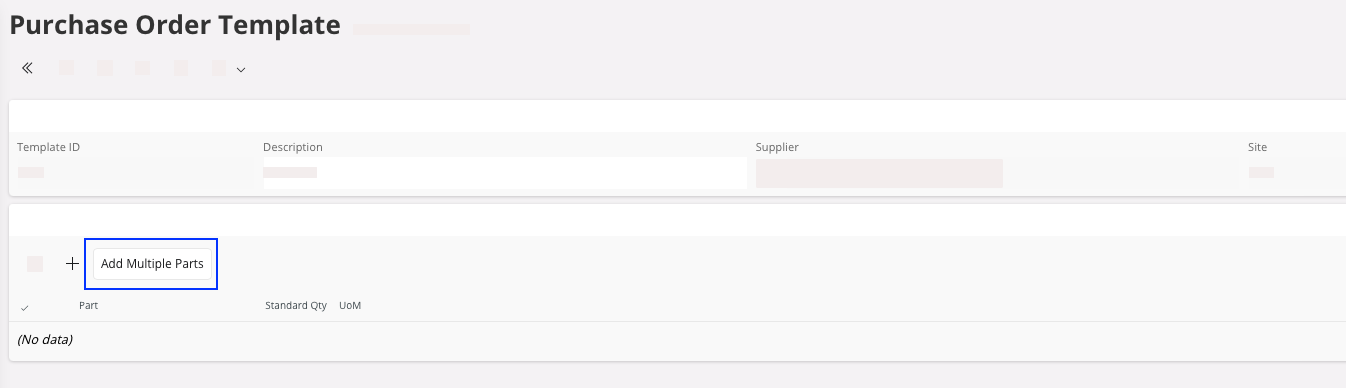
To add several parts at once, click Add Multiple
Parts, then select
the parts and their quantity.
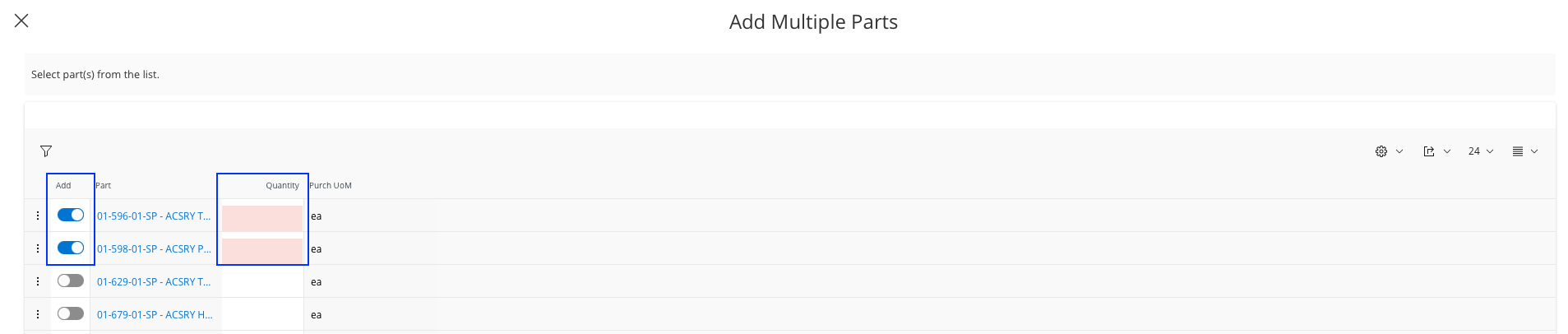
Once you have added the parts, the template is created. -
To add parts one by one, click New
-
To access the template afterward:
-
Once created, go to the Part Lines tab and click
Create Lines from
Template.
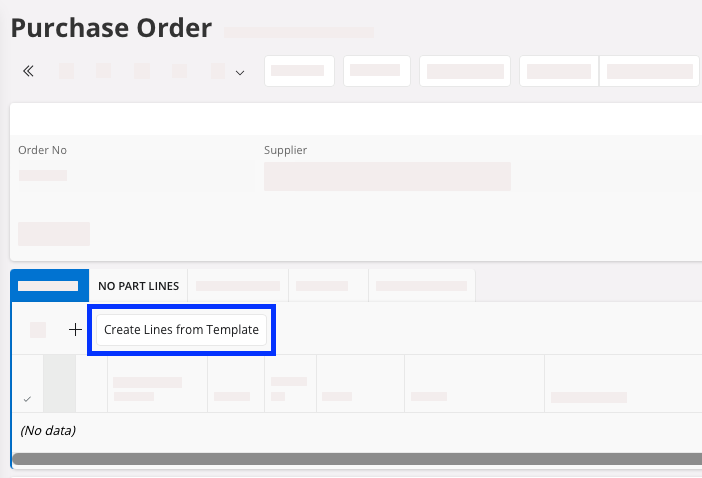
-
Select the Template ID
of the template you created. The part lines are displayed.
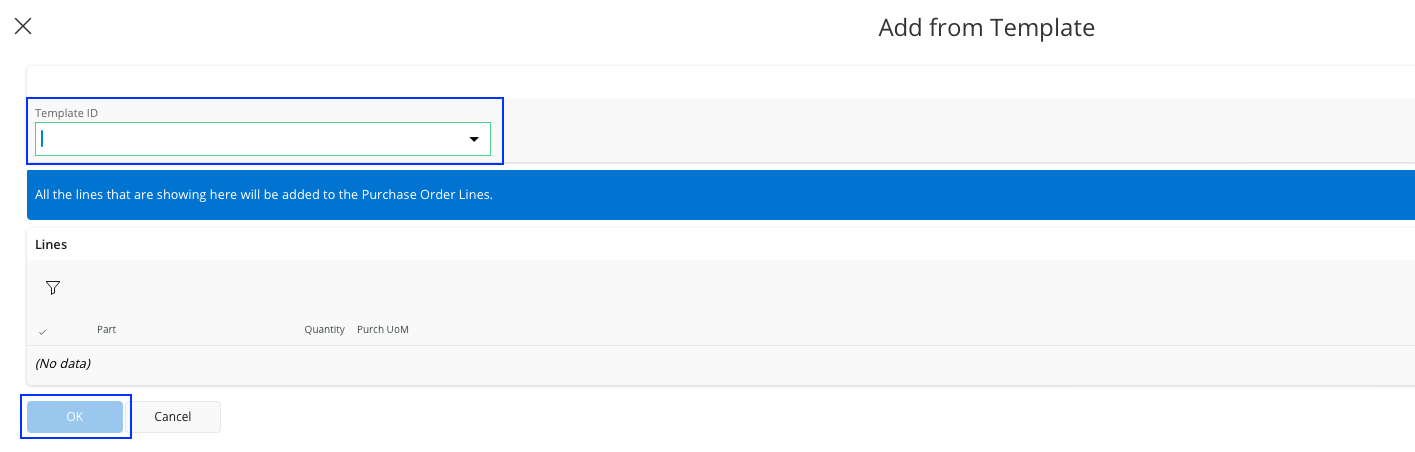
-
Once created, go to the Part Lines tab and click
Create Lines from
Template.