
Matching the Purchase Order Lines to the Invoice Lines
- In the page Manual Supplier Invoice, in the header, click Posting Proposal.
The Posting
Proposal page is
composed of four areas:
Invoice header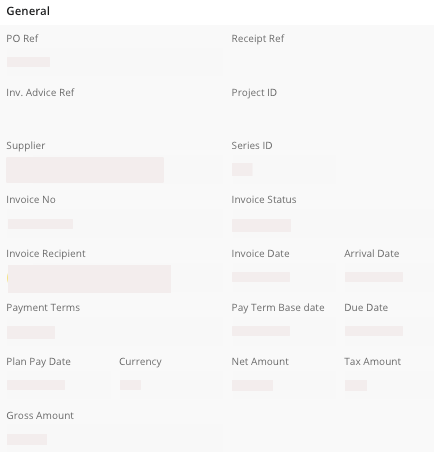 |
Authorize Summary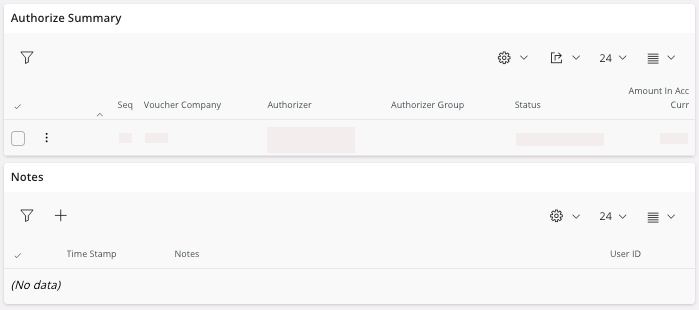 |
Invoice lines calculated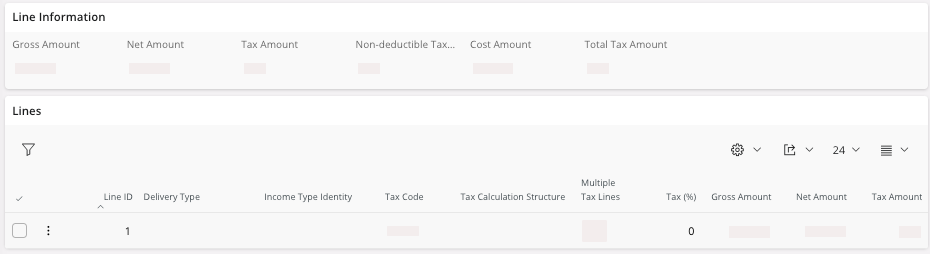 |
Accounting posting lines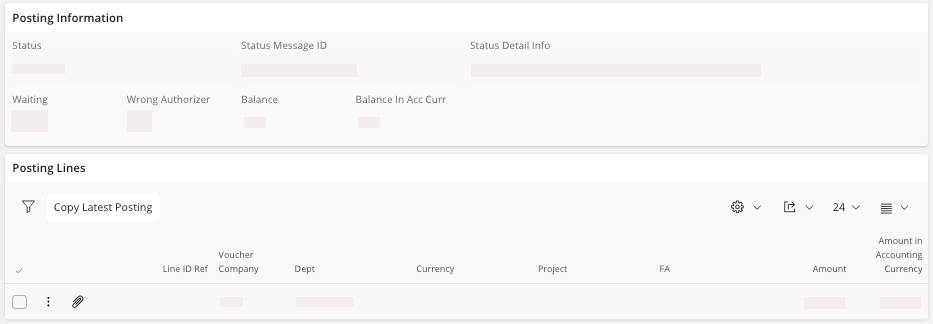 |
-
Scroll down to see your matched lines, in the area Posting Lines.
If you have no lines in the area Posting Lines, refer to The lines did not match automatically.
-
If the matching has been correctly done:
- In the area Posting Information, the Status Message ID is Posting proposal is fully authorized and ready for final posting.
- In the Authorize Summary area you should see the status Authorized.
It means that the invoice approval is automatic and you do not have to manually authorize it. You can perform Posting the Final Invoice. -
If the matching has not been completed, you can see in the area Posting
Information, the information
Status Message
ID and
Status Detail
Info:
- If the field Status Message ID shows the message Awaiting Authorization, it means there is no error in your invoice. You need to perform Approving the Invoice.
- If there is another message, it means there is an error between the lines of the invoice and the purchase order. You need to find which one through the Invoice and Purchase Order Discrepancies.

- If the invoice approval has been done automatically, you can perform Posting the Final Invoice.
- If you need to do the invoice approval, perform Approving the Invoice.
- If you have an issue with your matching lines, see Invoice and Purchase Order Discrepancies.