
A cost is missing in the purchase order lines
You want to add an additional cost.
Condition
You want to add a cost not registered in the purchase order.
Remedy
You need to add this cost in three areas of the Posting
Proposal: Posting Lines, Lines and General.
-
In the area Posting Lines:
-
Fill the fields:
Note:If you cannot see the field(s): click
 > Column Chooser > Configure columns
manually and choose the fields that you want to
display.
> Column Chooser > Configure columns
manually and choose the fields that you want to
display.- Account.
- Debit Amount.
- The Tax Code with the correct VAT setup.
- You can fill the Dept, Prod Line and Project fields.
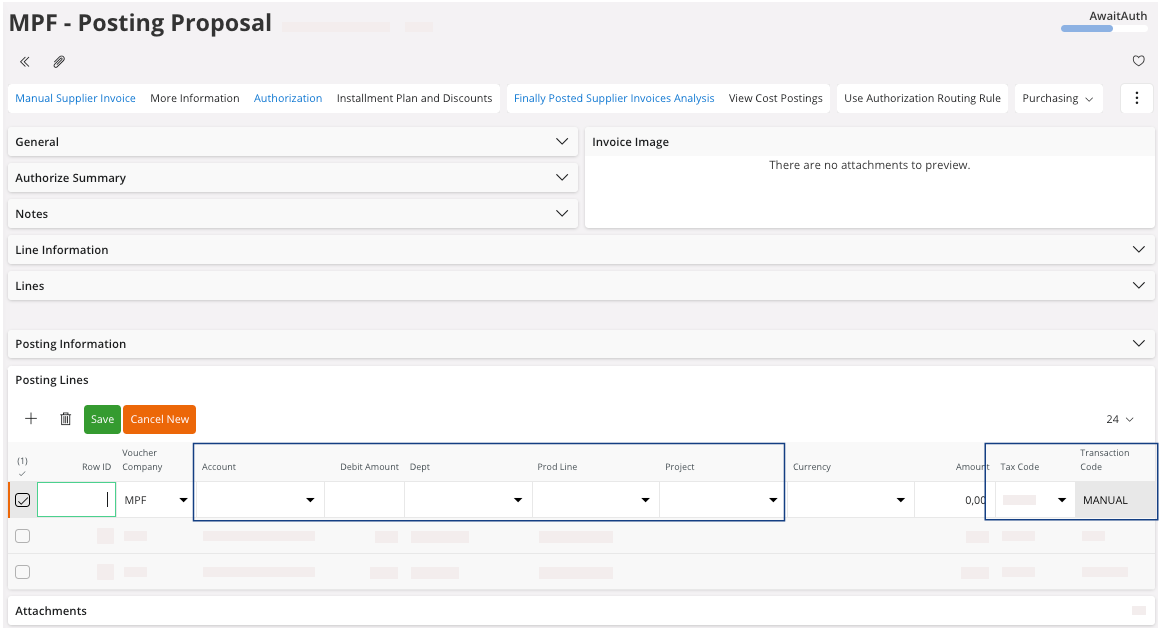
Note:The Transaction Code field is automatically Manual as this line does not come from the purchase order lines.
-
Fill the fields:
-
In the area Lines, you
also need to add a line and fill the fields:
-
Cost Amount.
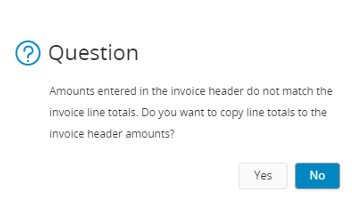
Note:The following dialog can appear. If you want to copy the line that you just created in the area General, click Yes. Otherwise, you need to create it manually.
-
Cost Amount.
-
If you did not click Yes and automatically add it, in the area General, you need to perform
the same process as in the two others areas: add a new line and fill the
fields Tax Code and
Cost Amount.
In the Posting Information area, check the Status Message ID, if you do not have any issue, you can perform Approving the Invoice.